JupyterHub in Ilum
Enterprise Feature: JupyterHub is an enterprise feature in Ilum and requires a valid enterprise license to function. It will not work with the standard open-source license.
Table of Contents
- Overview
- Architecture
- LDAP Authentication and Authorization
- Gitea Integration (Version-Controlled Notebooks)
- Deploying JupyterHub via Helm (Configuration & Secrets)
- Gitea Operator Inside JupyterHub (DevOps Details)
- First-Time Login Guide for Users
Overview
JupyterHub in Ilum provides a multi-user Jupyter notebook environment tightly integrated with the Ilum platform. It allows multiple users to log in and spawn their own isolated Jupyter instances on a Kubernetes cluster, all managed by a central JupyterHub service. Unlike a standalone JupyterLab (which is a single-user web-based IDE for notebooks), JupyterHub acts as a multi-user orchestration layer. Each user who logs in gets a dedicated JupyterLab server (their personal workspace) running inside the cluster, while JupyterHub handles authentication, spawning, and resource management centrally. This means data science teams can share a common infrastructure but still work in separate notebook environments.
Key features JupyterHub adds inside Ilum include:
-
Multi-user Support: Users authenticate (via LDAP credentials) and each receives an isolated Jupyter workspace running in a Kubernetes pod. JupyterHub manages these user pods and ensures they are securely separated. This eliminates the need for local Jupyter installations and lets organizations host notebooks for many users in one place.
-
Spark Integration: Ilum’s JupyterHub comes pre-integrated with Apache Spark. Each environment is configured with Sparkmagic and connects to the Ilum Spark cluster through the Ilum Livy-proxy service. This means you can run Spark jobs directly from your notebooks, using Sparkmagic magics (
%manage_spark,%%spark) to create and manage Spark sessions. The Spark jobs execute on the cluster (not on the notebook container), leveraging Ilum’s interactive Spark session backend. By using Ilum’s Livy-compatible API, Jupyter can run heavy Spark computations while offloading the work to the Spark cluster, seamlessly integrating big data processing into your notebooks. -
Built-in Version Control with Gitea: Every user’s notebook workspace is backed by a personal Git repository on Ilum’s integrated Gitea service. On first login, a repository is automatically created and initialized with template notebooks and directory structure. Users can version their code, track changes, and collaborate by pushing commits to this repo. This Git integration is unique to Ilum’s JupyterHub setup – it ensures that notebook content isn’t just saved on a disk, but is also version-controlled and accessible through a Git web interface.
-
Differences from Standard JupyterLab: From an end-user perspective, working in JupyterHub’s interface will feel the same as regular JupyterLab (you can write code, execute cells, install packages, etc.). However, under the hood JupyterHub adds enterprise features: central authentication, multi-user isolation, shared resource management, and integration with other Ilum services. In Ilum, JupyterHub is not just an editor – it’s part of a larger ecosystem that includes LDAP-based access control, shared Spark clusters, and DevOps-managed infrastructure. This contrasts with a standalone JupyterLab where you operate on local resources with a single user context. In summary, JupyterLab is the user interface, whereas JupyterHub is the service that makes it multi-user and connected to Ilum’s cluster resources.
Architecture
Architecture of JupyterHub integration in Ilum.
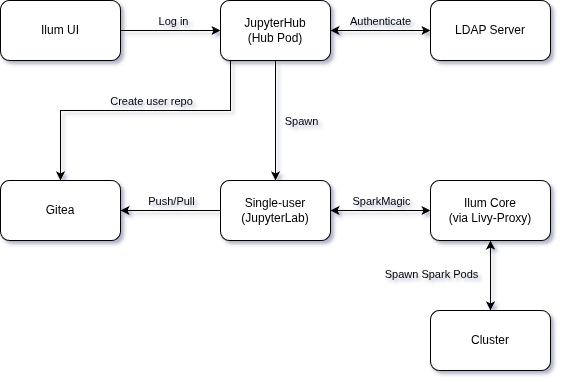
The diagram above illustrates how JupyterHub in Ilum connects to various components:
-
JupyterHub Service (Hub Pod): The central Hub runs in the Kubernetes cluster as part of Ilum. It includes the JupyterHub process and a custom Gitea Operator inside JupyterHub. The Hub is configured to use LDAP for authenticating users, and spawns user notebook servers on-demand.
-
Single-user Server (JupyterLab Pod): When a user logs in, JupyterHub launches a dedicated pod running a single-user Jupyter server for that user. Users interact with this Jupyter interface to run notebooks. Each user pod is isolated and has access only to that user’s data (including their Git repo and any persistent volume for notebooks).
-
LDAP Server (Authentication & Authorization): JupyterHub requires an external LDAP directory (or an LDAP service deployed alongside Ilum) for user authentication. When a user attempts to log into JupyterHub, the Hub communicates with the configured LDAP server to verify the username and password. Only users who pass LDAP authentication (and meet certain group membership criteria, if set) are allowed in. In effect, LDAP acts as the single source of truth for user identities and credentials across Ilum services.
-
Gitea Git Service (Version Control): Ilum includes an internally hosted Git service (Gitea). JupyterHub’s Gitea Operator monitors the cluster for events such as new user pods starting. On a user’s first login, the operator uses Gitea’s API to provision a Git repository and team for the user. The user’s notebook pod will then perform an initialization sync: it uses Git (over HTTP) to pull in template notebooks from the new repo. This sync uses the user’s LDAP credentials or a configured service account to authenticate to Gitea. After initialization, the user’s environment has a checked-out copy of their repository (with starter notebooks in place), and any changes the user makes can be committed and pushed back to Gitea. (Details in Gitea Integration section below.)
-
Ilum Core Services (Livy-Proxy API): Ilum's core (the central management component of Ilum) provides an API for interactive Spark sessions, exposed via the Ilum-Livy-Proxy service. Jupyter notebooks communicate with this service when the user runs Spark code. The Sparkmagic extension in Jupyter is preconfigured with an endpoint pointing to the Livy-proxy (
http://ilum-core:9888internally). When a user creates a Spark session from the notebook, Sparkmagic contacts Ilum's Livy-proxy, which in turn instructs Ilum Core to launch a Spark driver (and executors) for that user's session. The Spark jobs then run on the Spark Cluster. Ilum Core manages these Spark pods and links them to the user's context. In practice, this means a user can click "Create Spark Session" in Jupyter and behind the scenes a full Spark context is provisioned on the cluster – all without leaving the notebook interface. -
Ilum UI and Other Services: JupyterHub is integrated into the Ilum UI as a module. For example, from the Ilum web interface, you can navigate to Modules > JupyterHub to open JupyterHub. The Ilum UI can optionally proxy to JupyterHub so that users who are already logged into Ilum can quickly reach the Jupyter interface. (By default, JupyterHub has its own login page and session management distinct from the Ilum UI – though using the same LDAP backend for credentials.)
In summary, the JupyterHub in Ilum sits at the crossroads of authentication (LDAP), data & code (Gitea), and compute (Spark via Ilum Core). The architecture ensures that when a user starts a notebook: they are validated against a central directory, given a ready-to-use notebook environment with version control, and have one-click access to distributed computing power.
LDAP Authentication and Authorization
Ilum’s JupyterHub uses LDAP for both authentication (verifying user credentials) and authorization (controlling who can access the service). This means that users must have an account in the configured LDAP directory, and JupyterHub will bind to LDAP to check the username/password at login time. There are a few important aspects to how LDAP integration is set up in Ilum:
-
LDAP is Required: You must have an LDAP server configured for JupyterHub to function in Ilum. Ilum does not support JupyterHub with simple internal accounts or OAuth at this time – the hub is tightly integrated with LDAP for consistency with enterprise deployments. If you don’t already have an LDAP server, you can deploy one (for example, an OpenLDAP instance) as part of your Kubernetes environment. In fact, Ilum’s Helm charts allow you to deploy a test OpenLDAP as a dependency in non-production setups. See the LDAP Security documentation for a comprehensive guide to setting up LDAP, including sample LDIFs and Helm values.
-
Helm Configuration for LDAP: All the connection details and queries for LDAP are provided via Helm values. At minimum, you will need to set:
- The LDAP server URL(s) and base DN.
- A bind DN and password (if your LDAP requires a service account to search).
- The search base and filter for users, and the attribute to use as the username.
- The search base and filter for groups (if using group-based restrictions).
For example, to enable LDAP in Ilum, you might include parameters like the following in your Helm upgrade/install command (this example uses placeholder values):
helm upgrade --install ilum ilum/ilum \
    --set ilum-core.security.type="ldap" \
    --set ilum-core.security.ldap.urls[0]="ldap://ilum-openldap:389" \
    --set ilum-core.security.ldap.base="dc=ilum,dc=cloud" \
    --set ilum-core.security.ldap.username="cn=admin,dc=ilum,dc=cloud" \
    --set ilum-core.security.ldap.password="<bind-password>" \
    --set ilum-core.security.ldap.userMapping.base="ou=people" \
    --set ilum-core.security.ldap.userMapping.filter="uid={0}" \
    --set ilum-core.security.ldap.groupMapping.base="ou=groups" \
    --set ilum-core.security.ldap.groupMapping.filter="(member={0})"
In the above, security.type="ldap" switches Ilum to LDAP mode, and the other values supply the connection info and queries (UID filter, group filter, etc.). These should be adjusted to match your directory’s schema and structure.
-
Allowed LDAP Groups: Typically, you may not want every LDAP user to use JupyterHub, so Ilum’s JupyterHub supports restricting access to specific groups. You can configure an allowed groups list in the JupyterHub LDAP authenticator. This is done by providing the full DN of one or more groups; only users who are members of at least one of those groups will be able to log in. Technically, the Helm chart sets the
jupyterhub.hub.config.LDAPAuthenticator.allowed_groupsparameter with the group DNs you specify. For example, if you only want members ofcn=datascientist,ou=subgroups,dc=ilum,dc=cloudto access Jupyter, you would provide that DN. JupyterHub will then perform an LDAP query to ensure the logging-in user is a member of that group before allowing access. (If allowed_groups is not set, then any valid LDAP user can log in by default.) -
Mapping User Attributes: As part of LDAP integration, Ilum maps certain LDAP attributes onto the user’s Jupyter environment. For instance, the uid attribute is used as the JupyterHub username (and as the directory name for the user’s workspace). Attributes like full name (e.g. cn or displayName ) and email ( mail ) are pulled from LDAP and can be used for the user’s Git configuration and in the Ilum UI. Under the hood, Ilum’s configuration allows specifying which LDAP attributes correspond to Ilum user fields – e.g., mapping mail -> email, cn -> full name. When a user logs in, these mappings ensure that the Jupyter environment “knows” the user’s name and email. In practice, the JupyterHub spawner might set the Git client config inside the container using this info (so that any commits the user makes will carry their correct name/email). It also means the Ilum platform can show the proper identity for notebook servers.
The LDAP bind password and other credentials should be treated as sensitive secrets. It’s recommended to supply them via your Helm values (or a Kubernetes Secret) and not check them into source control. The example above shows --set ilum-core.security.ldap.password="psswd" for illustration, but in a real deployment you would use a secure value. Ensure your LDAP connection is secured (e.g., use LDAPS and provide the appropriate certificates as shown in Ilum docs for LDAPS configuration).
Finally, because JupyterHub is tightly coupled with LDAP in Ilum, if LDAP is not configured correctly, users will not be able to log in to notebooks. Always verify your LDAP settings by logging into the main Ilum UI first. Once Ilum core authentication via LDAP is confirmed working, JupyterHub should also be able to authenticate users (since it uses the same underlying config). If you need to troubleshoot JupyterHub LDAP issues, you can inspect the JupyterHub pod logs for authentication errors – it will typically log LDAP connection attempts and any filter mismatches.
For detailed LDAP configuration, see the LDAP Security documentation for comprehensive guidance on LDAP setup, including SSL/TLS configuration, attribute mapping, and synchronization options.
Gitea Integration (Version-Controlled Notebooks)
One standout feature of JupyterHub in Ilum is its built-in integration with Gitea, Ilum’s lightweight Git service. This integration ensures that every user’s notebooks and code are version-controlled from the moment they start using Jupyter. Here’s how it works and what happens on a user’s first login:
-
Personal Git Repository for Each User: On first login, the Gitea Operator (running inside the JupyterHub pod) will create a new repository in Gitea for the user. Typically, this repo is private to the user (though they could choose to share it later). The repository might be created under a particular Gitea organization or namespace designated for Ilum notebooks, or simply under the user’s account – but in either case, it’s the user’s personal repository for their Jupyter notebooks and files. For organizational clarity, the operator also creates a corresponding team in Gitea and assigns the user to it, ensuring that only that user (and admins) have access to the new repository. In effect, each user gets their own team and repo on the Gitea server on first login (this is done to encapsulate permissions – e.g., the team could correspond to an Ilum Group or just serve to isolate access)
-
Initial Notebook Templates: Ilum can pre-populate the new repositories with template content. The helm chart includes ConfigMaps or template files that contain starter notebooks, directory structure, and configuration files which are useful for new users. For example, you might find a
IlumIntro.ipynbnotebook, example Spark notebooks, or a specific folder layout as soon as you log in. These files come from a Kubernetes ConfigMap (defined in the Helm chart) and are copied into the JupyterHub environment during initialization. The Hub'sgit-init-repoinit container will perform a Git commit to add these templates to the user’s repo on first setup.
First Login Workflow
When a user logs into JupyterHub for the first time:
-
JupyterHub authenticates the user via LDAP.
-
The Hub spawns the user’s notebook pod. This pod starts up the single-user Jupyter server.
-
Simultaneously, the Gitea operator detects that a new Jupyter notebook pod was created (for a user that likely has no repo yet). It then calls the Gitea API (using a special admin account) to set up the repository and access rights for that user. (If the user does not yet exist in Gitea’s database, the operator may trigger the creation of the user account as well. In many cases, Gitea is configured with LDAP authentication too, so the user can use the same credentials on the Gitea web interface – but an initial entry might be created via API to attach them to the repo/team.)
-
Once the repo is created, an init process in the user’s pod syncs the content. Typically, this involves setting up Git inside the notebook container and cloning the empty repository from Gitea into the user’s workspace, then copying the template files into it, git add/commit, and pushing back to Gitea.
In either case, the user’s LDAP credentials are used for the Git operation (so that the commit is attributed to the user and the push is authenticated). Since Gitea is running internally, the Helm chart knows the Gitea service address (e.g., ilum-gitea-http:3000 ) and uses the provided Git username/password to perform the Git push. After this step, the user’s repository in Gitea is no longer empty – it contains the starter notebooks from the template. The user’s Jupyter file browser will show these files immediately, because they’ve been pulled into the pod’s filesystem. The user server finishes launching and the user can now interact with the notebook UI. From their perspective, they see a pre-populated workspace and can begin working with the provided examples or create new notebooks.
Ongoing Usage and Sync: After the first-time initialization, the repository belongs to the user. There is no continuous-forced sync from templates – the templates are applied only once. Users are expected to use Git to manage their work going forward. This means any new notebooks they create or changes they make are not automatically pushed to Gitea unless they commit and push. Ilum’s JupyterLab comes with the JupyterLab Git extension installed (accessible via the Git icon in the sidebar), which makes it easy to commit changes and push/pull within the Jupyter interface. Users can also open a terminal in Jupyter and use git commands manually. The remote origin is already configured to point to their personal repository on the Ilum Gitea server.
Collaborating and Sharing: By default, each user’s repo is private to them (plus any Ilum admin). If a user wants to share a notebook, they can grant access via Gitea (e.g., invite a collaborator to their repo or export notebooks). This tight integration of Git means best practices like code review and version tracking can be applied to notebooks.
Repository Structure: The exact structure of the initialized repo can be customized via the Helm values (using ConfigMaps or by building a custom Jupyter image). Common patterns are to include a folder for sample notebooks (e.g., work/ ). This gives new users guidance and ensures a consistent project structure across the organization.
Tip for Users:
After your first login, your notebook server is already linked to a Git repository.When you click the “Save” button in Jupyter, your changes are saved only to your personal persistent storage (PVC) on the cluster. This means that all edits and new notebooks remain available in your workspace, even if your server is restarted, as long as your user data is not deleted.
If you want to back up your changes to your Git repository (hosted on Gitea) or share them with others, you need to use the Git integration in JupyterLab:
- Open the Git panel (on the left sidebar).
- Stage the changes, add a commit message, and commit your work.
- Click “Push” to upload your commits to the central Git server.
Remember: Only files that have been committed and pushed to Git will be saved in your repository and backed up on Gitea. If your notebook server is ever deleted or you need to restore your environment, you can always pull your latest commits from the Git repository. Using Git also allows you to revert to earlier versions of your notebooks and collaborate with others via branches or pull requests.
In summary, Gitea integration in Ilum turns your Jupyter workspace into a version-controlled project repository from the get-go. This encourages reproducibility and collaboration, and it aligns with GitOps principles (even for notebooks). Data scientists can treat notebooks as code – committing changes, writing commit messages, and using branches or pull requests for major updates – all while staying within the comfortable Jupyter environment.
Deploying JupyterHub via Helm (Configuration & Secrets)
In the helm aio chart, ilum-jupyterhub is disabled by default. You must explicitly enable it and configure LDAP for it to function.
To successfully deploy JupyterHub, you must enable the service and configure the LDAP connection details for both Ilum Core and Gitea.
1. Enable and Configure LDAP
You must provide your LDAP server details. If you do not have an existing LDAP server, you can enable the bundled OpenLDAP service (which is also disabled by default) for testing purposes.
Example values.yaml configuration:
# 1. Enable the bundled OpenLDAP service (for testing/demo only)
openldap:
  enabled: true

# 2. Configure Ilum Core to use LDAP
ilum-core:
  security:
    type: "ldap"
    ldap:
      # URL of your LDAP server (or the bundled one)
      urls:
        - ldap://ilum-openldap:389
      base: "dc=ilum,dc=cloud"
      username: "cn=admin,dc=ilum,dc=cloud"
      password: "Not@SecurePassw0rd" # Change this!
      # User search settings
      userMapping:
        base: "ou=people"
        filter: "uid={0}"
      # Group search settings
      groupMapping:
        base: "ou=groups"
        filter: "(member={0})"

# 3. Enable JupyterHub
ilum-jupyterhub:
  enabled: true

# 4. Configure Gitea with LDAP (Required for notebook storage)
gitea:
  enabled: true
  gitea:
    ldap:
      - name: "LDAP"
        securityProtocol: "unencrypted"
        host: "ilum-openldap"
        port: 389
        bindDn: "cn=admin,dc=ilum,dc=cloud"
        bindPassword: "Not@SecurePassw0rd"
        userSearchBase: "ou=people,dc=ilum,dc=cloud"
        userFilter: "(uid=%s)"
        adminFilter: "(uid=ilumadmin)"
        usernameAttribute: "uid"
        surnameAttribute: "sn"
        emailAttribute: "mail"
        synchronizeUsers: true
    config:
      cron:
        sync_external_users:
          ENABLED: "true"
          RUN_AT_START: true
          NOTICE_ON_SUCCESS: true
          SCHEDULE: "@every 5m"
          UPDATE_EXISTING: true
The cron.sync_external_users configuration is required when using LDAP authentication with Gitea. This cron job automatically synchronizes user information from your LDAP directory to Gitea every 5 minutes.
Important: The RUN_AT_START: true setting is critical. Without this initial synchronization, operators (such as the Gitea Operator) will not have access to Gitea, preventing them from creating repositories or managing permissions for new users.
This configuration ensures that:
- New LDAP users are automatically created in Gitea when they first access JupyterHub
- User attributes (name, email) are kept in sync with LDAP
- User access is updated based on LDAP group membership changes
When upgrading Ilum or changing JupyterHub configurations, please note that running user notebook pods are NOT automatically restarted. To apply changes (such as new images, secrets, or environment variables), users must stop and restart their servers manually (via the JupyterHub control panel), or an administrator must explicitly restart them.
Enterprise Image Access
The Ilum Enterprise license grants access to private Docker repositories containing the optimized JupyterHub images required for the platform. To use these images, you must configure a Kubernetes secret to authenticate with the registry.
You can configure ilum-jupyterhub to automatically create this secret using your credentials:
ilum-jupyterhub:
  imagePullSecret:
    create: true
    # The registry URL provided with your license
    registry: "registry.ilum.cloud"
    # Your enterprise username
    username: "my-enterprise-user"
    # Your enterprise password/token
    password: "my-secret-token"
    email: "[email protected]"
Alternatively, if you have already created a secret in your namespace (e.g., my-reg-cred), you can reference it:
ilum-jupyterhub:
  imagePullSecret:
    create: false
    name: "my-reg-cred"
    automaticReferenceInjection: true
Advanced JupyterHub Configuration
While the basic configuration enables the service, ilum-jupyterhub offers granular control over its integrations.
JupyterHub Specific LDAP
By default, JupyterHub can share the global LDAP settings, but you can also configure it independently if needed. This is useful if JupyterHub users are in a different directory or require different search filters.
ilum-jupyterhub:
  ldap:
    enabled: true
    urls:
      - ldap://ilum-openldap:389
    base: "dc=ilum,dc=cloud"
    username: "cn=admin,dc=ilum,dc=cloud"
    password: "Not@SecurePassw0rd"
    adminUsers:
      - ilumadmin
      - admin
    userSearchBase: "ou=people,dc=ilum,dc=cloud"
    userSearchFilter: "uid={0}"
    groupSearchBase: "ou=groups,dc=ilum,dc=cloud"
    groupSearchFilter: "(member={0})"
    allowedGroups: []
    userAttribute: "uid"
    fullnameAttribute: "cn"
    emailAttribute: "mail"
    groupNameAttribute: "cn"
    groupMemberAttribute: "member"
    useSsl: false
    startTls: false
    lookupDn: true
Gitea Connection Settings
The git section in ilum-jupyterhub controls how the Hub connects to Gitea to provision repositories. This is pre-configured in helm aio to use the internal Gitea, but can be customized.
ilum-jupyterhub:
  git:
    existingSecret: ilum-git-credentials
    email: ilum@ilum
    repository: jupyter
    address: "ilum-gitea-http:3000"
    url: "http://ilum-gitea-http:3000"
    orgName: "ilum-jupyterhub"
    operatorImage:
      name: docker.ilum.cloud/ilum-jupyterhub
      tag: gitea-operator-4.3.1
    secret:
      name: ilum-git-credentials
      usernameKey: username
      passwordKey: password
SSH Access to Notebook Servers
Ilum's JupyterHub packaging includes SSH access to single-user notebook pods, enabling power users to connect remotely via SSH for advanced workflows like VS Code Remote development, direct terminal access, or file synchronization. This feature is disabled by default.
For a complete guide on connecting VS Code to Jupyter pods via SSH, see the VS Code Jupyter Integration Guide.
SSH Architecture
SSH access is opt-in and requires external Kubernetes Secrets containing host keys and authorized user keys. These secrets must be created outside of Helm to ensure host fingerprints remain stable across upgrades.
The SSH implementation supports two modes:
mastermode (default): All users share a singleauthorized_keysfile from one Kubernetes Secret. One NodePort Service provides SSH access to all user pods.perUsermode: Each user has a dedicated Secret (e.g.,ssh-keys-{username}) with their ownauthorized_keys. The SSH operator creates a separate NodePort Service for each user, providing isolated SSH endpoints.
Step 1: Generate SSH Keys
Create host keys (RSA, ECDSA, ED25519) and an authorized_keys file containing public keys of users who may SSH into notebook pods.
ssh-keygen -t rsa -b 4096 -N '' -f ssh_host_rsa_key
ssh-keygen -t ecdsa -b 521 -N '' -f ssh_host_ecdsa_key
ssh-keygen -t ed25519 -N '' -f ssh_host_ed25519_key

# For master mode: combine all user public keys
cat user1.pub user2.pub > authorized_keys
Store these files securely. The host key fingerprints must remain constant between releases, or SSH clients will show host-key warnings on every connection.
Step 2: Create Kubernetes Secret
For master mode:
Create a single secret containing host keys and the shared authorized_keys:
kubectl create secret generic ilum-jupyterhub-ssh-keys \
  --from-file=ssh_host_rsa_key=ssh_host_rsa_key \
  --from-file=ssh_host_ecdsa_key=ssh_host_ecdsa_key \
  --from-file=ssh_host_ed25519_key=ssh_host_ed25519_key \
  --from-file=authorized_keys=authorized_keys
For perUser mode:
Create one secret per user following the naming template ssh-keys-{username} (configurable via ssh.perUserSecretNameTemplate):
# Example for user "alice"
kubectl create secret generic ssh-keys-alice \
  --from-file=authorized_keys=alice_authorized_keys
The SSH operator sidecar automatically provisions NodePort Services for every user secret it discovers, enabling per-user SSH endpoints.
Step 3: Enable SSH in Helm Configuration
Add the following to your values.yaml before installing or upgrading:
ilum-jupyterhub:
  ssh:
    enabled: true
    mode: master  # or "perUser" for per-user secrets and services
    keysSecret: ilum-jupyterhub-ssh-keys
    service:
      type: NodePort
      port: 2222
      nodePort: ""  # Kubernetes will auto-assign if empty
    sshdConfig:
      customConfig:
        - "StrictModes no"  # Required due to Kubernetes volume permissions
    operatorImage:
      name: docker.ilum.cloud/ilum-jupyterhub
      tag: ssh-operator-4.3.1
    extraEnv:
      - name: SSH_IDLE_TIMEOUT
        value: "3600"  # Optional: terminate idle SSH sessions after 1 hour
StrictModes no: Required because Kubernetes-mounted volumes may have relaxed permissions (e.g.,0777), which SSH's defaultStrictModes yeswould reject.mode: Controls whether a sharedauthorized_keys(master) or per-user secrets/services (perUser) are used.extraEnv: Optional environment variables for the SSH operator sidecar.
Gitea Operator Inside JupyterHub (DevOps Details)
For cluster administrators and maintainers, it’s useful to understand the implementation of the Gitea Operator that runs with JupyterHub. This component is what automates the Git repository provisioning for new users:
-
What is it? The Gitea Operator is a small Kubernetes operator (controller) built with the Kopf framework (Kubernetes Operator Pythonic Framework). It runs as part of the JupyterHub pod (not as a separate deployment). In essence, when the JupyterHub container starts, it also launches the operator process (written in Python) which connects to the Kubernetes API server and to the Gitea API.
-
What does it watch? It listens for events related to JupyterHub – specifically, it can watch for the creation of user notebook pods or Hub events via the JupyterHub API. A common design is to watch for Kubernetes Pods with a certain label (for example, label like component=singleuser-server or an annotation that JupyterHub adds for user pods). When it detects a new pod for a given user, it interprets that as “User X has logged in and their server is starting up.”
-
Repo/Team Creation: Upon such an event, the operator will interact with Gitea’s REST API to ensure the user has the necessary Git resources:
-
It may create a Gitea user account for the logging-in user if one doesn’t exist. (If Gitea is configured to use LDAP authentication, the account might be auto-created on first login instead; the operator’s behavior might vary depending on config. In many cases, the user account in Gitea will be created the first time the user pushes or logs in to Gitea, so the operator might not explicitly create the user.)
-
It will create a Team and/or Organization to logically contain the user’s repo. For example, Ilum might have a global organization (like ilum-jupyterhub) and the operator will create a team within that org named after the user. The purpose of this is to manage repository permissions in Gitea. The team will include the user (linking their Gitea account) and possibly no one else (for a personal repo scenario). The operator uses the Gitea admin credentials (from ilum-jupyter.git.username/password ) to perform these actions via the API.
-
Next, it creates a Repository in Gitea for the user. From the earlier configuration we know the default repo name pattern is
jupyterhub-{username}. The operator will create this repo (again via Gitea API), set its ownership to the appropriate user/team, and perhaps initialize it. -
It then assigns permissions – for instance, if using an organization, it ensures the created team has write access to the new repository and that the user is in that team. This way the user (when authenticated to Gitea) can read/write their repo, but others cannot (unless added). All these steps happen within a few seconds after the pod start event.
-
-
In-Cluster Operation: Since the operator runs inside the JupyterHub pod, it has network access to the Gitea service (internal cluster address) and to the Kubernetes API via a service account. It’s scoped only to the namespace of Ilum (it will watch for pods in that namespace). It doesn’t deploy any CRD – it is likely just watching built-in resources like Pod or Secret events. This means you won’t see a separate deployment for “gitea-operator”; it’s embedded. This design simplifies deployment but means if the JupyterHub pod is down, the operator is down too.
-
Logging and Debugging: For DevOps, if a user’s repository isn’t getting created or the templates don’t sync, the first place to check is the JupyterHub pod’s logs. The operator typically logs its actions (e.g., “Creating Gitea repo for user X”, or errors if API calls fail). Common issues might be misconfigured credentials (e.g., wrong git password, so it can’t auth to Gitea – in such a case, you’d see a 401/403 error in the logs), or Gitea not being reachable. Also, if the user’s LDAP password contains special characters or if the operator passes it incorrectly for Git clone, there could be URL encoding issues (so ensure no problematic chars or handle them). These are things to consider when debugging.
-
Kopf Operator Basics: Since it uses Kopf, the operator is likely defined by a Python function decorated to react to events. Kopf handles the boilerplate of watching and scheduling the function on events. This choice makes it easier to extend the operator’s logic if needed (for example, one could modify it to create additional resources, or to clean up repos when users are removed – though automatic cleanup might not be implemented to avoid deleting user code).
This Gitea operator is primarily of interest to maintainers. Regular end users won’t see it (it’s entirely backend). However, it’s good to know it exists: any automation around Git repo creation is happening because of this component. If in the future you upgrade Ilum or Gitea, you should ensure the operator’s account still has the right permissions. For instance, if you change the Gitea admin password, update the Helm secret so that the operator continues to function.
In summary, the Gitea operator automates what would otherwise be a manual DevOps task (provisioning a Git repo for every user and linking it to their environment). It's a Kubernetes-native automation living inside the JupyterHub container. DevOps teams should include this in their mental model of the system: when a new user comes online in JupyterHub, there's an automated process creating repos and teams in Gitea to support that user. If something goes wrong in that process, it can affect the user experience (e.g., user's notebook might start but their Git repo isn't ready). Thus, keep an eye on those logs during initial setup or after major changes.
First-Time Login Guide for Users
This section provides a quick guide for end-users who are accessing JupyterHub in Ilum for the first time.
Accessing JupyterHub: After logging in to the Ilum UI with your SSO credentials, you should be automatically granted access to your personal JupyterHub server. To start, go to Modules > JupyterHub in the Ilum interface. This should open your JupyterHub environment directly—without requiring a separate login.
Troubleshooting Access:
- If, after logging in to Ilum, you are not automatically redirected to your Jupyter server, or you see the JupyterHub login page—something may be misconfigured.
- In that case, try logging in on the JupyterHub page using the same SSO (Ilum) credentials you used for Ilum itself.
- If you still cannot log in, or are repeatedly asked for credentials, please report this issue to your Ilum administrator.
- You may also lack the required group membership for Jupyter access (e.g.,
jupyter-usersordata-scientists). Your admin can verify and grant access as needed.
Only authorized users (as determined by LDAP or directory group membership) can access JupyterHub. If you are denied access but your SSO credentials are valid elsewhere in Ilum, check with your administrator regarding permissions.
Starting Your Notebook Server: After a successful login, you will see a message like “Starting your server” or be redirected to a spawning page. JupyterHub is now launching your personal notebook server within the cluster. This can take ~30 seconds to a few minutes, especially if it’s your first time (the system might be initializing storage, creating your Git repository, and pulling container images). Please be patient – this happens only on first startup or after the service has been idle for a long time. If the process takes too long or errors, you might see a log or an error page – in such cases, try refreshing after a minute. Usually, though, you will automatically land in the Jupyter interface once the server is ready.
JupyterLab Interface: Once your server is running, your browser will open the JupyterLab interface. This is a web-based IDE where you can create notebooks, write code, open a terminal, etc. On the left, you’ll see a file browser. You should notice some pre-existing folders or notebooks here – those are the starter templates provided by Ilum. For example, you might see a “IlumIntro.ipynb” or a project folder structure. Feel free to open these notebooks to read the instructions or run the example code. They are meant to help you get started with using Spark and other features in Ilum. You can also create new notebooks by clicking the “+” icon or using the Launcher (which appears by default with options like “Python 3 (ipykernel)” or other kernels).
Using Spark in a Notebook: A major benefit of JupyterHub in Ilum is running Spark jobs from notebooks.
The detailed workflow for running Apache Spark in Ilum notebooks is described here.
Please refer to this guide for step-by-step instructions on starting Spark sessions, managing endpoints, and using Spark magics in Ilum.
Working with Git (Saving Notebooks): Remember that your home directory is actually a Git repository linked to the Gitea server. Some usage tips:
- When you create or modify files, a small badge on the Git icon (left sidebar) will indicate the number of changes. Click the Git icon to open the Git panel. You’ll see a list of changed files. You can stage and commit changes with a message all from this interface.
- To commit changes: type a commit message in the Git panel and click the checkmark icon (commit).
- To push to the server: click the up arrow icon. After pushing, your work is safely stored on the server. You can go to the Ilum Gitea web interface (accessible via Modules > Gitea in Ilum UI) to see your repository. It should show your latest commit. The Git integration ensures you don’t lose work even if the notebook server is recycled.
Shutting Down and Logging Out:
- Logging out only disconnects you from the Jupyter server; it does not immediately stop or shut down your notebook server.
- Your notebook server will continue to run in the background until it is automatically deactivated by the system after a period of inactivity (the idle timeout is set by your administrator).
- Warning: Any unsaved work in open notebooks (that is not committed to Git or saved) will be lost if your server is automatically shut down due to inactivity.
- The next time you log in, your server will be restarted and your files will be restored from persistent storage (Git and your home directory), but unsaved/unsynced changes will not be recovered.
- Best practice: Always save your notebooks and commit changes to Git before logging out or stepping away for a longer time.