Orchestrating Spark Jobs with Apache Airflow
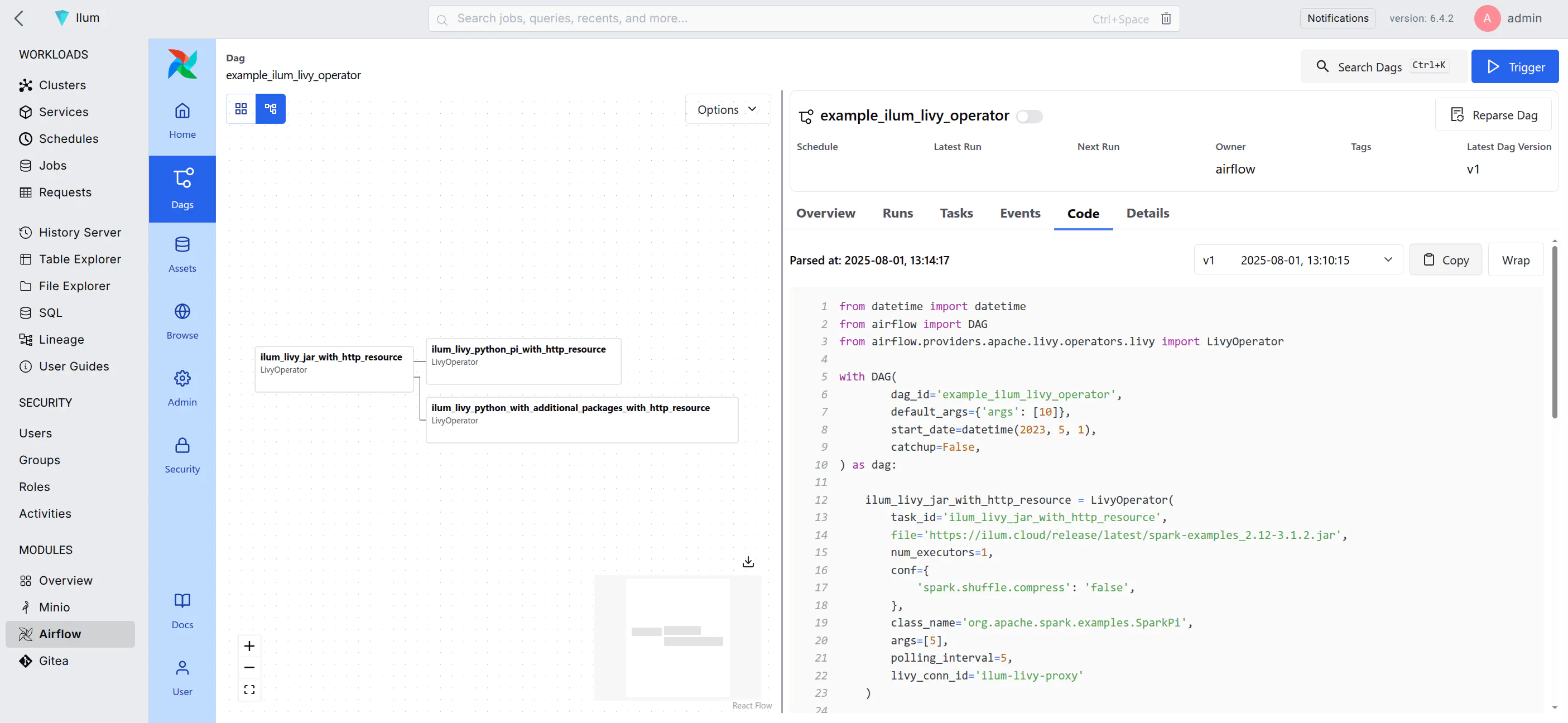
Apache Airflow is a platform for programmatically authoring, scheduling, and monitoring workflows. It allows you to define workflows as directed acyclic graphs (DAGs) of tasks, where each task represents a single unit of work.
In the context of Ilum, Airflow serves as the primary orchestration layer for Apache Spark jobs running on Kubernetes. By leveraging the LivyOperator, Airflow can submit batch jobs directly to Ilum's internal Livy Proxy, which handles the lifecycle of the Spark driver and executors.
Airflow is designed to be highly extensible, allowing you to create custom operators and hooks to interact with various systems and services. It is widely used in the data engineering community for orchestrating complex data pipelines and workflows.
Integration Architecture
Understanding the interaction between Airflow and Ilum is crucial for debugging and optimization.
The integration relies on the standard LivyOperator communicating with Ilum's Livy Proxy.
- DAG Trigger: The Airflow Scheduler triggers a DAG execution based on time or an external event.
- Task Execution: The
KubernetesExecutorspawns a worker pod for the task. - Job Submission: The worker executes the
LivyOperator, which sends a POST request to the Ilum Livy Proxy endpoint. - Ilum Translation: Ilum receives the request, translates the Livy specification into a Kubernetes CRD (Custom Resource Definition) for the Spark Application.
- Spark Launch: Ilum schedules the Spark Driver pod on the Kubernetes cluster.
- Monitoring: The
LivyOperatorpolls the proxy for job status updates until completion.
This architecture ensures that Airflow remains lightweight, managing only the orchestration logic, while the heavy lifting of Spark processing is offloaded to the Kubernetes cluster managed by Ilum.
Deploying Airflow
To read how to enable the Airflow deployment, refer to the Production page.
Airflow is preconfigured to use the default port-forward method of connection.
This means that even if you access Ilum via a different URL than localhost:9777, Airflow will still try to redirect you to the default URL.
To avoid this, you can configure the Airflow base URL in the Helm values:
  airflow:
    config:
      api:
        base_url: "http://<your-address>:<your-port>/external/airflow"
Or for Airflow 2
  airflow:
    config:
      webserver:
        base_url: "http://<your-address>:<your-port>/external/airflow"
However, For Airflow 2 this should not necessary since the proxy_fix setting should be enabled by default, which should also fix the issue.
Quick Start
After you enable Airflow, you can access it from the Ilum UI by clicking on the Airflow tab in the left sidebar.
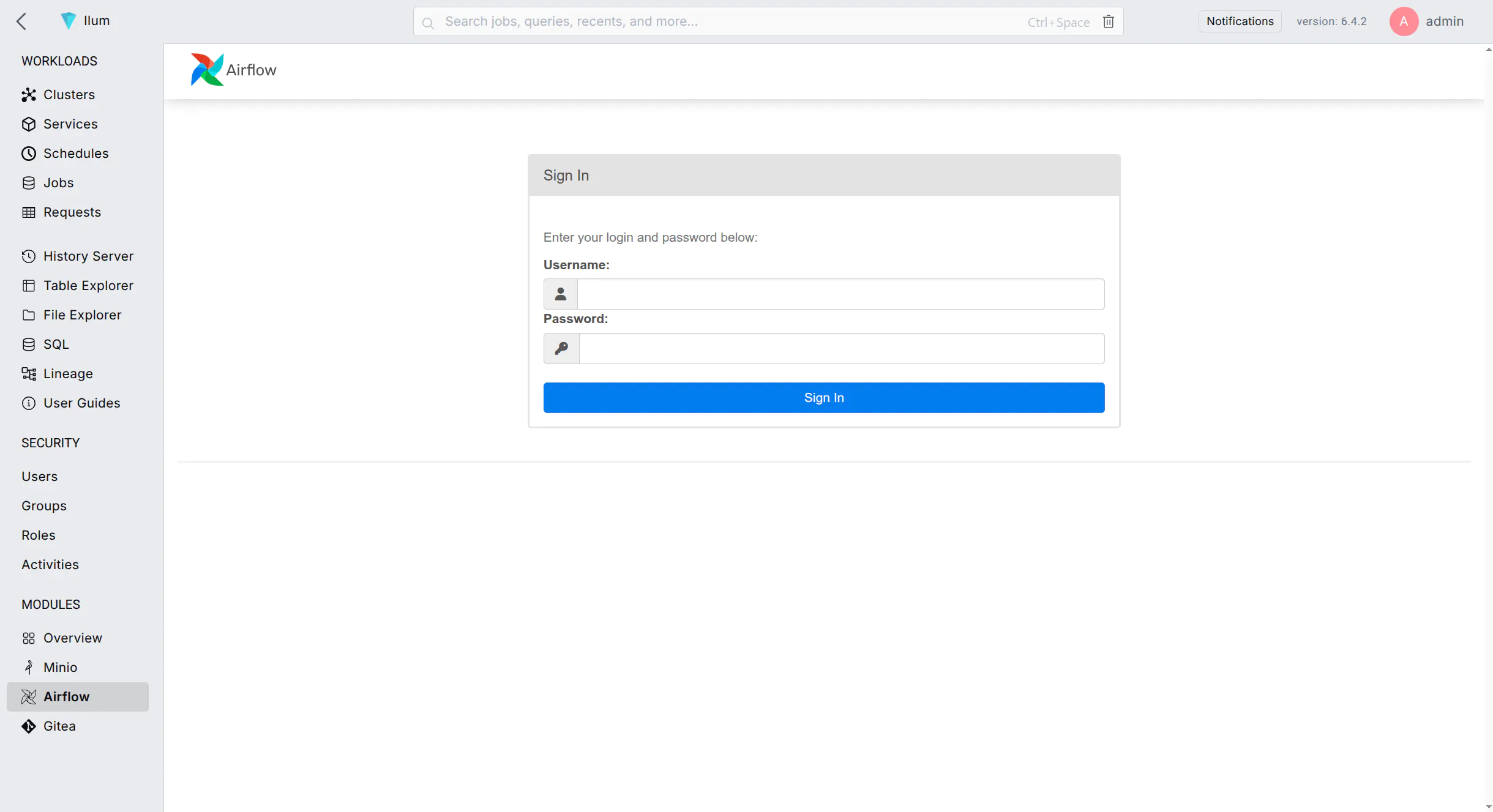 You can log in with the
 admin:admin credentials
Airflow comes with a pre-built example DAG that can give you an idea of how to use it with Ilum.
Example DAG
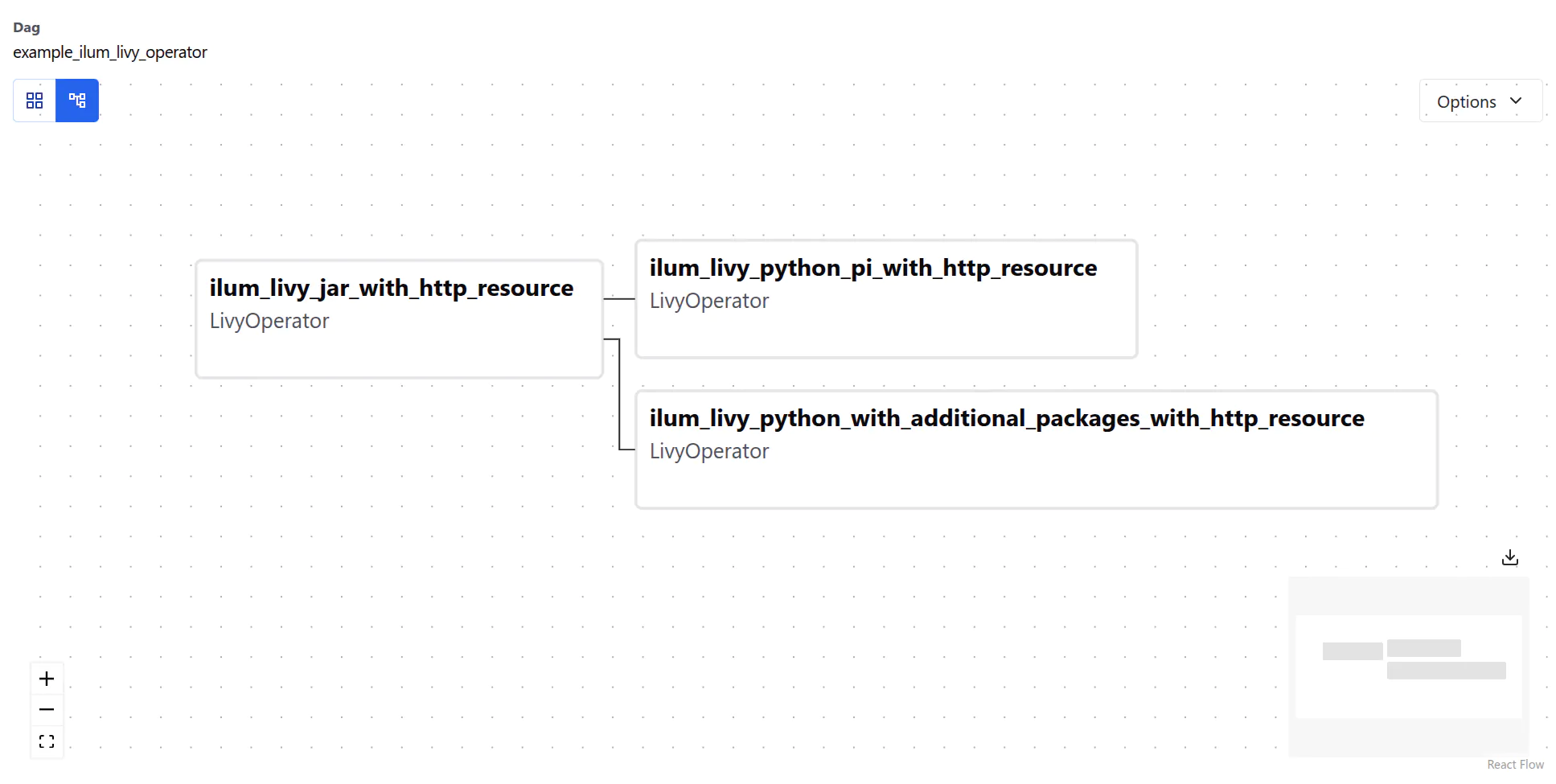
The example DAG has three interconnected tasks. Each DAG starts with an instance of the DAG class,
which is the main entry point for defining the workflow:
with DAG(
    dag_id='example_ilum_livy_operator',
    default_args={'args': [10]},
    start_date=datetime(2023, 5, 1),
    catchup=False,
) as dag:
There is little happening here, so let’s look at the tasks defined in this DAG:
- Spark 4 (default)
- Spark 3
ilum_livy_jar_with_http_resource = LivyOperator(
    task_id='ilum_livy_jar_with_http_resource',
    file='https://ilum.cloud/release/latest/spark-examples_2.13-4.1.1.jar',
    num_executors=1,
    conf={
        'spark.shuffle.compress': 'false',
    },
    class_name='org.apache.spark.examples.SparkPi',
    args=[5],
    polling_interval=5,
    livy_conn_id='ilum-livy-proxy'
)
ilum_livy_jar_with_http_resource = LivyOperator(
    task_id='ilum_livy_jar_with_http_resource',
    file='https://ilum.cloud/release/latest/spark-examples_2.12-3.5.7.jar',
    num_executors=1,
    conf={
        'spark.shuffle.compress': 'false',
    },
    class_name='org.apache.spark.examples.SparkPi',
    args=[5],
    polling_interval=5,
    livy_conn_id='ilum-livy-proxy'
)
This task uses the LivyOperator to submit a Spark job to Ilum’s Livy Proxy.
Livy proxy is a pre-configured connection to the Livy server that allows you to submit Spark jobs from Airflow.
LivyOperator Configuration Deep Dive
The LivyOperator provides a direct mapping to Spark submission parameters. Understanding these parameters is key to running complex jobs.
| Parameter | Description |
|---|---|
file | Required. The path to the file containing the application to execute. This must be accessible by the cluster (e.g., s3a://, http://, hdfs://). Local file paths will not work unless they exist on the Driver image. |
class_name | The name of the main class to run. Required for Java/Scala applications. |
args | A list of arguments to be passed to the application. |
jars | List of JARs to be used in this session. |
py_files | List of Python files to be used in this session. |
conf | A dictionary of Spark configuration properties. This is where you define resources and runtime behavior. |
proxy_user | User to impersonate when running the job. Useful for multi-tenant environments where jobs run as specific service accounts. |
Resource Allocation Example
To control the resources allocated to your Spark job, use the conf dictionary:
conf={
    'spark.driver.cores': '1',
    'spark.driver.memory': '2g',
    'spark.executor.cores': '2',
    'spark.executor.memory': '4g',
    'spark.executor.instances': '3',
    'spark.kubernetes.container.image': 'custom-spark-image:latest'
}
Managing Job Dependencies
Handling dependencies is a critical aspect of data engineering. Ilum supports several strategies via the LivyOperator.
Python Dependencies
For Python jobs, you often need external libraries like numpy or pandas.
pyRequirements(Recommended): Ilum creates a virtual environment on the fly.conf={
'pyRequirements': 'numpy>=1.21.0,pandas'
}- PEX Files: You can package your entire environment into a
.pexfile and pass it viafiles. - Custom Docker Image: Bake your dependencies into a custom Spark image and reference it via
spark.kubernetes.container.image.
JAR Dependencies
For Scala/Java jobs, you can include additional JARs:
jars=['s3a://my-bucket/libs/extra-lib-1.0.jar']
Complete Example with Dependencies
The DAG below demonstrates dependent tasks and dependency management:
ilum_livy_python_pi_with_http_resource = LivyOperator(
    task_id='ilum_livy_python_pi_with_http_resource',
    file='https://raw.githubusercontent.com/apache/spark/master/examples/src/main/python/pi.py',
    polling_interval=10,
    livy_conn_id='ilum-livy-proxy',
)

# This task requires 'numpy' which is not in the base image
ilum_livy_python_with_additional_packages_with_http_resource = LivyOperator(
    task_id='ilum_livy_python_with_additional_packages_with_http_resource',
    file='https://raw.githubusercontent.com/apache/spark/master/examples/src/main/python/ml/correlation_example.py',
    polling_interval=10,
    livy_conn_id='ilum-livy-proxy',
    conf={
        'pyRequirements': 'numpy', # Dynamically install numpy
    },
)

# Define task dependencies
ilum_livy_jar_with_http_resource >> [ilum_livy_python_pi_with_http_resource, ilum_livy_python_with_additional_packages_with_http_resource]
This DAG illustrates the directed acyclic nature of Airflow, where tasks run only after their upstream dependencies succeed.
Customizing Airflow
While Ilum provides a robust default image, production environments often require customization. Common use cases include:
- Installing additional Python libraries for the
PythonOperator(e.g.,scikit-learnfor local processing). - Adding Cloud providers (e.g., Google Cloud, Azure) for connecting to external data sources.
- Configuring custom Secrets Backends (e.g., HashiCorp Vault, AWS Secrets Manager).
Default Image Contents
Ilum’s Airflow image extends the official Airflow image with:
apache-airflow-providers-apache-livy: Essential for Spark job submission via Ilum.apache-airflow-providers-amazon: For S3-compatible storage interaction.apache-airflow-providers-cncf-kubernetes: For orchestrating pods.apache-airflow-providers-fab: For Ilum OAuth2 integration.
Extending the Image
To add your own dependencies, create a Dockerfile derived from the Ilum image.
FROM ilum/airflow:3.0.3

# Switch to root to install system dependencies if needed
USER root
RUN apt-get update && apt-get install -y --no-install-recommends \
    build-essential \
  && apt-get autoremove -yqq --purge \
  && apt-get clean \
  && rm -rf /var/lib/apt/lists/*

# Switch back to airflow user for python packages
USER airflow
RUN pip install --no-cache-dir \
    apache-airflow-providers-google \
    pandas==2.0.0
While basing on the official Airflow image is also possible, it is not recommended because it does not include our customizations. Expect issues when using the official image directly.
When changing the Airflow image in Helm, you need to remember about changing the following values:
airflow:
  airflowVersion: "3.0.3" # Changes compatibility options inside the chart
  images:
    airflow:
      repository: "ilum/airflow" # Your custom image repository
      tag: "3.0.3" # Your custom image tag
  apiServer: # Only applicable when using Airflow >= 3.0.0
    extraInitContainers: # You must overwrite the whole section, since it is a list
      - name: create-admin-user
        image: "ilum/airflow:3.0.3" # Your custom image
        imagePullPolicy: IfNotPresent
        command: ["/bin/bash", "/scripts/init.sh"]
        volumeMounts:
          - name: ilum-airflow-create-user-secret
            mountPath: /scripts
          - name: config
            mountPath: /opt/airflow/airflow.cfg
            subPath: airflow.cfg
  webserver: # Only applicable when using Airflow < 3.0.0
    extraInitContainers: # You must overwrite the whole section, since it is a list
      - name: create-admin-user
        image: "ilum/airflow:2.9.3"
        imagePullPolicy: IfNotPresent
        command: [ "/bin/bash", "/scripts/init.sh" ]
        volumeMounts:
          - name: ilum-airflow-create-user-secret
            mountPath: /scripts
          - name: config
            mountPath: /opt/airflow/airflow.cfg
            subPath: airflow.cfg

ilum-ui:
  runtimeVars:
    airflowUrl: "http://ilum-airflow-api-server:8080" # When using Airflow >= 3.0.0
    # airflowUrl: "http://ilum-airflow-webserver:8080" # or when using Airflow < 3.0.0
Compatibility with Airflow 2
The chart Ilum uses supports backwards compatibility with Airflow 2, but it is recommended to use Airflow 3 for new deployments.
To use Airflow 2, change the values like mentioned above. For more convenience, you can use the ilum/airflow:2.9.3 image.
Logging and Observability
Effective debugging requires access to logs at multiple levels. In an Ilum + Airflow setup, logs are distributed:
- Airflow Task Logs: Generated by the Airflow Worker/Pod.
- Spark Driver/Executor Logs: Managed by Ilum, viewable in the Ilum UI.
Enabling Persistent Airflow Logs
By default, Airflow logs are ephemeral. When a KubernetesExecutor pod finishes, its logs are lost. To retain them for historical analysis in the Airflow UI, you must enable persistence.
Requirement: Your Kubernetes cluster must support ReadWriteMany (RWX) access mode for Persistent Volumes (e.g., NFS, AWS EFS, Google Filestore). This is required because multiple worker pods write logs simultaneously, while the Webserver pod reads them.
airflow:
  logs:
    persistence:
      enabled: true
      size: 10Gi
      storageClassName: "standard-rwx" # Ensure this class supports RWX
Enabling persistence on a cluster without ReadWriteMany support will cause pods to hang in Pending state.
Correlating Logs
To debug a failed Spark job:
- Open the Airflow UI and check the task logs.
- Look for the
applicationId(e.g.,spark-application-12345) in theLivyOperatoroutput. - Go to the Ilum UI, search for that ID, and view the full Spark Driver and Executor logs.
Continuous Deployment (Git Sync)
For production workflows, manually uploading DAGs is inefficient. Ilum supports the Git Sync pattern, which uses a sidecar container to synchronize DAGs from a Git repository to a shared volume.
How it Works
- A "git-sync" sidecar container starts alongside the Airflow Scheduler, Webserver, and Workers.
- It periodically pulls the specified Git branch (e.g., every 60 seconds).
- If changes are detected, it updates the shared volume
dagsfolder. - Airflow picks up the changes automatically.
Configuration
This feature is pre-integrated. When you enable Gitea within Ilum, a default repository is automatically synced.
For external repositories (GitHub, GitLab), configure the airflow.dags.gitSync section in your Helm values:
airflow:
  dags:
    gitSync:
      enabled: true
      repo: "https://github.com/my-org/my-dags.git"
      branch: "main"
      # For private repos, use a Kubernetes Secret
      # sshKeySecret: "my-ssh-secret"
Using Airflow with Ilum OAuth2 provider
Airflow supports Ilum OAuth2 provider by using custom authentication backend and should be plug-and-play as soon as you enable both Airflow and the OAuth2 provider.
Because Airflow does not support OAuth2 out of the box, the integration is not as smooth as the default internal authentication.
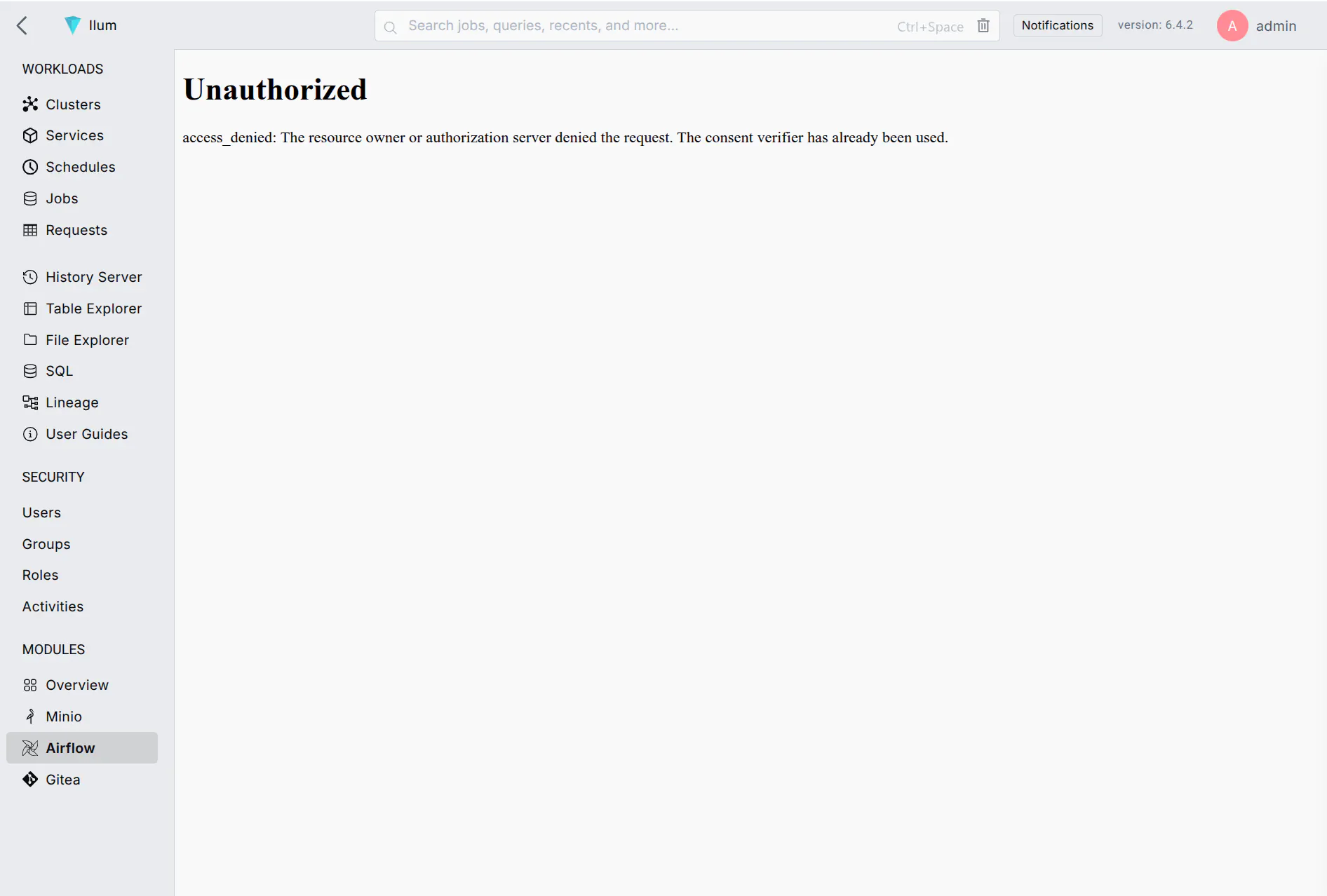 You can encounter alerts such as this one. A page refresh fixes everything
The errors you might see initially include CSRF verification failed, access_denied or 502 Bad Gateway among others.