SQL Viewer
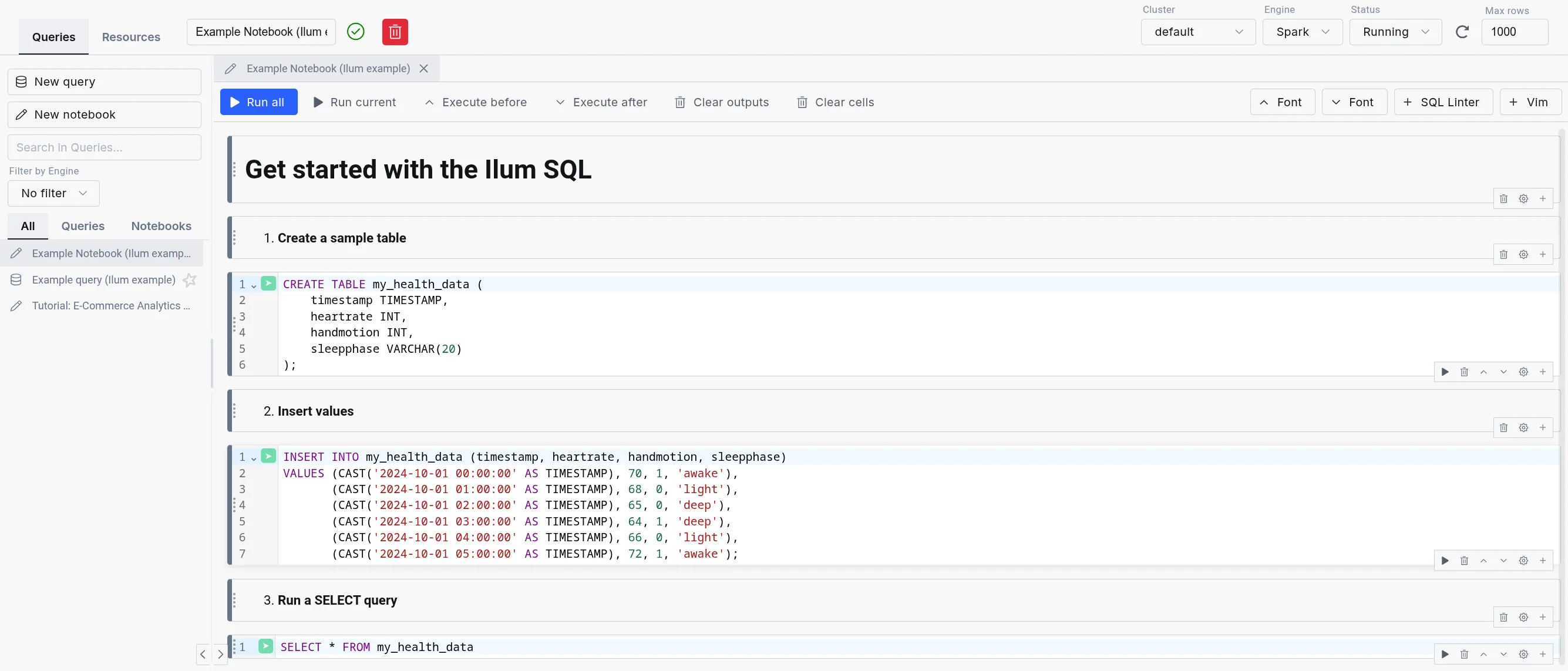
Ilum’s SQL Viewer lets you run your SQL queries directly in the UI, without the need of writing any Scala or Python code. Designed for simplicity, it offers an intuitive interface for running SQL queries, exploring data, and gaining insights quickly and efficiently.
Whether you are prototyping, analyzing data, or debugging, the SQL Viewer allows you to focus solely on the query logic without managing the underlying code.
It is highly configurable through the UI or Helm deployment values, allowing flexibility in, for example, choosing a different table format, like Delta Lake, Apache Hudi, or Apache Iceberg.
How will it help you?
The SQL Viewer is a powerful tool for reporting and debugging during Spark application development. Instead of building an entire Spark SQL program to query your tables, you can submit SQL statements directly within Ilum’s interface.
For debugging, SQL Viewer is invaluable—eliminating the need to repeatedly write, compile, and submit code like:
val dataset = spark.sql("select ...")
Instead, you can interactively test SQL statements without re-creating sessions each time.
Beyond query results, SQL Viewer offers data exploration and visualization tools, along with logs and execution statistics, giving you deeper insights into the query process.
The SQL Viewer is also integrated with different data catalogs, which means that you can seamlessly query data from previously created tables.
Get started with the SQL viewer
To use the SQL Viewer, you need to deploy Ilum with the SQL Viewer feature enabled. For setup instructions, refer to the Production page.
Once set up, the SQL viewer should be available on the sidebar. Inside, Apache Spark and DuckDB should be available as options by default.
Ilum loads in example queries and notebooks to help new users get started quickly.
Example query and notebook loading is enabled by default.
However, you can disable it by setting ilum-core.examples.sqlQuery=false (disables loading queries) and
ilum-core.examples.sqlNotebook=false (disables loading notebooks) in the Helm chart values.
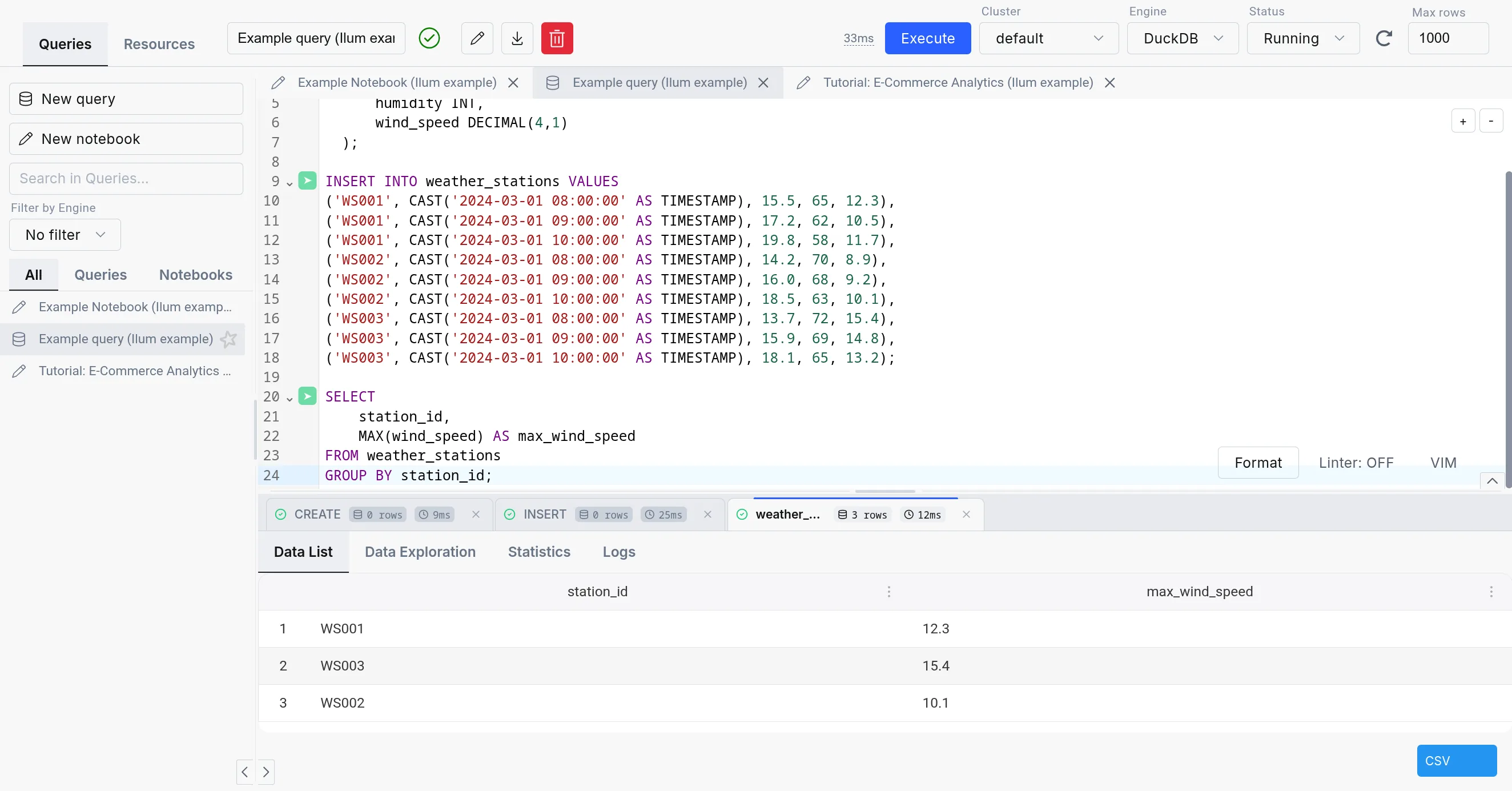
The SQL Viewer consists of three parts:
-
SQL query editor – The center part of the SQL Viewer, which allows you to write and execute SQL queries. It comes with a simple text editor in the query mode and a notebook-like interface in the notebook mode.
-
The sidebar – Contains your different SQL queries and notebooks in the "Queries" tab and a mini version of the Table Explorer in the "Resources" tab.
-
The output - Will show up in the bottom part of the screen when you execute a query. It has a table with the results of the query, a data exploration tool, execution statistics, and logs.
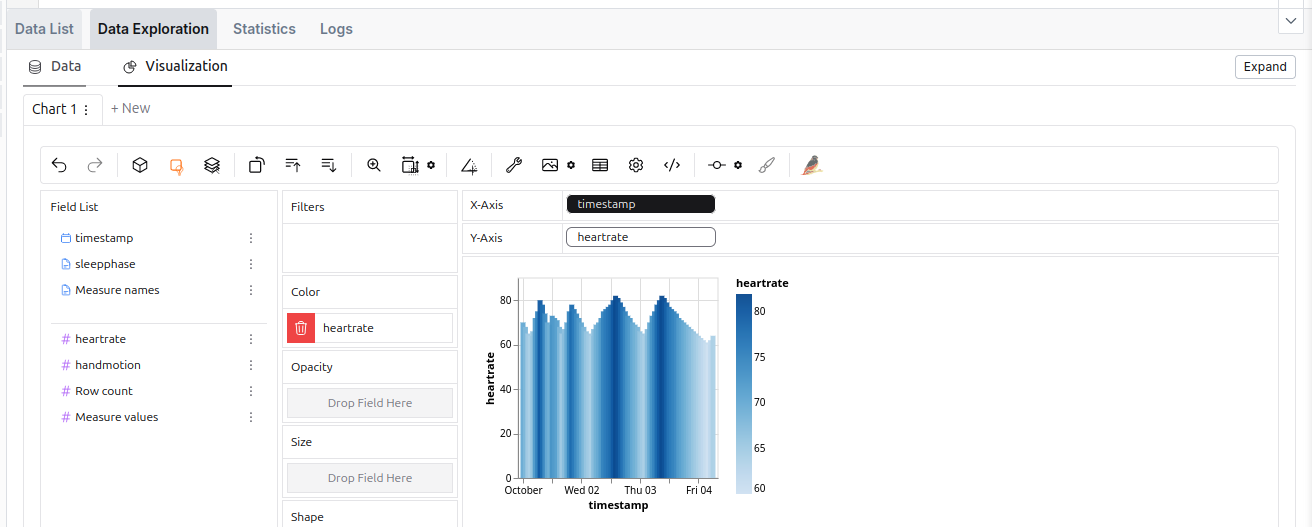 The data exploration tool in the SQL Viewer.
Alternative engines
The SQL Viewer supports multiple engines, as of now: Spark SQL, Trino, and DuckDB.
| Spark SQL | Trino | DuckDB | |
|---|---|---|---|
| Deployment | On cluster and dynamic | On cluster | Embedded |
| Use Case | ETL, Big data processing | Interactive analytics | Interactive analytics, medium-data ETL, prototyping |
| Storage Support | Comprehensive (with additional JARs) | Sufficient | Lacking (but quickly expanding) |
| Concurrency | High (with tuning) | Very high | Limited |
| Performance | Good for large datasets (with tuning) | Good | Good |
| Overhead | Very high | Medium (always-on coordinator) | Very low (in-process) |
| Lineage support | Extensive | Existing (harder to configure) | With custom extension (supported in Ilum) |
| Extensibility | Easy (big extension ecosystem) | Moderate (smaller extension ecosystem) | Limited (smaller extension catalog, C++ based) |
While using the Spark SQL engine will ensure compatibility with most Ilum components, we recommend checking out the other options since they offer a much better ad-hoc query experience than Spark SQL.
When changing an engine, your tables might be accessible differently or not be available at all due to the differences in the underlying storage.
| Metastore | Spark SQL | Trino | DuckDB |
|---|---|---|---|
| Hive Metastore | ✅ | ✅ | 🟨 (subset of functionalities supported with extension) |
| Nessie | ✅ | ✅ | 🟨 (possible, but unergonomic) |
| DuckLake | ❌ | ❌ | ✅ |
| Format | Spark SQL | Trino | DuckDB |
|---|---|---|---|
| Delta Table | 🟨 (extension) | ✅ | 🟨 (read-only) |
| Iceberg | 🟨 (extension) | ✅ | 🟨 (with caveats) |
| Hudi | 🟨 (extension) | ✅ | ❌ |
| Parquet | ✅ | ✅ | ✅ |
| Avro | 🟨 (extension) | 🟨 (not direct) | ✅ |
| ORC | ✅ | ✅ | ❌ |
| PostgreSQL | 🟨 (JDBC) | ✅ | ✅ |
| DuckDB format | ❌ | ✅ | ✅ |
Trino
Trino is a high-performance, distributed SQL query engine designed for big data analytics. It offers a compelling alternative to Spark SQL, particularly for lighter, ad-hoc workloads where query execution speed and low latency are priorities. For complete configuration details, see the Trino documentation.
The trade-off is that Spark SQL engines are launched on-demand, whereas Trino must run continuously in the background, consuming cluster resources.
Built-in Trino is not enabled by default. To set it up, you need to configure it in your helm values.
Connecting the built-in Trino to the Hive Metastore
While Trino can operate independently, connecting it to Ilum’s Hive Metastore provides seamless access to the same data available in Spark. This integration requires creating a dedicated catalog in Trino that references the Hive Metastore, uses S3 storage, and supports a wide variety of formats, just as Spark does.
By default, Trino in Ilum comes with a ilum-delta catalog, which is configured with a default Hive Metastore connection,
default S3 storage, and Delta Lake support.
This was done by setting the following configuration in the values.yaml file of the main Ilum helm chart:
ilum-sql:
  config:
    trino:
      enabled: true
      catalog: ilum-delta

trino:
  enabled: true
  catalogs:
    ilum-delta: | # Name of the created catalog
      connector.name=delta_lake # Name of the connector (Delta Lake this time)
      delta.metastore.store-table-metadata=true # Makes Trino store metadata in the Hive Metastore
      delta.register-table-procedure.enabled=true # Enables table registration procedure in Trino
      hive.metastore.uri=thrift://ilum-hive-metastore:9083 # Hive Metastore URI
      fs.native-s3.enabled=true # enabling S3 support
      s3.endpoint=http://ilum-minio:9000 # S3 endpoint
      s3.region=us-east-1 # S3 region
      s3.path-style-access=true # S3 path style access
      s3.aws-access-key=minioadmin # S3 access key
      s3.aws-secret-key=minioadmin # S3 secret key
These values only reflect the default configuration. If you have a different setup, you need to adjust the values accordingly.
External Trino instance
It is also possible to connect your own Trino instance by supplying the following helm values:
ilum-sql.config.trino.enabled=true
# A URL pointing to a Trino coordinator
ilum-sql.config.trino.url=http://ilum-trino:8080
# A name of the base catalog you want to use
ilum-sql.config.trino.catalog=system
DuckDB
DuckDB in Ilum provides low-latency SQL queries without the overhead of spinning up Spark clusters. It’s embedded directly in the backend service, making it ideal for interactive exploration, medium-data ETL, and rapid prototyping.
For detailed DuckDB reference, see the official DuckDB documentation.
As DuckDB is an embedded database, it does not use resources if unused, so it is always available inside Ilum.
DuckDB vs. DuckLake
DuckDB is the SQL engine. DuckLake is the storage layer and catalog that provides:
- Multi-user concurrent access to the same tables
- Persistent table metadata across sessions
- Time travel and schema evolution
- Cross-table transaction support
In Ilum, DuckDB uses DuckLake by default for tables created in SQL Viewer. This means CREATE TABLE statements
produce persistent, queryable tables accessible to all users and jobs.
You can also read Parquet files directly without creating tables:
SELECT * FROM 's3://bucket/data/*.parquet';
Use direct Parquet reads for one-off queries. Use DuckLake tables for repeated access and multi-user workflows.
For DuckLake configuration and features, see the DuckLake documentation.
Configuration
DuckDB has minimal configuration in Ilum. The primary setting controls connection lifecycle:
ilum-core:
  sql:
    duckdb:
      idleTimeout: 1h    # Time after which idle DuckDB instances are closed
                         # Reduces memory footprint for infrequent use
No additional settings are required—DuckDB extensions, DuckLake attachment, and catalog integration are configured automatically from your cluster and Helm values.
Resource Considerations
DuckDB shares CPU and memory with the Ilum backend service. For interactive queries it may be fine for some time, but the amount of memory will amass over time. For long-running or larger workloads consider:
- Increase backend resources via
ilum-core.resources.limits.memoryandilum-core.resources.limits.cpu - Consider moving ETL workloads to separate pods via Apache Airflow or dedicated DuckDB services
DuckDB Extensions
DuckDB supports a number of extensions, which can add additional functionality to your pipelines.
In general, they can be installed either from the core repository,which is included in the default installation, the community repository,
which requires downloading the extension binary file every time you install the extension, or from a custom repository.
For now, Ilum provides two extensions for DuckDB in the custom repository:
hive_metastore- allows you to connect to the Hive Metastore from DuckDBopenlineage- allows you to track the execution of your pipelines using OpenLineage
The extensions are automatically configured with the settings from the helm values and the cluster, so you do not need to do anything else.
We plan to open-source both of these extensions in the future, when we are sure that they are ready for public use.
Tips and Good practices
Using external SQL clients with JDBC
While SQL Viewer works purely in the browser, you can also connect your Ilum SQL to external environments that support Hive / Spark JDBC drivers. This way, you can run queries on your Ilum data from your favorite SQL client or BI tool.
To do this, set up a JDBC connection with the following connection string:
jdbc:hive2://<ilum-sql-host>:<thrift-binary-port>/<database-name>;?spark.ilum.sql.cluster.id=<cluster-id>
Where:
<ilum-sql-host>is the hostname of your Ilum SQL service component (e.g.,ilum-sql-headlessorilum-sql-thrift-binary)<thrift-binary-port>is the port on which the Thrift service is exposed (default is10009)<database-name>is the name of the database you want to connect to (putdefaultthere)<cluster-id>is the ID of the Spark cluster you want to connect to (you can find it in the Ilum Ui)
Using ODBC drivers for external tools
For tools that require ODBC connectivity (such as Excel, Power BI, or legacy reporting systems), connect to ilum using the Simba Spark ODBC Driver.
-
Download the driver from the Simba Spark ODBC Driver page (available for Windows, macOS, and Linux).
-
Configure a DSN (Data Source Name) with these parameters:
Parameter Value Host <ilum-sql-host>or LoadBalancer IPPort 10009Authentication Username/Password (ilum credentials) or No Authentication Thrift Transport Binary SSL Enable for production environments -
Connect from your application using the configured DSN. Most tools provide an ODBC data source selector in their connection dialogs.
JDBC is generally preferred for programmatic access and tools that support it natively. Use ODBC when the client tool does not support JDBC or when connecting from Windows-based applications that rely on the Windows ODBC driver manager.
Using the SQL Viewer on datasets from other Ilum’s components
SQL Viewer creates tables in the Hive Metastore by default, which means that any Spark resources, which also use the same metastore, will be able to see these tables.
A job which uses a metastore normally has the following configuration:
spark.sql.catalogImplementation=hive
spark.hadoop.hive.metastore.uris=thrift://<hive-metastore-host>:<hive-metastore-port>
# storage location for the metastore (e.g., s3)
spark.hadoop.fs.s3a.access.key=<access-key>
spark.hadoop.fs.s3a.secret.key=<secret-key>
spark.hadoop.fs.s3a.endpoint=<s3-endpoint>
spark.hadoop.fs.s3a.path.style.access=true
spark.hadoop.fs.s3a.fast.upload=true
We can see that the uri of the metastore is provided and a shared storage location is used.
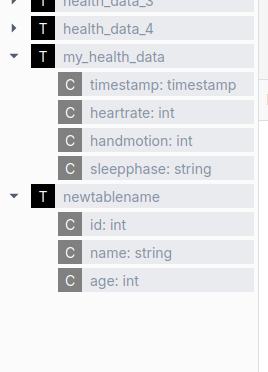 An example of a component that also uses the metastore is the Ilum Table Explorer.
Make use of Spark's optimization elements
Spark SQL offers several optimization features that can significantly improve your query performance through partitioning, clustering, and appropriate storage formats. These optimization techniques help Spark process queries more efficiently, especially when dealing with large datasets, by minimizing the amount of data that needs to be scanned and improving data organization on disk.
The following example shows a table definition that incorporates several optimization techniques:
- Partitioning the table by the
dateandcountrycolumns, which allows Spark to skip irrelevant partitions - Clustering data by
useridto improve data locality for related rows - Sorting the data by
viewTimefor more efficient range queries - Organizing data into buckets for better distribution
- Using the
PARQUETformat which is optimized for columnar storage and efficient querying
CREATE TABLE page_view
(
    viewTime     INT,
    userid       BIGINT,
    page_url     STRING,
    referrer_url STRING,
    friends      ARRAY<BIGINT>,
    properties   MAP<STRING, STRING>,
    dt           STRING,
    country      STRING
) COMMENT 'This is the page view table'
PARTITIONED BY(dt, country)
CLUSTERED BY(userid) SORTED BY(viewTime) INTO 32 BUCKETS
STORED AS PARQUET
A similar effect can be achieved by using features provided by alternative table formats, which are discussed below
Use Spark SQL extensions to increase the performance of your queries
Spark SQL allows you to use various SQL extensions to improve the built-in SQL functionality.
This is done via the spark.sql.extensions property.
For example, you can add the Delta Lake extension, which provides additional features for working with Delta tables.
However, this property can also be used to enable other extensions, such as an SQL optimization extension for Spark execution engines. To enable it, either:
- Use one of the newer Ilum Spark images
- Add the JAR file of the extension from the Maven repository:
org.apache.kyuubi:kyuubi-extension-spark-<SPARK_VERSION>_<SCALA_VERSION>:<KYUUBI_VERSION> - Modify the container image of your Spark and add the JAR file to the classpath
This will allow you to add the extension to your SQL engine as follows: spark.sql.extensions=org.apache.kyuubi.sql.KyuubiSparkSQLExtension.
This property is a comma-separated list of extensions, so you can add multiple ones.
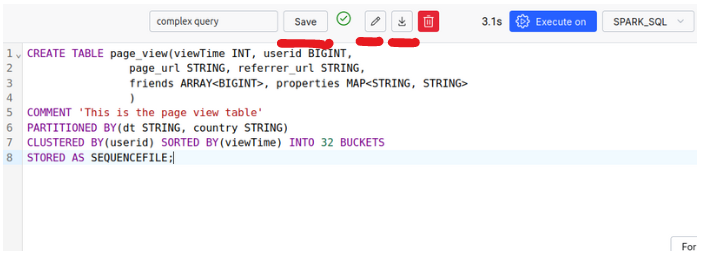
Save Queries, import and export SQL queries
The SQL Viewer allows you to save your queries for later use, as well as import and export them.
Make use of More Advanced Data Formats: Apache Iceberg, Apache Hudi, and Delta Tables
Delta Tables
Delta Lake is an open-source storage layer that brings ACID transactions to Apache Spark and big data workloads. It uses Delta Tables as its core format, combining Parquet files with transaction logs. These logs keep track of table versions, capture DML operations, and handle concurrency with locks.
In simple terms, each operation on a partition creates a new version, preserving the previous one for easy rollback if needed. A transaction log file helps these versions to manage locking and version control, ensuring data consistency.
Delta Lake is straightforward to use and an excellent choice for integrating adding additional features to your Ilum environment.
For more details on Delta Lake’s concurrency management with OCC (Optimistic Concurrency Control), and how it integrates streaming and batch writes, we recommend visiting the Delta Lake Documentation.
Features:
- ACID properties maintenance
- support for update, delete, and merge operations
- schema evolution: altering tables
- versioning: ability to time-travel to previous versions of the dataset
- better optimization in comparison to traditional formats
- integration of these features for both streaming and batches
How to use Delta Tables?
By default, Delta Tables are enabled inside Ilum’s SQL Viewer. The following configurations are set for you:
spark.sql.extensions=io.delta.sql.DeltaSparkSessionExtension
spark.sql.catalog.spark_catalog=org.apache.spark.sql.delta.catalog.DeltaCatalog
spark.databricks.delta.catalog.update.enabled=true
Therefore, you can make use of Delta Tables inside your SQL Viewer without any extra steps.
-
Create a Delta Table
CREATE TABLE my_health_data_delta
(
    timestamp  TIMESTAMP,
    heartrate  INT,
    handmotion INT,
    sleepphase VARCHAR(20)
) USING DELTA; -
Run some DML operations
INSERT INTO my_health_data_delta (timestamp, heartrate, handmotion, sleepphase) VALUES
(CAST('2024-10-01 00:00:00' AS TIMESTAMP), 70, 1, 'awake'),
(CAST('2024-10-01 01:00:00' AS TIMESTAMP), 68, 0, 'light'),
(CAST('2024-10-01 02:00:00' AS TIMESTAMP), 65, 0, 'deep'),
(CAST('2024-10-01 03:00:00' AS TIMESTAMP), 64, 1, 'deep'),
(CAST('2024-10-01 04:00:00' AS TIMESTAMP), 66, 0, 'light');
DELETE FROM my_health_data_delta
WHERE timestamp = '2024-10-01 02:00:00';UPDATE my_health_data_delta
SET heartrate = 50
WHERE timestamp = '2024-10-01 03:00:00'; -
Look at the version history and details
DESCRIBE HISTORY my_health_data_delta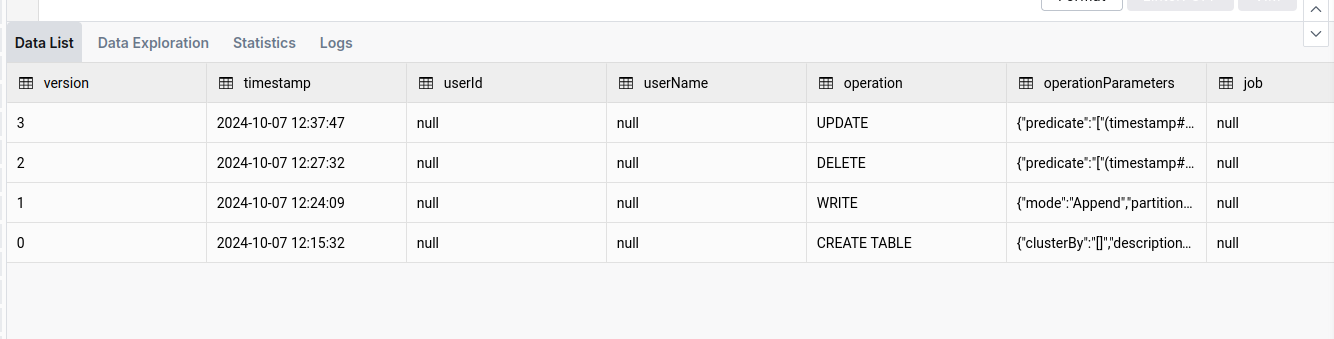
-
Use time and version travel functionality
SELECT *
FROM my_health_data_delta VERSION AS OF 1
Or to travel to a specific date (e.g., one-day back):
SELECT *
FROM my_health_data_delta TIMESTAMP AS OF date_sub(current_date(), 1) -
Cleaning up
While Delta Tables are optimized for performance, they can accumulate a large number of files over time. The
VACUUMoperation helps to clean up these files and optimize the table. You can read about it here.VACUUM my_health_data_deltaOr to see which files will be deleted (up to 1000):
VACUUM my_health_data_delta DRY RUN
Apache Hudi
While Apache Hudi is similar to Delta Lake, it has its unique advantages. In Apache Hudi, each partition is organized into file groups. Each file group consists of slices, which contain data files and accompanying log files. The log files record actions and affected data, allowing Hudi to optimize read operations by applying these actions to the base file to produce the latest view of the data.
To streamline the process, configuring Compaction operations is essential. Compaction creates a new slice with an updated base file, improving performance.
This structure, along with Hudi’s extensive optimization, enhances write efficiency, making it faster than alternative formats in certain scenarios. Furthermore, Hudi supports NBCC (Non-blocking Concurrency Control) instead of OCC (Optimistic Concurrency Control), which is more effective in environments with high concurrent writes.
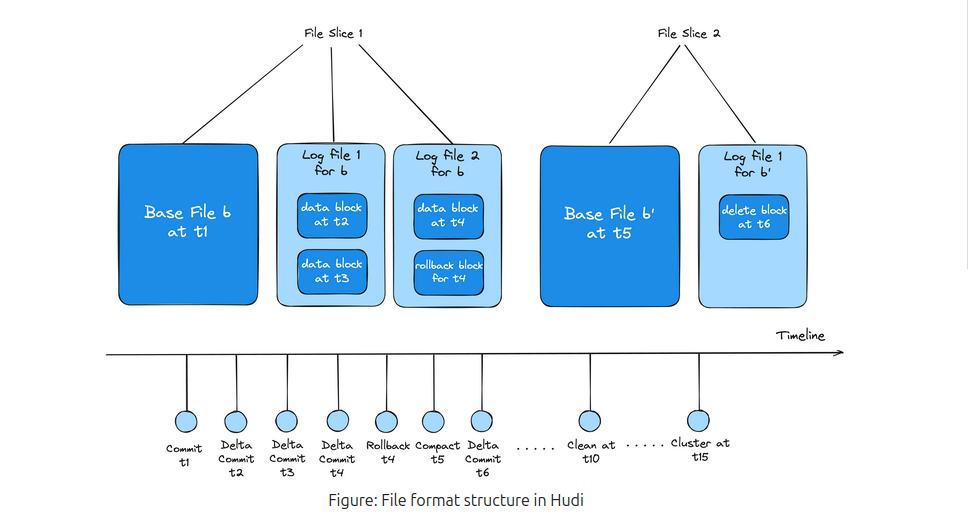
In summary, Apache Hudi is well-suited for environments with heavy concurrent write operations and offers more control over custom optimizations, though it may be less user-friendly than Delta Lake.
To learn more about it, you should visit Apache Hudi Documentation Page
How to use Apache Hudi?
Unlike Delta Lake, the Apache Hudi is not preconfigured; therefore, you will need to change the cluster configuration and add the following properties:
{
  "spark.jars.packages": "org.apache.hudi:hudi-spark3.5-bundle_2.12:0.15.0",
  "spark.serializer": "org.apache.spark.serializer.KryoSerializer",
  "spark.sql.catalog.spark_catalog": "org.apache.spark.sql.hudi.catalog.HoodieCatalog",
  "spark.sql.extensions": "org.apache.spark.sql.hudi.HoodieSparkSessionExtension",
  "spark.kryo.registrator": "org.apache.spark.HoodieSparkKryoRegistrar"
}
Remember to make sure that the version of the Hudi-spark’s jar is matching the version of the Spark you are using.
Additionally, since the jar package is not preinstalled, you may face the issue of JVM Heap Out Of Memory during engine initialization. To read more about this issue and how to fix it, please refer to the Troubleshooting section.
-
Create a Hudi Table
CREATE TABLE my_sales_data_hudi (
    sale_id STRING,
    sale_date TIMESTAMP,
    product_id STRING,
    quantity INT,
    price DECIMAL(10, 2)
) USING HUDI
TBLPROPERTIES (
    type = 'mor',
    primaryKey = 'sale_id'
);
Notice the
type = 'mor'property, which stands for Merge on Read. This property changes the type of the table, which balances optimization between read and write operations. -
Perform DML operations
INSERT INTO my_sales_data_hudi (sale_id, sale_date, product_id, quantity, price) VALUES
('S001', CAST('2024-10-01 10:00:00' AS TIMESTAMP), 'P001', 10, 99.99),
('S002', CAST('2024-10-01 11:00:00' AS TIMESTAMP), 'P002', 5, 49.99),
('S003', CAST('2024-10-01 12:00:00' AS TIMESTAMP), 'P003', 20, 19.99),
('S004', CAST('2024-10-01 13:00:00' AS TIMESTAMP), 'P004', 15, 29.99),
('S005', CAST('2024-10-01 14:00:00' AS TIMESTAMP), 'P005', 8, 39.99);
UPDATE my_sales_data_hudi
SET price = 89.99
WHERE sale_id = 'S001';DELETE FROM my_sales_data_hudi
WHERE sale_id = 'S003'; -
List the commits
CALL show_commits (table => 'my_sales_data_hudi', limit => 5)
Notice here the
commit_timecolumn, which shows the time of the commit. We can use this value to perform time travel. -
Use the time travel functionality
CALL rollback_to_instant(table => 'my_sales_data_hudi', instant_time => '<commit-time-from-last-step>');This command will revert the table to the state it was in at the specified commit time. Keep in mind that you can reverse only the latest commit, so if you want to go back further, you need to perform multiple rollbacks.
Apache Iceberg
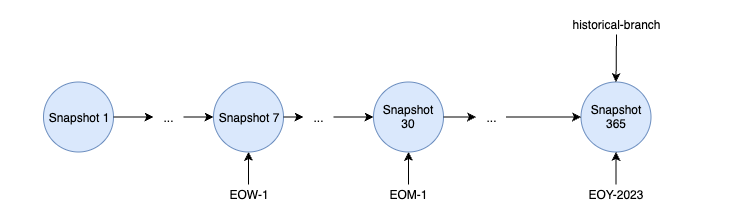
Apache Iceberg is a high-performance table format specifically designed for data lakes, offering unique capabilities compared to other formats. Built around a distinct architecture, Iceberg uses snapshots to manage table states, avoiding reliance on traditional transaction logs. This snapshot-based design captures the entire state of a table at specific points in time.
Each snapshot holds a manifest list, which in turn references multiple manifests. These manifests organize pointers to specific data files and hold relevant metadata, enabling Iceberg to efficiently track changes without duplicating data files across snapshots. This approach optimizes storage, as snapshots can reuse existing data files, reducing redundancy.
Iceberg also provides powerful features like branching and tagging, allowing users to create branches of tables and assign human-readable tags to snapshots. These features are essential for version control, enabling teams to manage concurrent updates and test changes before committing them to production.
With flexible data organization options and robust versioning capabilities, Apache Iceberg enables scalable, performant data management for modern data lakes.
More on Apache Iceberg Documentation
How to use Apache Iceberg?
Unlike Delta Lake, the Apache Hudi is not preconfigured; therefore, you will need to change the cluster configuration and add the following properties:
{
  "spark.jars.packages": "org.apache.iceberg:iceberg-spark-runtime-3.5_2.12:1.6.1",
  "spark.sql.extensions": "org.apache.iceberg.spark.extensions.IcebergSparkSessionExtensions",
  "spark.sql.catalog.spark_catalog": "org.apache.iceberg.spark.SparkSessionCatalog",
  "spark.sql.catalog.spark_catalog.type": "hive",
  "spark.sql.catalog.spark_catalog.uri": "thrift://ilum-hive-metastore:9083"
}
Remember to make sure that the version of the Iceberg’s jar is matching the version of the Spark you are using and that the Hive Metastore is available at the specified URI.
Additionally, since the jar package is not preinstalled, you may face the issue of JVM Heap Out Of Memory during engine initialization. To read more about this issue and how to fix it, please refer to the Troubleshooting section.
-
Create an Iceberg Table:
CREATE TABLE weather_stations
(
    station_id STRING,
    reading_time TIMESTAMP,
    temperature DECIMAL(4,1),
    humidity INT,
    wind_speed DECIMAL(4,1)
) USING iceberg -
Insert data into the table
INSERT INTO weather_stations VALUES
('WS001', CAST('2024-03-01 08:00:00' AS TIMESTAMP), 15.5, 65, 12.3),
('WS001', CAST('2024-03-01 09:00:00' AS TIMESTAMP), 17.2, 62, 10.5),
('WS001', CAST('2024-03-01 10:00:00' AS TIMESTAMP), 19.8, 58, 11.7),
('WS002', CAST('2024-03-01 08:00:00' AS TIMESTAMP), 14.2, 70, 8.9),
('WS002', CAST('2024-03-01 09:00:00' AS TIMESTAMP), 16.0, 68, 9.2),
('WS002', CAST('2024-03-01 10:00:00' AS TIMESTAMP), 18.5, 63, 10.1),
('WS003', CAST('2024-03-01 08:00:00' AS TIMESTAMP), 13.7, 72, 15.4),
('WS003', CAST('2024-03-01 09:00:00' AS TIMESTAMP), 15.9, 69, 14.8),
('WS003', CAST('2024-03-01 10:00:00' AS TIMESTAMP), 18.1, 65, 13.2); -
Create a tag from the current snapshot
ALTER TABLE weather_stations CREATE TAG `initial_state` -
Make some modifications to the data
UPDATE weather_stations
SET
  temperature = 16.5
WHERE
  station_id = 'WS001'
  AND reading_time = CAST('2024-03-01 08:00:00' AS TIMESTAMP)
DELETE FROM weather_stations WHERE station_id = 'WS002' -
List all the snapshots
SELECT * FROM spark_catalog.default.weather_stations.snapshots
Save the timestamp (
commited_at) of the snapshot you want to time travel to for later. -
Get the history
SELECT * FROM spark_catalog.default.weather_stations.history -
Rollback to a specific tag
CALL spark_catalog.system.set_current_snapshot (
  table => 'spark_catalog.default.weather_stations',
  ref => 'initial_state'
) -
Time travel to a specific snapshot
SELECT * FROM weather_stations TIMESTAMP AS OF <timestamp-from-step-5>
How to use UDFs in the SQL viewer?
UDFs (User Defined Functions) are a powerful feature in SQL that allows you to define custom functions to use in your queries. They are also supported in the SQL Viewer, allowing you to extend the functionality of your queries.
-
Create a class for your UDF
package example

import org.apache.hadoop.hive.ql.exec.UDF

class ScalaUDF extends UDF {
  def evaluate(str: String): Int = {
    str.length()
  }
}
Make sure to include the necessary dependency of
hive-exec:3.1.3in your project:<dependency>
<groupId>org.apache.hive</groupId>
<artifactId>hive-exec</artifactId>
<version>3.1.3</version>
</dependency> -
Make a jar package and put it into your distributed storage

Make sure to remember the path to your jar file.
-
Add it to the SQL viewer spark session
ADD JAR '<the-path-to-your-jar-file>' -
Create a function, linked to udf you defined
CREATE
OR REPLACE FUNCTION ScalaUDF as 'example.ScalaUDF' -
Use it in a query
SELECT name, ScalaUDF(name)
FROM newtablename
Troubleshooting
It is useful to know that when executing SQL queries from the SQL Viewer page, the SQL execution engines are visible as normal Ilum Jobs. This means that you can monitor their state, check logs and statistics, just like any other job in the "Jobs" tab.
JVM Heap Out Of Memory during spark-submit
If in engine’s launch logs, you find an error like this:
Exception in thread "main" io.fabric8.kubernetes.client.KubernetesClientException: Java heap space
    at io.fabric8.kubernetes.client.dsl.internal.OperationSupport.waitForResult (OperationSupport.java:520)
    at io.fabric8.kubernetes.client.dsl.internal. OperationSupport.handleResponse(OperationSupport.java:535)
    ...
    at org.apache.spark.deploy.SparkSubmit$.main(SparkSubmit.scala:1129)
    at org.apache.spark.deploy.SparkSubmit.main(SparkSubmit.scala)
Caused by: java.lang.OutOfMemoryError: Java heap space
    ...
It is likely caused by the default JVM heap size of Ilum’s internal spark-submit being too small for your task.
To fix this, you can switch to the External Spark Submit. This way, the spark submit process will not be constrained to Ilum’s pod resources.