LDAP Security
Overview
Managing user credentials across multiple services can be challenging. LDAP (Lightweight Directory Access Protocol) offers a centralized solution, enabling single sign-on (SSO) and streamlining user management.
Ilum integrates smoothly with LDAP servers. Configuration is handled via Helm, allowing you to set connection details, define authentication queries, and map LDAP attributes to Ilum’s internal user model.
Attribute mapping is flexible: you can link LDAP groups and roles—including relationships such as user-to-group and group-to-role—and map user attributes like email, full name, and description directly to Ilum profiles.
Once LDAP integration is set up, users log in to Ilum using their LDAP credentials. Ilum automatically synchronizes user data from the LDAP server according to your Helm configuration, creating and updating profiles and permissions as needed.
Quick Start
LDAP is available as a module in Ilum, making the setup straightforward.
Set the following values:
ilum-core:
  security:
    type: ldap

openldap:
  enabled: true
This configuration deploys an OpenLDAP server with default settings and connects Ilum Core to it.
The default OpenLDAP server is accessible at ldap://ilum-openldap:389 and includes two sample users:
- ilumadmin (password: admin)
- ilumuser (password: user)
For more details on Ilum’s OpenLDAP usage, visit our Artifact Hub page.
Manual OpenLDAP Setup
After testing the default configuration, you may wish to set up your own OpenLDAP instance. Here are some configuration options to consider:
global:
  ldapDomain: ilum.cloud # Your LDAP domain (requirement of the OpenLDAP chart, not Ilum)

ilum-core:
  security:
    type: ldap
    ldap:
      urls:
        - ldap://ilum-openldap:389 # OpenLDAP URL
      ilumToLdapSync: false # More on this below
      base: "dc=ilum,dc=cloud" # Base DN for LDAP
      adminUsers: # Usernames of users which should be made admins
        - ilumadmin
      passwordEncoder: adaptive
      userMapping: # Mapping between LDAP and Ilum user attributes
        # The enabled and enabledValue attributes are important for user activation
        enabled: employeeType
        enabledValue: active
        # ...
      groupMapping: # Mapping between LDAP and Ilum group attributes
        # ...
      roleMapping: # Mapping between LDAP and Ilum role attributes
        # ...
Default OpenLDAP LDIF files Ilum uses:
00-root.ldif: |- # This file is used to create the root domain - the first step in the LDAP setup
  dn: dc=ilum,dc=cloud
  objectclass: top
  objectclass: domain
  o: Ilum

01-organizational-units.ldif: |- # This file is used to create the organizational units in the LDAP
  dn: ou=groups,dc=ilum,dc=cloud
  objectclass: top
  objectclass: organizationalUnit
  ou: groups

  dn: ou=subgroups,dc=ilum,dc=cloud
  objectclass: top
  objectclass: organizationalUnit
  ou: subgroups

  dn: ou=people,dc=ilum,dc=cloud
  objectclass: top
  objectclass: organizationalUnit
  ou: people

02-admin-user.ldif: |- # This file is used to create the admin user in the LDAP
  dn: uid=ilumadmin,ou=people,dc=ilum,dc=cloud
  objectclass: top
  objectclass: person
  objectclass: organizationalPerson
  objectclass: inetOrgPerson
  cn: Ilum Admin
  sn: Admin
  uid: ilumadmin
  mail: [email protected]
  description: Ilum Admin
  userPassword: admin
  employeeType: active

03-user.ldif: |- # This file is used to create the user in the LDAP
  dn: uid=ilumuser,ou=people,dc=ilum,dc=cloud
  objectclass: top
  objectclass: person
  objectclass: organizationalPerson
  objectclass: inetOrgPerson
  cn: Ilum User
  sn: User
  uid: ilumuser
  mail: [email protected]
  description: Ilum User
  userPassword: user
  employeeType: active
For more information about the OpenLDAP chart used by Ilum, see its GitHub repository or Artifact Hub page.
LDAP with SSL
For secure connections, Ilum fully supports LDAPS (LDAP over SSL).
To enable LDAPS:
- Provide a truststore containing your LDAP server’s CA certificate. See the Truststore documentation for details.
- (Optional) Provide a keystore if your LDAP server requires mutual TLS (mTLS) with a client certificate.
Quick Start
This section uses a convenience tool called mkcert to generate a self-signed certificate. You can learn more about it here.
Let’s begin by generating a TLS certificate for our LDAP server with mkcert:
mkcert ilum-openldap ldap localhost 127.0.0.1
The arguments passed to mkcert are the domains we want our certificate to cover.
This command will output two files:
ilum-openldap+3-key.pem: Private key for the certificateilum-openldap+3.pem: Certificate itself
Now, we need to load-in the certificate into our kubernetes cluster:
kubectl create secret tls openldap-tls --cert=./ilum-openldap+3.pem --key=./ilum-openldap+3-key.pem
This will create a TLS secret named openldap-tls containing the certificate and private key.
Lastly, we need to load the mkcert certificate authority into our cluster as well. You can see where the CA is stored by running mkcert -CAROOT.
It should give you a path, where a file named rootCA.pem is located. Point to this file when executing the following command:
kubectl create secret generic mkcert-ca --from-file=ca.crt=/path/to/rootCA.pem
This will create a Kubernetes secret named mkcert-ca containing the CA certificate.
Now, it is enough to adjust your Helm configuration to use the TLS secret and CA secret:
ilum-core:
  security:
    type: ldap
    ldap:
      urls:
        - ldaps://ilum-openldap:636 # Use ldaps:// and the correct port

    # Basic configuration for importing the CA certificate to Ilum's trust store
    trustStore:
      enabled: true
      mode: single
      secretName: mkcert-ca

openldap:
  enabled: true
  initTLSSecret:
    tls_enabled: true
    secret: "openldap-tls" # Point to the TLS secret created earlier
With this configuration Ilum will use the TLS certificate to connect to LDAPS.
Keystore Configuration
However, we can go a step further and use a keystore to authenticate our client.
Prepare a PKCS#12 file containing your client certificate and private key:
openssl pkcs12 -export -in ilum-openldap+3.pem -inkey ilum-openldap+3-key.pem -certfile <your-CA-cert> -name "client-cert" -out client.p12 -password pass:yourpassword
Create a Kubernetes secret with the keystore:
kubectl create secret generic ilum-keystore --from-file=keystore.p12=client.p12
Now, add to the values:
ilum-core:
  security:
    # ...
    keyStore:
      enabled: true
      secretName: "ilum-keystore" # Name of the Kubernetes secret
      secretFileName: "keystore.p12" # File name within the secret
      password: "CHANGEMEPLEASE" # Keystore password
ILUM ↔ LDAP Synchronization
Ilum supports bidirectional synchronization with LDAP. When enabled, changes to users, groups, or roles in Ilum are automatically reflected in LDAP.
To enable synchronization, set ilum-core.security.ldap.ilumToLdapSync to true in your Helm configuration.
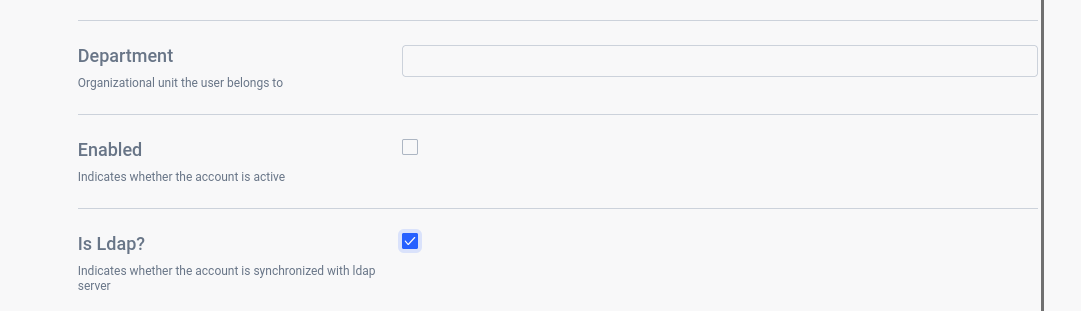 Selecting this checkbox in the UI enables user synchronization with LDAP
Synchronization covers users, groups, and roles, provided attribute mappings are correctly defined in your Helm values.yaml.
Full Configuration
A complete configuration example:
ilum-core:
    security:
        type: ldap
        ldap:
            base: "<your_base_dn>"
            urls:
            - ldap://<domain>:<port>
            username: "<your_admin_username>"
            password: "<your_admin_password>"
            passwordEncoder: <chosen_password_encoder>
            adminUsers:
                - <admin-user>
            userMapping:
                base: "<your_user_base>"
                filter: "<your_filter>"
                password: "<your_password>"
                username: "<your_username>"
                fullname: "<your_fullname>"
                description: "<your_description>"
                department: "<your_department>"
                email: "<your_email>"
                enabled: "<your_enabled>"
                enabledValue: "<your_enabled_value>"
            groupMapping:
                base: "<your_group_base>"
                filter: "<your_filter>"
                memberAttribute: "<your_member_attribute>"
                roleFilterAttribute: "<your_role_filter_attribute>"
                name: "<your_name>"
                description: "<your_description>"
                roles: "<your_roles>"
                enabled: "<your_enabled>"
                enabledTrue: "<your_enabled_true>"
            roleMapping:
                base: "<your_role_base>"
                filter: "<your_filter>"
                memberAttribute: "<your_member_attribute>"
                name: "<your_name>"
                description: "<your_description>"
                enabled: "<your_enabled>"
                enabledTrue: "<your_enabled_true>"
enabled, enabledTrue
These options map the ENABLED/DISABLED state from LDAP to Ilum.
enabled: Name of the LDAP attribute containing the state.enabledTrue(orenabledValuefor users): Value representing ENABLED.
Example mapping:
dn: uid=george,ou=people,dc=springframework,dc=org
objectclass: top
objectclass: person
objectclass: organizationalPerson
objectclass: inetOrgPerson
cn: George Ardenson
mail: [email protected]
description: datascientist in fraud detection
uid: george
userPassword: pass
status: on
Configuration:
userMapping:
    enabled: "status"
    enabledValue: "on"
You can similarly map states for roles and groups.
By default, true and enabled are interpreted as ENABLED.
Ensure a valid value is set for the enabled attribute. Otherwise, Ilum will treat users as DISABLED by default.
roles and roleFilterAttribute
These options map group-to-role relationships from LDAP to Ilum.
roles: Group attribute containing role names.roleFilterAttribute: Optionally binds values fromrolesto an attribute in the LDAP role.
Example mapping:
dn: cn=datascientist,ou=subgroups,dc=springframework,dc=org
objectclass: top
objectclass: groupOfNames
cn: datascientist
member: uid=george
businessCategory: "overall data analysis"
ident: "kq320"

dn: cn=users,ou=subgroups,dc=springframework,dc=org
objectclass: top
objectclass: groupOfNames
cn: datascientist
member: uid=alice
member: uid=bob
member: uid=george
businessCategory: "overall data analysis"
roles: kq320
roles: br200
roles: ll100
Configuration:
groupMapping:
    roles: subgroups
    roleFilterAttribute: ident
If roleFilterAttribute is not set, Ilum will match LDAP roles by name or create new ones as needed
passwordEncoder
Supported values:
- adaptive
- bcrypt
- md5
- sha256
These specify the password encoder used by your LDAP server.
By default, Ilum uses the adaptive encoder,
which detects the prefix (e.g., {bcrypt} or {noop}) and selects the appropriate encoder for credential verification.
If no prefix is present, no encoder is applied.