Ilum OAuth Provider
Overview
Ilum’s architecture includes a range of microservices such as Airflow, Superset, Grafana, Gitea, and Minio. These services often provide access to critical data or, in the case of Airflow, direct interaction with cluster resources. As a result, centralized access management becomes essential. To address this, Ilum offers an integrated OAuth Provider, allowing centralized authentication and authorization through the Ilum UI and Ilum-Core.
When enabled, Ilum automatically preconfigures the supported microservices for OAuth-based access. Administrators only need to configure a few Helm chart values to activate this integration.
Within Ilum’s user management system, you can define which users have access to specific microservices. You can also map Ilum roles and groups to the corresponding roles and groups within each integrated service, enabling consistent access control across the platform.
Quick Start
To launch Ilum with the OAuth Provider enabled, you need to complete the following two steps:
- Switch
global.security.hydra.enabledin helm values totrue - Specify URL of Ilum-UI in
global.security.hydra.uiDomainandglobal.security.hydra.uiProtocol
The UI URL is the address you can enter directly in your browser to access the Ilum-UI. There are two ways to obtain this URL:
- In Minikube you can enable ingress addon:
minikube addons enable ingress
And then you should enable Ilum-UI ingress in helm values like this:
ilum-ui:
  ingress:
    enabled: true
    host: ilum-ui-url.domain
Finally you can create values.yaml file:
global:
    security:
        hydra:
            enabled: true
            uiDomain: "ilum-ui-url.domain"
            uiProtocol: "http"
ilum-ui:
  ingress:
    enabled: true
    host: "ilum-ui-url.domain"
And upgrade your cluster:
helm upgrade ilum ilum/ilum -f values.yaml --reuse-values
- You can use Node IP Address and NodePort of Ilum-UI service.
Configure your Ilum-UI service to use NodePort:
ilum-ui:
    service:
        type: NodePort
        nodePort: 31007
Get IP Address of your Node:
kubectl get nodes -o wide

Use IP Address and Node Port to create UI URL and put it into values.yaml:
global:
    security:
        hydra:
            enabled: true
            uiDomain: "192.168.49.2:31007"
            uiProtocol: "http"
ilum-ui:
    service:
        type: NodePort
        nodePort: 31007
Upgrade the cluster:
helm upgrade ilum ilum/ilum -f values.yaml --reuse-values
Finally after upgrade you can run:
kubectl get pods
And see this output:
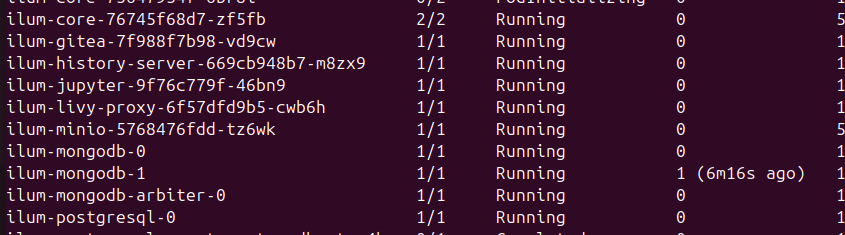
For test purposes let's launch Ilum with Superset
helm upgrade ilum ilum/ilum --set superset.enabled true --reuse-values
Once Superset is ready, you can log in by entering http://192.168.49.2:31007/external/superset in your browser.
You will be redirected to the Ilum UI with a login_challenge query parameter in the URL.
After entering your credentials, you will be redirected back to Superset, now logged in.
Ilum roles and groups mapping
Ilum allows you to define how its internal roles and groups are mapped to the roles used by each integrated microservice. You can also configure default roles that are automatically assigned to users.
This configuration is managed via Helm values. By default, it is structured as follows:
ilum-core:
    hydra:
        mapping:
            rolesToGitea:  null
            groupsToGitea: null
            rolesToMinio:
            - ilumObj: "ADMIN"
                serviceObjs:
                - "consoleAdmin"
            - ilumObj: "DATA_ENGINEER"
                serviceObjs:
                - "readonly"
                - "writeonly"
                - "diagnostics"
            groupsToMinio: null
            rolesToSuperset:
            - ilumObj: "ADMIN"
                serviceObjs:
                - "Admin"
            - ilumObj: "DATA_ENGINEER"
                serviceObjs:
                - "Alpha"
            groupsToSuperset: null
            rolesToAirflow:
            - ilumObj: "ADMIN"
                serviceObjs:
                - "Admin"
            - ilumObj: "DATA_ENGINEER"
                serviceObjs:
                - "User"
            groupsToAirflow: null
            rolesToGrafana:
            - ilumObj: "ADMIN"
                serviceObjs:
                - "Admin"
            - ilumObj: "DATA_ENGINEER"
                serviceObjs:
                - "Editor"
            groupsToGrafana: null
            minioMinAccessRole: "readonly"
            airflowMinAccessRole: "Viewer"
            supersetMinAccessRole: "Gamma"
            grafanaMinAccessRole: "Viewer"
            giteaMinAccessRole: null
1. Mapping groups
groupsToAirflow, groupsToGrafana, groupsToSuperset, groupsToMinio, groupsToGitea describe how Ilum groups are mapped to roles in the microservices that these fields are dedicated to
For example, if you have created a group in Ilum named Managers, you can assign it the "Admin" and custom "Manager" roles in Airflow with the following configuration:
ilum-core:
    hydra:
        mapping:
            groupsToAirflow:
            - ilumObj: "Managers"
              serviceObjs:
              - "Admin"
              - "User"
If the specified roles do not exist in the target microservice, they will be ignored
2. Mapping roles
rolesToGitea, rolesToGrafana, rolesToSuperset, rolesToAirflow, rolesToMinio describe how Ilum roles are mapped to roles in the microservices that these fields are dedicated to
For example, if you have created a role in Ilum named Analytic, you can assign it the "User" and custom "Analytic" roles in Airflow with the following configuration:
ilum-core:
    hydra:
        mapping:
            groupsToAirflow:
            - ilumObj: "Analytic"
              serviceObjs:
              - "Analytic"
              - "User"
If the specified roles do not exist in the target microservice, they will be ignored
3. Min Roles
Fields minioMinAccessRole, airflowMinAccessRole, supersetMinAccessRole, grafanaMinAccessRole, giteaMinAccessRole are used to specify which role in the microservices will be assigned to a logged-in user by default if no other role mappings are found.
For example in default configurations:
minioMinAccessRole: "readonly"
airflowMinAccessRole: "Viewer"
supersetMinAccessRole: "Gamma"
grafanaMinAccessRole: "Viewer"
giteaMinAccessRole: null
Each Ilum user that has access to microservice will have only readonly access
4. Permissions
To access a microservice, a user must have the corresponding permission assigned:
MINIO_READ, GRAFANA_READ, AIRFLOW_READ, SUPERSET_READ, GITEA_READ
If a user does not have the required permission, they will not be able to access the service, even if they have a role assigned within that service
5. Rewriting Mapping
Ilum provides the ilum-core.hydra.rewriteMapping field, which is set to true by default.
When enabled, Ilum-Core will overwrite the existing mapping configuration with the values specified in the Helm chart every time the service restarts.
OAuth Provider configuration
In the Ilum Helm chart, you can configure the OAuth Provider service, its associated pods, and the OAuth Client settings.
1. OAuth Client configurations
Below are the default values for the OAuth Client configurations:
global:
    security:
        hydra:
            uiDomain: ""
            uiProtocol: "http"
            clientId: "ilum-client"
            clientSecret: "secret"
ilum-core:
    hydra:
        recreateClient: true
clientId and clientSecret specify the OAuth client credentials.
uiDomain and uiProtocol define the domain and protocol of the Ilum UI. It is required for the OIDC workflow by both the OAuth Provider and the microservices, particularly for operations such as redirecting users to the Ilum UI login page. uiProtocol can be http or https
recreateClient determines whether the OAuth client should be recreated upon OAuth Provider restart. This can be useful when updating the OAuth client credentials. Should be turned off when restarting the deployment if the OAuth client credentials are not changing. This prevents unnecessary recreation of the OAuth client.
2. Deployment configuration
Below are the default values for the OAuth Provider Deployment configurations:
ilum-core:
    hydra:
        cookies:
            same_site_mode: "Lax"
        dsn: "postgres://ilum:CHANGEMEPLEASE@ilum-postgresql:5432/hydra?sslmode=disable"
        secretsSystem: "CHANGEMEPLEASE"
        separateDeployment: false
        imagePullPolicy: "IfNotPresent"
        resources: null
cookies.same_site_mode is used to specify SameSite value of CSRF cookies set in Set-Cookie header by hydra during OIDC worflow. This value may require change under proxies for OIDC to work correctly
dsn is used to specify the connection string for accessing the PostgreSQL database. By default, it points to the PostgreSQL database deployed by Ilum, with default credentials and databases created by Ilum. However, if you are using a different database, service, or credentials, you should update this field accordingly.
secretsSystem is used to securely store sensitive data during the OIDC workflow, as well as information related to the OAuth client, by encrypting it in the database using a provided secret. Must be set in production
separateDeployment is a flag that determines whether to deploy the OAuth Provider as part of Ilum-Core or as a separate deployment. By default, the OAuth Provider uses minimal resources (20Mi of memory and 1m of CPU). Under heavy load, it may scale up to 100m of CPU and 100Mi of memory, but this is generally not a concern when running alongside Ilum-Core. However, if you need more control over its resource usage, you can set this flag to true to deploy the OAuth Provider separately.
resources specifies the resource requests and limits for memory and CPU. This field is only relevant when the OAuth Provider is deployed separately, allowing you to control its resource allocation.
3. Service configuration
Below are the default values for the OAuth Provider Service configurations:
ilum-core:
    hydra:
        service:
            domain: ilum-hydra
            type: "ClusterIP"
            publicPort: 4444
            adminPort: 4445
            publicNodePort: ""
            adminNodePort: ""
            clusterIP: ""
            loadBalancerIP: ""
            annotations: { }
It’s important to note that the OAuth Provider used by Ilum includes two clients:
-
Admin Client: This client is used exclusively by Ilum Core in the OIDC workflow for administrative purposes.
-
Public Client: This client is used by the microservices to access authentication, user information, and other endpoints required during the OIDC process.
4. OAuth Provider under the hood
Ilum uses Hydra as its OAuth Provider, and it can launch Hydra either as part of the Ilum-Core deployment or as a separate deployment. During startup, Hydra runs a command to create a client that will be used by the microservices for user login.
For further customizations or to familiarize yourself with Hydra, you can refer to the Hydra documentation page
Notes on OAuth in Microservises
1. Minio
By default, Minio is preconfigured by Ilum to use Ilum’s OAuth Provider. However, if the Sign in with SSO option does not appear on the login screen, you will need to restart the Minio deployment:
kubectl rollout restart deployment ilum-minio.
The issue occurs because Minio may start before the OAuth Provider is fully initialized, causing Minio to not recognize the OAuth Provider at startup.
2. Gitea
Gitea is not preconfigured by Ilum. Therefore, to configure authentication with Ilum users, you need to specify the following configurations:
gitea:
  enabled: true
  gitea:
    config:
        server:
            ROOT_URL: <ilum-ui-url>/external/gitea
    oauth:
    - name: ilum
      provider: openidConnect
      key: <oauth-client-id>
      secret: "<oauth-client-secret>"
      autoDiscoverUrl: "<ilum-ui-url>/external/hydra/.well-known/openid-configuration"
      scopes: "openid email profile"
Replace oauth-client-id, oauth-client-secret and ilum-ui-url with proper values (default client-id and client-secret are ilum-client and secret)
Please note that the Gitea chart does not automatically recreate its secrets. Therefore, to apply the configurations after a restart, you may need to manually delete the Gitea secrets and then perform a Helm upgrade
kubectl delete secret ilum-gitea-inline-config ilum-gitea-init ilum-gitea
3. Grafana
Grafana is automatically preconfigured by Ilum to use OAuth authentication. However, you must specify the root_url value as <ilum-ui-url>/external/grafana, replacing <ilum-ui-url> with your actual Ilum-UI URL, for the OIDC workflow to function properly:
kube-prometheus-stack:
  grafana:
    grafana.ini:
      server:
        root_url: "http://192.168.49.2:31007/external/grafana"
Additionally, if you require more control over how roles and groups are mapped to Grafana, you may want to modify the role_attribute_path value:
kube-prometheus-stack:
    grafana:
        grafana.ini:
            auth.generic_oauth:
                role_attribute_path: contains(grafana_roles, 'Admin') && 'Admin' || contains(grafana_roles, 'Editor') && 'Editor' || 'Viewer'
4. 400: Bad Request during login
If you see this error when trying to log in via OIDC, it might be caused by Minio. In this case, you should log out from Minio, as the way Minio manages the Hydra session may interfere with other sessions.
5. Using hydra under cloud proxies and with https
When working with Hydra on the cloud, you may encounter issues related to the HTTPS protocol or how your cloud provider’s proxy operates. Here are some solutions that might help:
- Set
ilum-core.hydra.cookies.same_site_modetoLaxorStrictwhen using HTTPS.
Hydra uses CSRF tokens during its OIDC workflow, which are set via the Set-Cookie header.
If the SameSite value is set to None over HTTPS, the cookie may not be stored, causing the OIDC workflow to fail.
Therefore, you must set it to Lax or Strict depending on your requirements.
- Ensure the root_url of each service and uiProtocol use the HTTPS protocol.
This is necessary because some proxies treat HTTP URLs as insecure and may block or alter requests to Hydra, disrupting the OIDC workflow.
- Add Hydra to the proxy’s allowlist (whitelist).
If you are using a different domain or protocol for Hydra or any microservices, ensure they are added to the proxy’s allowlist. Otherwise, the proxy may interfere with requests during the OIDC workflow, leading to errors.
6. Using hydra along with LDAP server
If you use an LDAP server for user management, you can connect Ilum-Core to LDAP and set the security type to LDAP. After that, when logging into microservices such as MinIO, Gitea, Superset, Airflow, or Grafana via Hydra, you will be redirected to the Ilum-UI. There, you can use your LDAP credentials to log in to the microservice.
To learn more about Ilum-Core LDAP connection configuration, visit the LDAP documentation page.