How to Use Notebooks in Ilum
This page demonstrates identical example notebooks implemented in both Jupyter (compatible with JupyterLab and JupyterHub) and Zeppelin, allowing you to quickly compare how typical workflows map between these environments.
Each notebook is organized into four logical sections:
- Narrative (Markdown) – Rich text with images introducing the task.
- Generate Test Data – Python (or Scala) code creating a small synthetic dataset.
- Transform Data – Spark code that cleans or aggregates the data.
- Dynamic Chart – An interactive visualization, refreshable after each run.
Guide for Jupyter Notebooks (Lab & Hub)
Overview
In Ilum, Jupyter notebooks are accessible via both JupyterLab and JupyterHub. For end users, the experience is functionally identical in both, especially when working with Spark and Ilum integrations.
By default, Python code cells execute locally on the Jupyter server. To leverage Spark on a remote cluster, you need to use Spark Magic—a Jupyter extension that enables code execution on a Spark cluster through the Livy API. In Ilum, the default Livy API is replaced with Ilum Livy Proxy, which ensures seamless integration with Ilum’s storage, metastore, lineage, and monitoring features.
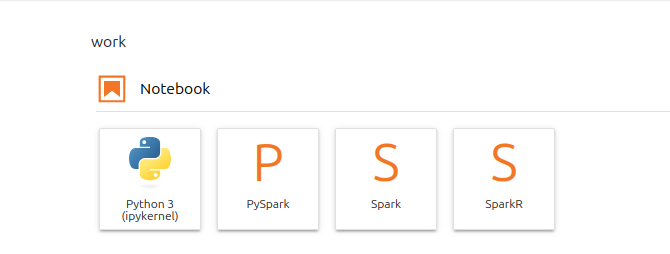
Jupyter (both Lab and Hub) provides four primary kernels:
Python Kernel: The default Jupyter kernel, which runs Python code on the Jupyter server. PySpark Kernel: A Spark kernel that runs your Python code on a remote Spark cluster. Spark Kernel: A Scala kernel that runs your Scala code on a remote Spark cluster.
- Python Kernel – The default Jupyter kernel, which runs Python code on the Jupyter server.
- PySpark Kernel – A Spark kernel that runs your Python code on a remote Spark cluster.
- Spark Kernel – A Scala kernel that runs your Scala code on a remote Spark cluster.
Spark Session Management
To use a remote Spark cluster from a standard Python kernel, first load Spark Magic:
%load_ext sparkmagic.magics
Next, open the Spark session management panel:
%manage_spark
Using this panel, you can perform the following tasks:
Manage Sessions
The Manage Sessions tab displays all available Spark sessions. Here you can see the session's name, ID, kernel type (e.g., pyspark for Python), and its current state. You can also delete sessions you no longer need.

Create Session
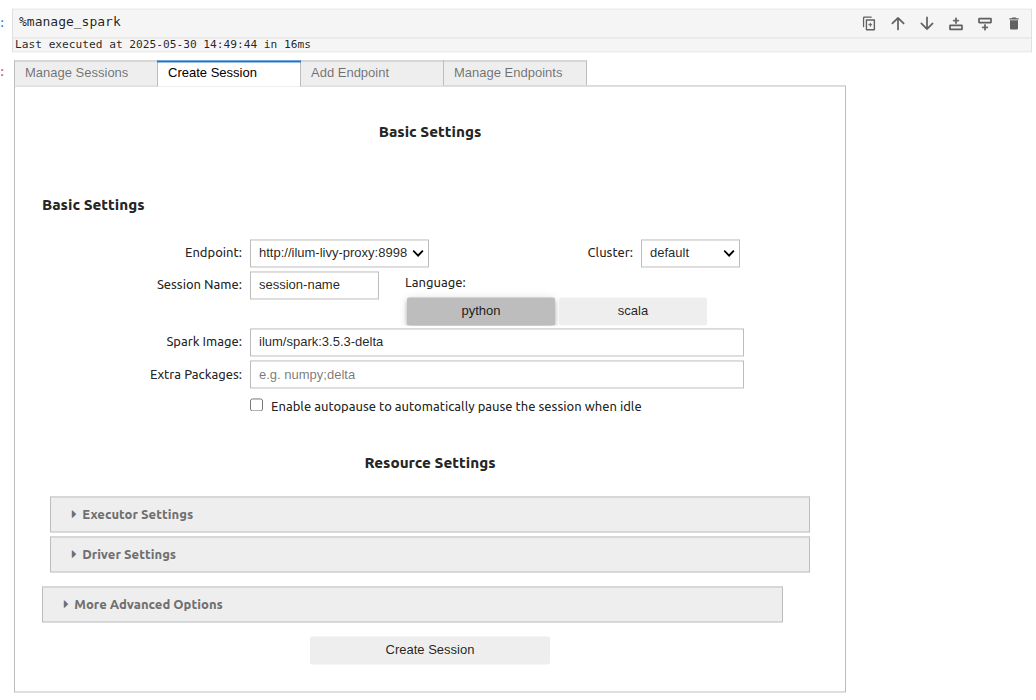
The Create Session tab allows you to launch a new Spark session.
To create a session, provide a name for your session, select a language (Scala or Python), and specify Spark parameters. Finally, click Create Session.
[Full details on session creation and available parameters can be found here.]
Add Endpoint
In the Add Endpoint tab, you can register additional Livy endpoints. Choose the authentication type (e.g., Kerberos) and provide the Livy server address, then click Add endpoint. This is useful if you need to connect to a custom Livy deployment instead of the preconfigured Ilum-Livy-Proxy endpoint.

Manage Endpoints
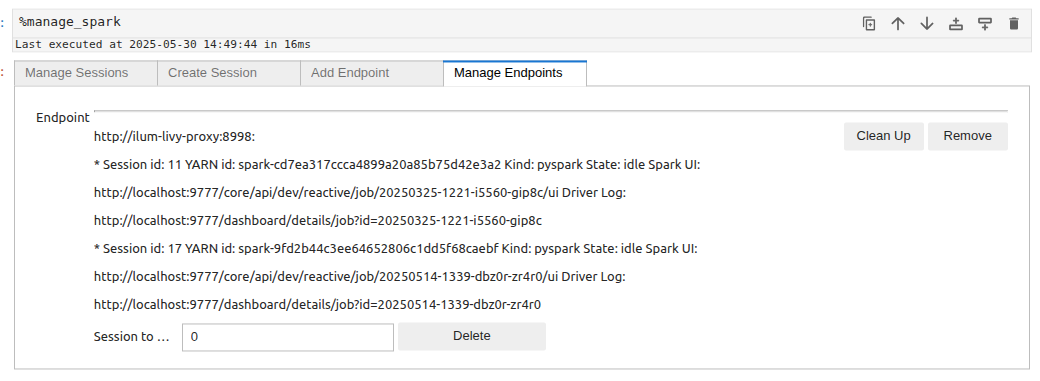
The Manage Endpoints tab lists all configured Livy endpoints, along with all active or historical Spark sessions associated with them. You can view session details, including session IDs, Spark UI links, and driver logs. You can also remove endpoints or clean up old sessions directly from this panel.
Ilum Workloads Page
After creating a session, you can track your active code services on the Ilum Workloads page.
Services created via Spark Magic sessions are named with the prefix ilum-livy-proxy-session and can be monitored, paused, or deleted just like any other Ilum service.

Creating a Spark Session
To create a new Spark session, open the management panel and select Create Session.
You will be asked to fill in a form with the following parameters:
Basic Settings:
-
Endpoint
The Livy endpoint address used to connect to the Spark cluster. This field is configured automatically, but if needed, you can add an endpoint to your own Livy service. -
Cluster
The name of the Kubernetes cluster where the session will run. -
Session Name
A custom name for your Spark session, used for identification. -
Language
The programming language for the Spark session:pythonorscala. -
Spark Image
The Docker image that defines the Spark runtime environment (e.g.,ilum/spark:3.5.6-delta).
You can also use your own custom images, but for full compatibility we recommend building them on top of the official Spark base images published by ILUM on Docker Hub. -
Extra Packages
Additional Python packages to install in the session.
Example:numpy;pandas -
Enable autopause
Automatically pauses the session when it is idle. After the configured idle time, the session remains available, but the first request will start the pod(s) and executors before executing your code, resulting in a slightly longer waiting time for the first command.
The autopause settings are managed globally via Helm values:--set ilum-core.job.autoPause.idleTime=3600controls the idle time (in seconds) after which the group is paused,--set ilum-core.job.autoPause.period=180controls how often (in seconds) the idle state is checked.
Executor Settings:
-
Executor Memory
Amount of RAM allocated to each Spark executor (e.g.,2G).
Supported units:M(megabytes),G(gigabytes),T(terabytes). -
Executor Cores
Number of CPU cores for each executor. -
Number of Executors
Total number of executors to start in the session.
Driver Settings:
-
Driver Memory
Amount of RAM allocated to the Spark driver process (e.g.,1G).
Supported units:M(megabytes),G(gigabytes),T(terabytes). -
Driver Cores
Number of CPU cores for the Spark driver.
More Advanced Options:
-
Custom Spark Config
Additional Spark configuration as a JSON object.
This field is equivalent to thepropertiesfield in the old Sparkmagic version.
Important: Any parameter provided in this field will override the corresponding Spark property from the other fields, so use it with caution.
Example:{ "spark.sql.shuffle.partitions": "200" } -
SQL Extension
The Spark SQL extension class name, often required for Delta Lake, Hudi, Nessie etc.
Example:io.delta.sql.DeltaSparkSessionExtension -
Driver Extra Java Options
Extra Java options passed to the Spark driver process.
Example:-Divy.cache.dir=/tmp -Divy.home=/tmp -
Executor Extra Java Options
Extra Java options passed to Spark executors.
Example:-Dconfig=value -
Dynamic Allocation
Enables Spark dynamic resource allocation for executors.
Note: All options below are only applied if dynamic allocation is enabled.-
Min Executors
Minimum number of executors. -
Initial Executors
Initial number of executors to launch at session start. -
Max Executors
Maximum number of executors allowed during dynamic allocation. -
Shuffle Partitions
Number of partitions used for shuffle operations in Spark SQL.
-
Sessions are isolated per notebook, which means that each open notebook has its own independent computational environment. When running a Spark cell in the Python kernel and having multiple sessions active, you must specify which Spark session to use.
Using Ilum Code Services instead of local pyspark kernel offers several advantages. Ilum automatically preconfigures all Jupyter sessions to integrate seamlessly with your infrastructure modules. For example, sessions are preconfigured to access all storage linked to the default cluster. If the corresponding components are enabled, Spark sessions will:
- Access the Hive Metastore.
- Send data to Ilum Lineage.
- Send data to the History Server for monitoring.
- Leverage additional functionalities provided by Ilum.
And you won't need to write configurations for that manually.
Working with Jupyter
After setting up, to execute your code within the Ilum Code Service, you should use the %%spark magic command. This magic command allows you to run your code in the remote Spark environment managed by Ilum.
%%spark

# Example data
# ...
Within this environment, you can access all the variables created there, as well as the following Spark contexts:
- sc (SparkContext)
- sqlContext (HiveContext)
- spark (SparkSession)
This setup ensures seamless interaction with Spark resources and any configurations provided by the Ilum platform.
Python example:
%%spark

data = [
    (1, "n1-standard-1", 20.5, 32.1, 15.0),
    (2, "n1-standard-1", 30.0, 64.3, 20.0),
    (3, "n1-standard-2", 30.2, 16.0, 22.0),
    (4, "n1-standard-2", 45.1, 128.5, 40.2),
    (5, "e2-medium", 25.4, 8.0, 18.3),
    (6, "e2-medium", 25.3, 12.0, 10.2),
    (7, "e2-standard-2", 29.8, 24.5, 14.7),
    (8, "e2-standard-2", 35.0, 24.5, 20.5),
    (9, "n2-highcpu-4", 50.2, 64.0, 30.4),
    (10, "n2-highcpu-4", 55.1, 16.0, 35.4),
    (11, "n1-standard-8", 80.5, 32.0, 45.6),
    (12, "n1-standard-16", 95.1, 128.0, 60.0),
    (13, "n1-standard-8", 85.0, 256.0, 90.0),
    (14, "n1-highmem-2", 40.1, 128.0, 50.0),
    (15, "t2a-standard-1", 15.2, 2.0, 5.5),
    (16, "t2a-standard-2", 25.5, 4.0, 7.3),
    (17, "n1-highmem-2", 60.5, 256.0, 100.0),
    (18, "c2-standard-16", 99.9, 6240.0, 120.5),
    (19, "a2-highgpu-1g", 89.2, 256.0, 95.4),
    (20, "a2-highgpu-1g", 100.0, 40.0, 110.0),
]

#using spark context
rdd = sc.parallelize(data)

datapath = "s3a://ilum-files/data/performance"
rdd.saveAsTextFile(datapath)


#using spark session
df = spark.read.csv(datapath)
df.createOrReplaceTempView("MachinesTemp")
result = spark.sql("Select \
    _c0 as machine_id, \
    _c1 as machine_type, \
    _c2 as cpu_usage, \
    _c3 as memory_usage, \
    _c4 as time_spent \
From MachinesTemp")

result.createOrReplaceTempView("MachineStats")

result.show()
Scala example:
%%spark
val data = Seq(
  (1, "n1-standard-1", 20.5, 32.1, 15.0),
  (2, "n1-standard-1", 30.0, 64.3, 20.0),
  (3, "n1-standard-2", 30.2, 16.0, 22.0),
  (4, "n1-standard-2", 45.1, 128.5, 40.2),
  (5, "e2-medium", 25.4, 8.0, 18.3),
  (6, "e2-medium", 25.3, 12.0, 10.2),
  (7, "e2-standard-2", 29.8, 24.5, 14.7),
  (8, "e2-standard-2", 35.0, 24.5, 20.5),
  (9, "n2-highcpu-4", 50.2, 64.0, 30.4),
  (10, "n2-highcpu-4", 55.1, 16.0, 35.4),
  (11, "n1-standard-8", 80.5, 32.0, 45.6),
  (12, "n1-standard-16", 95.1, 128.0, 60.0),
  (13, "n1-standard-8", 85.0, 256.0, 90.0),
  (14, "n1-highmem-2", 40.1, 128.0, 50.0),
  (15, "t2a-standard-1", 15.2, 2.0, 5.5),
  (16, "t2a-standard-2", 25.5, 4.0, 7.3),
  (17, "n1-highmem-2", 60.5, 256.0, 100.0),
  (18, "c2-standard-16", 99.9, 6240.0, 120.5),
  (19, "a2-highgpu-1g", 89.2, 256.0, 95.4),
  (20, "a2-highgpu-1g", 100.0, 40.0, 110.0)
)

//using spark context
val rdd = spark.sparkContext.parallelize(data)

val datapath = "s3a://ilum-files/data/performance"
rdd.saveAsTextFile(datapath)

//using spark session
val df = spark.read.option("header", "false").csv(datapath)

df.createOrReplaceTempView("MachinesTemp")

val result = spark.sql("""
  SELECT
    _c0 AS machine_id,
    _c1 AS machine_type,
    _c2 AS cpu_usage,
    _c3 AS memory_usage,
    _c4 AS time_spent
  FROM MachinesTemp
""")


result.createOrReplaceTempView("MachineStats")

result.show()
You can switch between sessions in your cells using -s flag and name of the session you want to choose.
%%spark -s SESSION_NAME

#your python spark code
# ...
For example if you have this session list:

Where mysession is of spark type which uses scala language. This means that if you want to use this scala spark session you have to choose the session like this:
%%spark -s scalasession
pythonsessions is of type pyspark which uses python language. This means that if you want to use python spark session you have to choose the session like this
%%spark -s pythonsession
You can launch sql queries in your spark catalog by using %%spark magic with -c sql:
%%spark -c sql
SELECT * FROM MachineStats
You can use multiple flags with the SQL command in the Ilum Code Service environment:
- -o: Specifies the local environment variable that will store the result of the query. This is the best solution for passing data between sessions.
- -n or --maxrows: Defines the maximum number of rows to return from the query.
- -q or --quiet: Determines whether to display the output in the document. If specified, the result will not be shown.
- -f or --samplefraction: Sets the fraction of the result to return when sampling.
- -m or --samplemethod: Specifies the sampling method to use, either take or sample.
These flags provide flexibility in managing query results and controlling the output behavior when working with Spark in the Ilum environment.
For example:
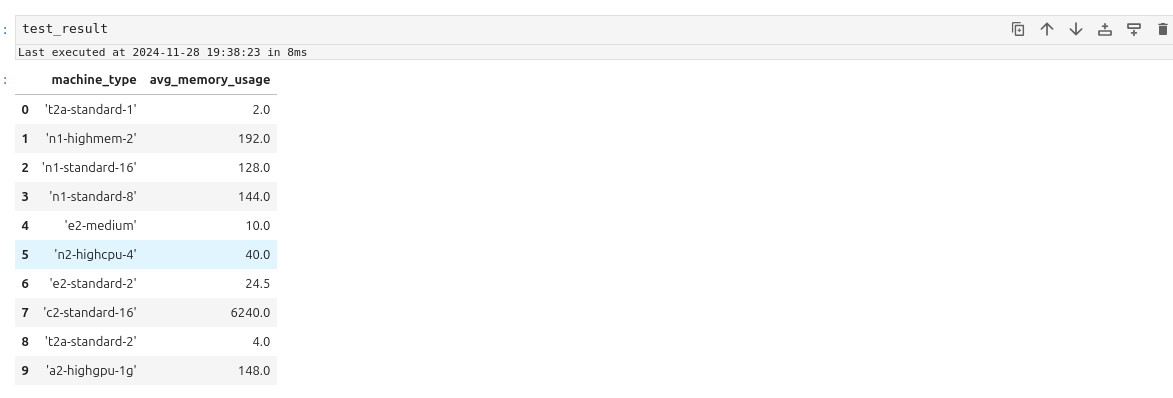
%%spark -s pythonsession -c sql -o test_result -q --maxrows 10
SELECT machine_type, Avg(memory_usage) as avg_memory_usage from MachineStats Group by machine_type
test_result
The result should look like this:
Displaying data
PySpark and Spark sessions often have compatibility issues with advanced visualization packages. A practical solution is to transfer the data to a local IPython kernel for processing and visualization. Here's how to achieve this:
- Export Data to Local Kernel: Use the -o variable in your notebook or code to pass data from Spark to the local IPython kernel.
%%spark -c sql -o machine_stats
SELECT * FROM MachineStats
- Install Required Visualization Packages: Install any necessary Python visualization libraries using the command:
!pip install package
For example let's display data by using autovizwidget widget:
from autovizwidget.widget.utils import display_dataframe
display_dataframe(machine_stats)
It allows to display data as one of the charts below:
- Bars
- Pie
- Scatter
- Area
- Table
- Line
- Cleaning sessions You can clean up your Spark sessions in two ways:
-
Via the Spark Sessions Management Panel: Go to the Manage Sessions section, and click Delete next to the session you want to remove.
-
Via the Spark Sessions Management Panel's Manage Endpoints Section: Navigate to the Manage Endpoints section, and click the Clean Up button next to the Ilum Livy Proxy endpoint.
These options allow you to remove unnecessary or inactive sessions from your environment.
Spark and PySpark Kernels
The Spark and PySpark kernels execute your code directly within the Spark session. In Ilum, when you create a new PySpark or Spark document, a corresponding Python or Scala Code Service is also created and assigned to the document. Your code will run within these services, meaning the Spark session is preconfigured and fully integrated with all components of the system.
For example, if the following modules are enabled, your Spark session will:
- Have access to the Hive Metastore
- Have access to the storages linked to the default cluster.
- Send data about memory usage, CPU usage, and stages schema to the History Server.
- Forward logs to Loki using Promtail.
- Expose its metrics to Prometheus.
The main difference between the PySpark and Spark kernels lies in the programming language:
- PySpark Kernel: Uses Python.
- Spark Kernel: Uses Scala.
The magic commands you can use and the overall workflow remain largely similar between the two kernels.
- Session Creation
To create a PySpark or Spark document go to Jupyter, click on the + button at the top left corner and choose the kernel
Then create a cell, type something simple there and run it.
For example:
print("Hello")
After some time, you should see the following result:

If you navigate to the Workloads page, you will see a new Code Service created in the default cluster. This Code Service will have a name prefixed with ilum-livy-proxy-session, indicating it is associated with the Spark or PySpark session you just created.
Notice that the code in the cell was executed as a request to that code service.
- Session Management
Spark and PySpark kernels do not have management panel similar to sparkmagics. However you can use magic commands for the same functionality.
Use %%configure magic to set spark parameters for you session using JSON format
For example, typing this code into your cell:
%%configure -f
{
  "spark.sql.extensions":"io.delta.sql.DeltaSparkSessionExtension",
  "spark.sql.catalog.spark_catalog": "org.apache.spark.sql.delta.catalog.DeltaCatalog",
  "spark.databricks.delta.catalog.update.enabled": true
}
will enable Delta in your spark session
It is mandatory to use -f flag because it forces Ilum to restart the session in case it is already running
Use %%info magic to get information about active spark sessions in Livy.
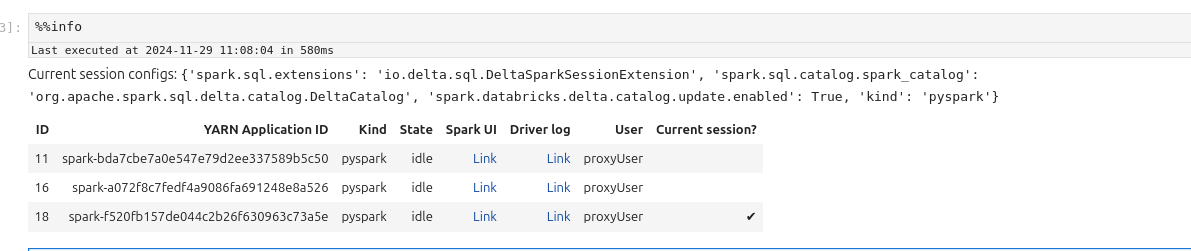
Use %%delete -f -s ID to delete sessions by their id. You cannot delete session of the current kernel
For example:
%%delete -f -s 16
Use %%cleanup -f to delete all the session in the current endpoint (in Ilum Livy Proxy)
Use %%logs to get the logs related to the spark session. You can use them for debugging.
- Workflow
If you want to write a Spark program, you don’t need to use any magics. Simply type your code into a cell and execute it.
For in PySpark Kernel (python):
data = [
    (1, "n1-standard-1", 20.5, 32.1, 15.0),
    (2, "n1-standard-1", 30.0, 64.3, 20.0),
    (3, "n1-standard-2", 30.2, 16.0, 22.0),
    (4, "n1-standard-2", 45.1, 128.5, 40.2),
    (5, "e2-medium", 25.4, 8.0, 18.3),
    (6, "e2-medium", 25.3, 12.0, 10.2),
    (7, "e2-standard-2", 29.8, 24.5, 14.7),
    (8, "e2-standard-2", 35.0, 24.5, 20.5),
    (9, "n2-highcpu-4", 50.2, 64.0, 30.4),
    (10, "n2-highcpu-4", 55.1, 16.0, 35.4),
    (11, "n1-standard-8", 80.5, 32.0, 45.6),
    (12, "n1-standard-16", 95.1, 128.0, 60.0),
    (13, "n1-standard-8", 85.0, 256.0, 90.0),
    (14, "n1-highmem-2", 40.1, 128.0, 50.0),
    (15, "t2a-standard-1", 15.2, 2.0, 5.5),
    (16, "t2a-standard-2", 25.5, 4.0, 7.3),
    (17, "n1-highmem-2", 60.5, 256.0, 100.0),
    (18, "c2-standard-16", 99.9, 6240.0, 120.5),
    (19, "a2-highgpu-1g", 89.2, 256.0, 95.4),
    (20, "a2-highgpu-1g", 100.0, 40.0, 110.0),
]

#using spark context
rdd = sc.parallelize(data)

datapath = "s3a://ilum-files/data/performance"
rdd.saveAsTextFile(datapath)


#using spark session
df = spark.read.csv(datapath)
df.createOrReplaceTempView("MachinesTemp")
result = spark.sql("Select \
    _c0 as machine_id, \
    _c1 as machine_type, \
    _c2 as cpu_usage, \
    _c3 as memory_usage, \
    _c4 as time_spent \
From MachinesTemp")

result.createOrReplaceTempView("MachineStats")

result.show()
In Spark Kernel (Scala):
val data = Seq(
  (1, "n1-standard-1", 20.5, 32.1, 15.0),
  (2, "n1-standard-1", 30.0, 64.3, 20.0),
  (3, "n1-standard-2", 30.2, 16.0, 22.0),
  (4, "n1-standard-2", 45.1, 128.5, 40.2),
  (5, "e2-medium", 25.4, 8.0, 18.3),
  (6, "e2-medium", 25.3, 12.0, 10.2),
  (7, "e2-standard-2", 29.8, 24.5, 14.7),
  (8, "e2-standard-2", 35.0, 24.5, 20.5),
  (9, "n2-highcpu-4", 50.2, 64.0, 30.4),
  (10, "n2-highcpu-4", 55.1, 16.0, 35.4),
  (11, "n1-standard-8", 80.5, 32.0, 45.6),
  (12, "n1-standard-16", 95.1, 128.0, 60.0),
  (13, "n1-standard-8", 85.0, 256.0, 90.0),
  (14, "n1-highmem-2", 40.1, 128.0, 50.0),
  (15, "t2a-standard-1", 15.2, 2.0, 5.5),
  (16, "t2a-standard-2", 25.5, 4.0, 7.3),
  (17, "n1-highmem-2", 60.5, 256.0, 100.0),
  (18, "c2-standard-16", 99.9, 6240.0, 120.5),
  (19, "a2-highgpu-1g", 89.2, 256.0, 95.4),
  (20, "a2-highgpu-1g", 100.0, 40.0, 110.0)
)

val rdd = spark.sparkContext.parallelize(data)

val datapath = "s3a://ilum-files/data/performance"
rdd.saveAsTextFile(datapath)

val df = spark.read.option("header", "false").csv(datapath)

df.createOrReplaceTempView("MachinesTemp")

val result = spark.sql("""
  SELECT
    _c0 AS machine_id,
    _c1 AS machine_type,
    _c2 AS cpu_usage,
    _c3 AS memory_usage,
    _c4 AS time_spent
  FROM MachinesTemp
""")


result.createOrReplaceTempView("MachineStats")

result.show()
To use Spark SQL, you can utilize the %%sql magic command, which functions similarly to how it works in the Python kernel with Spark magic.
For exapmle:
%%sql
SELECT * FROM MachineStats
You can also use multiple flags with %%sql to customize its behavior:
-o: Specifies the local environment variable that will store the result of the query.-nor--maxrows: Sets the maximum number of rows to return from the query.-qor--quiet: Controls whether the output is displayed in the document. If specified, the result will not be shown.-for--samplefraction: Defines the fraction of the result set to return when sampling.-mor--samplemethod: Specifies the sampling method to use—either take or sample.
For example:
%%sql -o test_result -q --maxrows 10
SELECT machine_type, Avg(memory_usage) as avg_memory_usage from MachineStats Group by machine_type
You won't see any results running this cell, but they will be saved in the test_result vairable locally and can be retrieved using
%%local magic:
%%local
test_result
The %%local magic command is used to execute code in a local environment. This can be useful when you don’t want to occupy the Spark environment for tasks that don’t require its resources.
In case you want to use a value from local environment in the spark session you should use %%send_to_spark magic.
%%send_to_spark -i value -n name -t type
Here you specify the value that you want send, its data type and the name of variable that it will be assigned to in the spark session.
For example:
%%local
s = u"abc ሴ def"
%%send_to_spark -i s -n s -t str
print(s)
Running these 3 cells should print the s string.
- Displaying data
In Spark and PySpark kernel dataframes retrieved with SQL commands or pandas dataframes can be displayed as
- table
- pie
- bars
- line chart
- scatter
- area
For example:
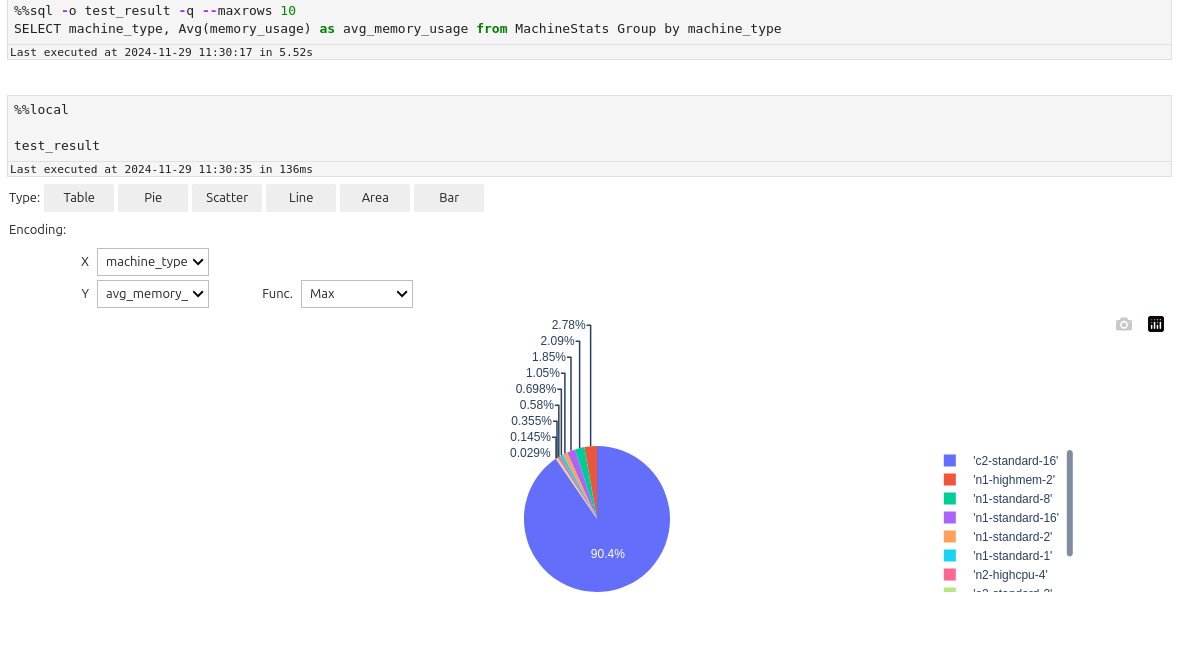
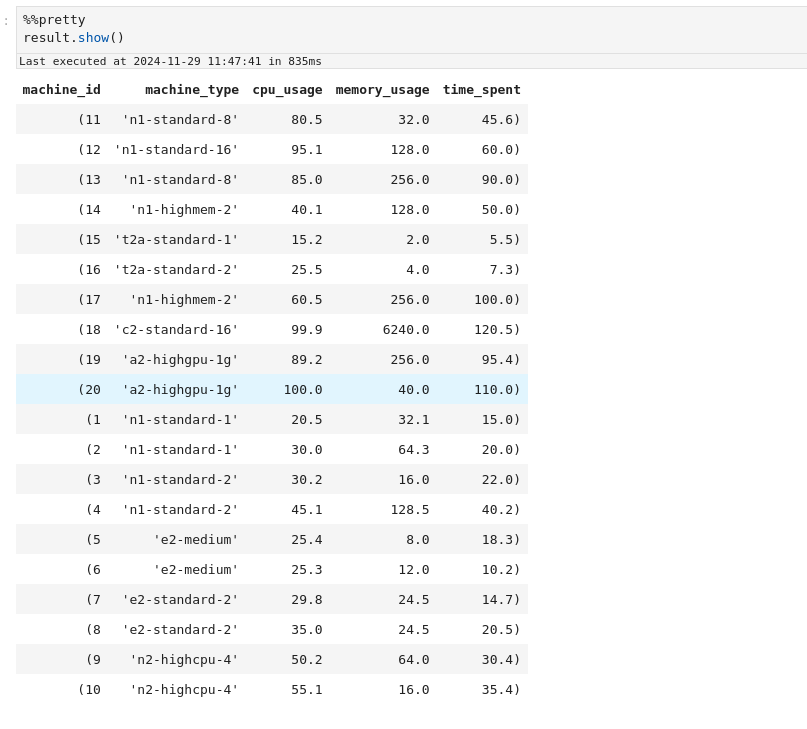
For spark dataframes you can use %%pretty magic to display them in a more pleasent format:
%%pretty
result.show()
Guide for Zeppelin
In Zeppelin you cannot control spark sessions, they are created and managed automatically. By default for each notebook
there is one separate for %livy.spark, one for %livy.pyspark and one for %livy.sql. In interpreter configurations
you can change this.
Create notebook with Livy engine
As mentioned earlier, Ilum uses Ilum-Livy-Proxy to link spark session from Zeppelin with Ilum Service. Therefore you must choose Livy engines when working with spark.
Write spark code in scala
Use %livy.spark
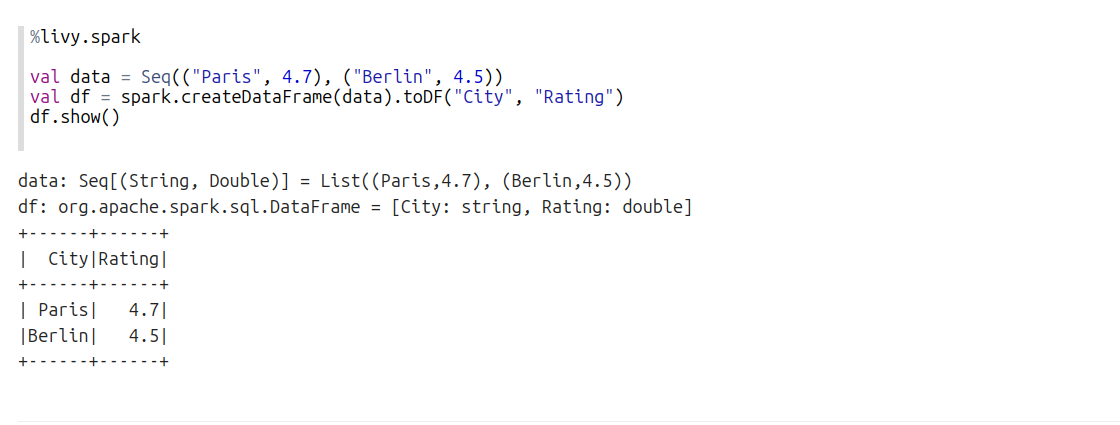
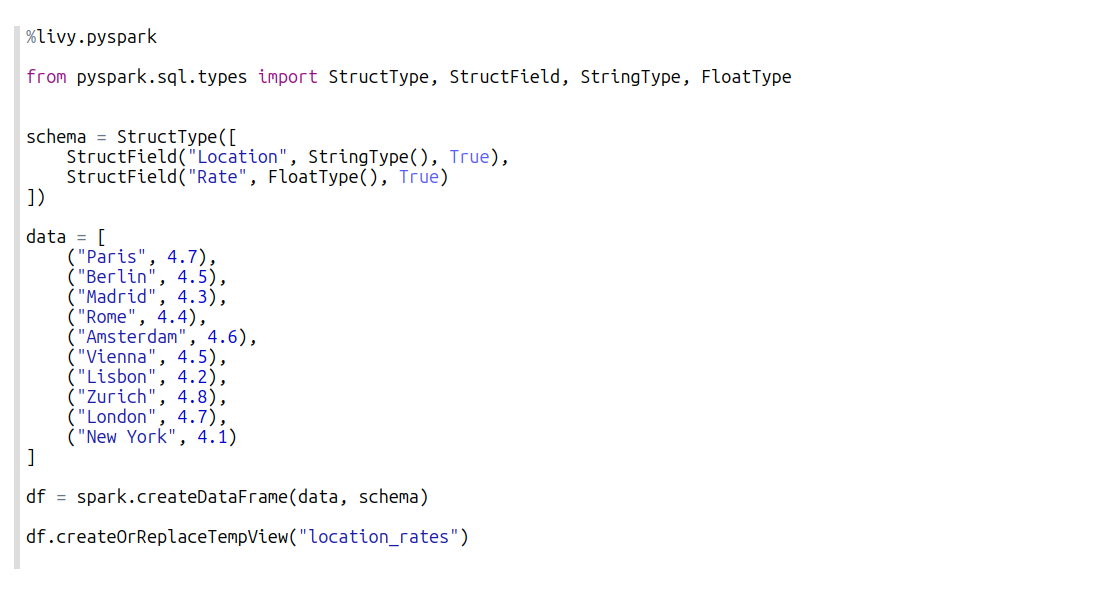
Write spark code in pyspark
Use %livy.pyspark
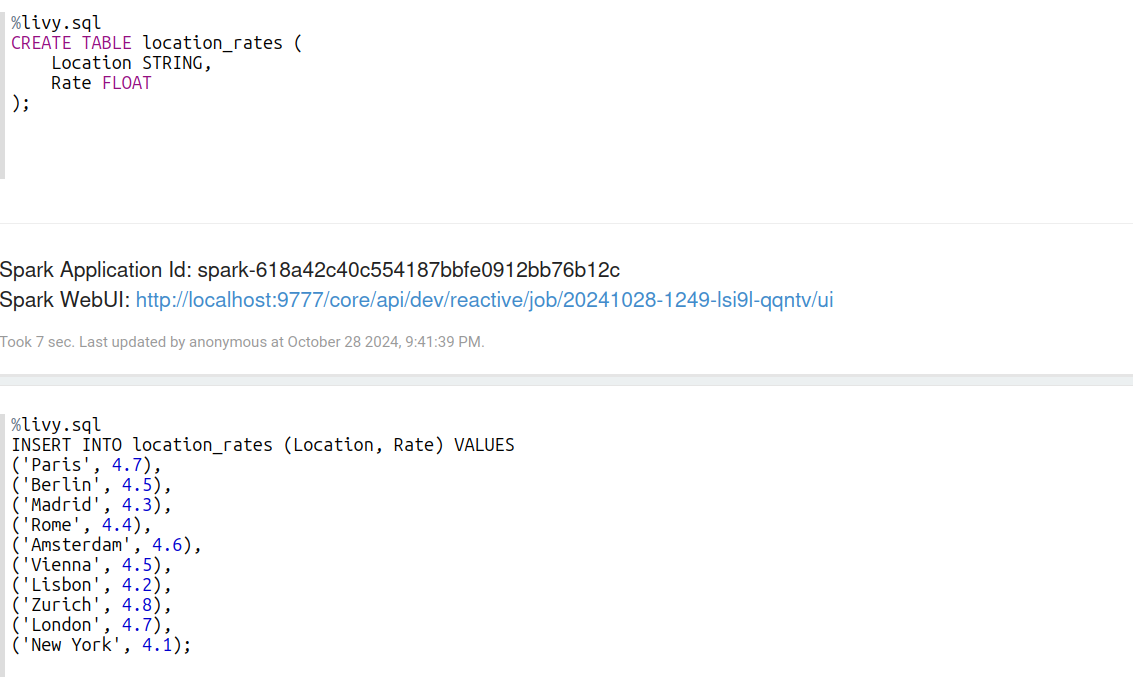
Write spark sql statements
Use %livy.sql
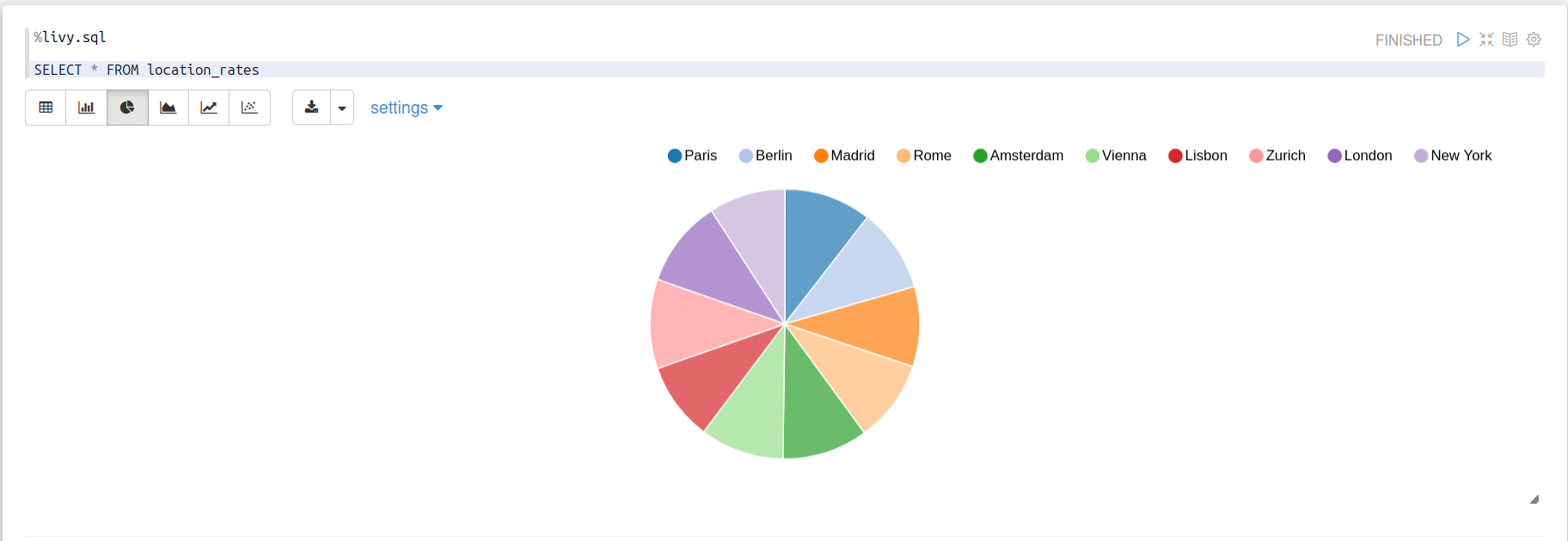
Make use of built-in visualisztions
When you run sql statements that return rows, you can visualize them
Manage sessions lifecycle
Unfortunately zeppelin is not flexible in session management. However you can:
- Manually finish ilum service in blocks:
spark.stop()
- Set timeout for idle sessions in interpreter configurations:
zeppelin.livy.idle.timeout=300