How a cron schedule becomes Spark jobs in Ilum
A schedule is a job definition and a cron expression. ilum-core turns it into a Kubernetes CronJob, and at every firing a small pod asks ilum-core for one more single job.
Three schedules.
15 jobs a week.
0 2 * * * · 30 3 * * * · 0 5 * * 1, one Kubernetes CronJob each
When does it run?
Three schedules of a bank on seven days. A mark is one firing time, and every firing is a new Spark job. Pick a schedule to read its five fields and its next runs. Then change the expression, and point at a field to see which part of the week it decides.
- minute
0:00- hour
202- day of month
*every day- month
*every month- day of week
*every day
- minute
30:30- hour
303- day of month
*every day- month
*every month- day of week
*every day
- minute
0:00- hour
505- day of month
*every day- month
*every month- day of week
1Mon
7 runs in these seven days, each a job of its own.
7 runs in these seven days, each a job of its own.
One run in these seven days.
AcceptedRefused
Next five runs
from Mon 23 Nov 2026, 00:00 UTC
Times are UTC. A cluster reads the expression in the time zone of its kube-controller-manager, because the CronJob that Ilum creates names none.
Five fields in Unix style. No seconds, and none of the L, W and # of Quartz. A question mark is allowed in the two day fields. Day of week is 0 to 6 from Sunday, or a name.
Every mark sets off the launch of a Spark job on Kubernetes. The first two schedules run the jobs behind the pipeline of the data lineage page.
Step by step
Step 1 of 8. your terminal → ilum-core · ilum-core → ilum-minio
A schedule is a job definition and a cron expression
You create a schedule in the console or with one request to ilum-core. It carries what a single job carries, which is the files, the class, the arguments, the Spark settings and the cluster, and adds a cron expression. ilum-core checks the expression, stores the schedule and copies its files into the storage of the cluster.
A schedule starts working the moment it is created. There is no second switch to turn it on, and its files are uploaded once, not at every run. The weekly report of dealer churn analysis, the dealers who stopped ordering, is a schedule like this.
curl -X POST "http://localhost:9888/api/v1/schedule" \
-F "name=card-transactions-daily" \
-F "cron=0 2 * * *" \
-F "clusterName=default" \
-F "language=PYTHON" \
-F "jobClass=card_transactions_daily" \
-F "jobConfig=spark.executor.instances=2" \
-F "pyFiles=@card_transactions_daily.py"{
"scheduleId": "20261122-0038-m64ai"
}Spark pods after this step
none
- your terminal ilum-core · HTTP · POST /api/v1/schedule
- ilum-core ilum-minio · S3 · the files of the schedule
- What it holds
- Name, cluster, language, class, arguments, Spark parameters, jars, files and Python files, requirements, packages, tags, memory settings, a number of retries, and the cron expression with an optional start and end time.
- The dialect
- Five fields: minute, hour, day of month, month, day of week. The console calls it Unix-style. A sixth field is refused, so there are no seconds.
- No Quartz extras
- L, W and # are refused. An expression such as 15 10 ? * 6L does not pass.
- Day of week
- 0 to 6 with Sunday as 0, or the names sun to sat in any case. 7 is refused.
- Question mark
- Allowed in day of month and day of week. Kubernetes reads it as a star.
- Nicknames
- @hourly, @daily, @midnight, @weekly, @monthly, @yearly and @annually. The form in the console starts on @daily.
- When it is refused
- ilum-core answers Invalid cron expression with what you sent, and nothing is created.
- A name of its own
- Two schedules cannot share a name.
- Start and end
- Both are optional, both are given in epoch milliseconds, and both have to lie in the future when you set them.
- In the console
- Workloads, then Schedules, then New Schedule. The Timing tab builds the expression for you by minutes, hours, days, weeks or months, or takes one you type under Custom.
Step 2 of 8. ilum-core → Kubernetes API · Kubernetes API → schedule-<scheduleId>
ilum-core hands the clock to Kubernetes
ilum-core runs no timer for your schedule. It creates a Kubernetes CronJob in its own namespace, named after the id of the schedule, with your expression as its schedule. From that moment the schedule is Active.
This is why a schedule asks nothing of ilum-core to stay on time. The CronJob is an object of the cluster. It is still there after ilum-core restarts, and it fires whether ilum-core is listening or not.
kubectl get cronjobs -l ilum.resourceType=cron-jobSpark pods after this step
none
- ilum-core Kubernetes API · create a CronJob
- Kubernetes API schedule-<scheduleId> · schedule: your expression
- Name
- schedule-<scheduleId>, in the namespace of the release. An id looks like 20261122-0038-m64ai: the minute the schedule was created and five random characters.
- Labels
- ilum.resourceType=cron-job and ilum.scheduleId=<scheduleId>. kubectl get cronjobs -l ilum.resourceType=cron-job finds the CronJobs of all schedules by the first one.
- Time zone
- The template names none. Kubernetes then reads the expression in the time zone of its kube-controller-manager, so find out what that is on your cluster before you count on an hour.
- Stamped from a template
- The chart mounts a CronJob template into ilum-core, and ilum-core fills in the name, the labels, the expression and the id of the schedule.
- Any target cluster
- The CronJob always lives beside ilum-core. The job it leads to runs on the cluster the schedule names, which can be another one.
- What ilum-core may do
- Create, update, get and delete CronJobs. The ClusterRole of the chart grants exactly these four verbs on them.
- Older clusters
- ilum-core has one launcher for batch/v1 and one for batch/v1beta1, and uses one that the cluster serves.
- On uninstall
- helm uninstall removes the CronJobs of all schedules in a pre-delete hook, so none keeps calling a release that is gone.
Step 3 of 8. Kubernetes API → schedule-<scheduleId>
Kubernetes evaluates the expression
From here on Kubernetes keeps the time. Its CronJob controller reads the five fields and, at every minute that matches, starts a Job from the template of the CronJob. The Job runs one small pod that holds nothing but curl. ilum-core takes no part in this.
Two rules of the evaluator are worth knowing. When day of month and day of week are both restricted, a day that matches either of them fires. And a slash after a single number counts from that number to the end of the field.
Spark pods after this step
none
- Kubernetes API schedule-<scheduleId> · the minute matches: start a pod
- Who evaluates
- The CronJob controller of Kubernetes, so the syntax is that of a Kubernetes CronJob.
- A step after a number
- 5/15 in the minute field means minutes 5, 20, 35 and 50.
- The pod
- One container from the image curlimages/curl. Set another image with ilum-core.cronjob.image.
- No history
- Finished Jobs of the trigger are not kept, neither the successful nor the failed. What stays of a tick is the job in Ilum.
Step 4 of 8. schedule-<scheduleId> → ilum-core
The pod makes one call to ilum-core
The pod knows one thing, the id of its schedule. It posts that id to ilum-core at the address of its service inside the cluster and exits. Kubernetes keeps no finished Job of a schedule, so nothing of the trigger stays behind.
The address is an internal one that the chart writes into the template of the CronJob. It is not part of the public REST API, and you do not call it yourself.
Spark pods after this step
none
- schedule-<scheduleId> ilum-core · HTTP · POST …/schedule/{id}/activate
- The command
- curl -X POST http://ilum-core:<port>/api/dev/reactive/schedule/$SCHEDULE_ID/activate. The id of the schedule reaches the pod as an environment variable.
- Before the start time
- A tick that comes before the start time of the schedule is answered and starts nothing.
- After the end time
- The first tick after the end time starts nothing, and ilum-core suspends the CronJob.
- In the event log
- A tick that starts a job is logged as SCHEDULE_TRIGGERED, with the id of the schedule and the id of the job.
Step 5 of 8. ilum-core → Kubernetes API
ilum-core submits a single job
ilum-core looks the schedule up, checks that this moment lies between its start and end times when it has them, and submits a single job built from the stored definition. From this point on it is the launch of any job you send yourself: spark-submit, a driver pod, executors.
Spark pods after this step
schedule-<jobId of run 1>-<hash>-driverPending
- ilum-core Kubernetes API · create the driver pod
- The id of a run
- The id of the schedule and five more characters. The name of the job is the name of the schedule.
- The same files every time
- Jars and Python files were stored once, under the id of the schedule. Every run reads them from there.
- Name in Spark
- The Spark application is called schedule-<jobId>. A job you submit yourself is job-<jobId>.
- Labels on the pods
- Driver and executors carry the label ilum.scheduleId, so kubectl can pick out the pods of one schedule.
- Retries
- Max retries belongs to every run. A run that fails is submitted again as a new job, up to that many times. It is 0 unless you set it.
Step 6 of 8. run 1 → ilum-core · run 1 → ilum-minio
The run appears among the jobs
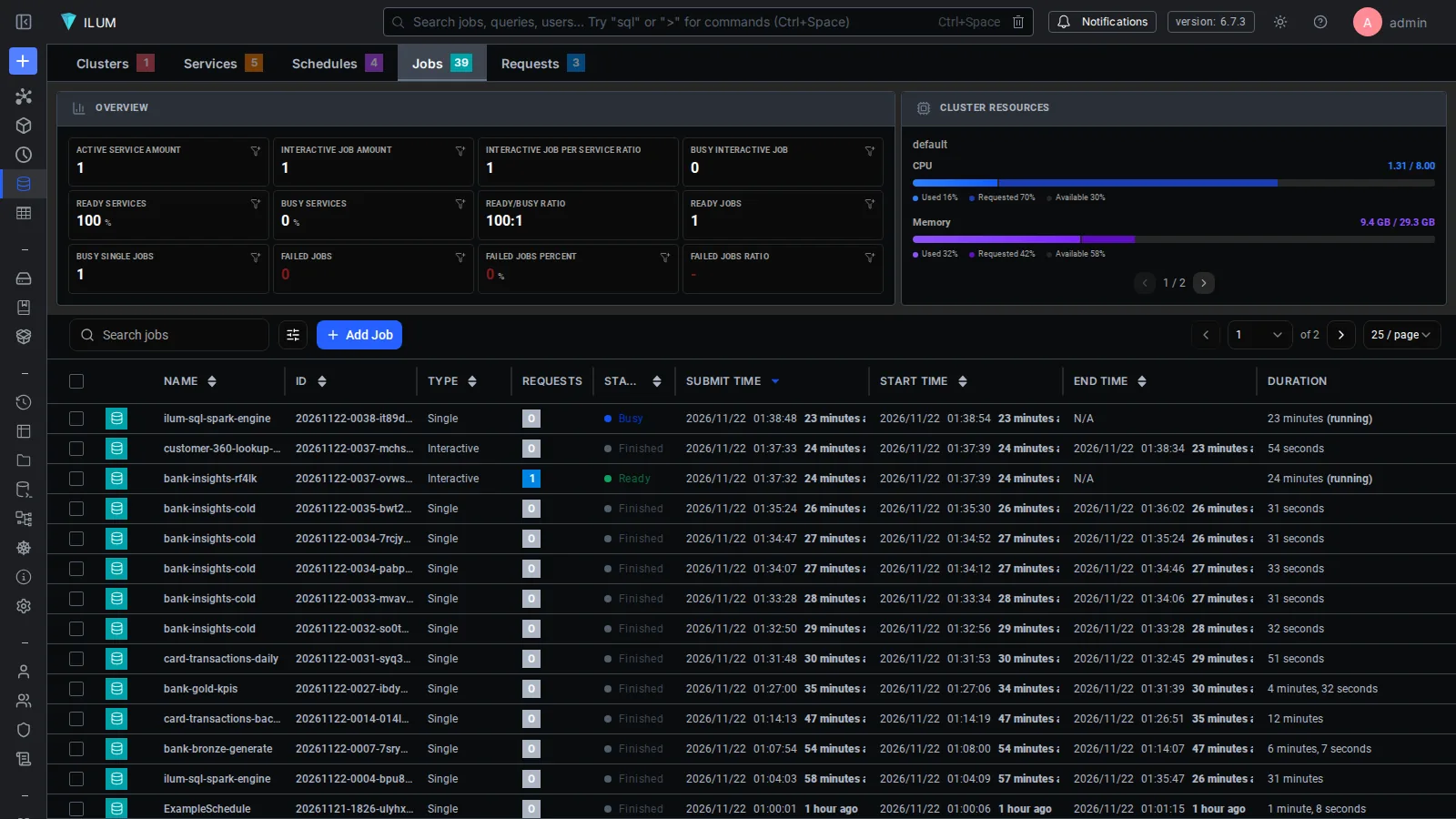
The run is listed under Jobs like any other single job. It has the name of the schedule and an id that begins with the id of the schedule, so every run leads back to what started it. The page of a schedule lists its runs, and the list of jobs can be narrowed to one schedule.
A fresh install has one schedule to look at, ExampleSchedule. It runs a small PySpark job at midnight and carries an end time three days after the install, so it stops by itself. Each run is a job like any other, so with tracing on it gets the trace and the Cost tab of Spark job tracing and cost per run.
Spark pods after this step
schedule-<jobId of run 1>-<hash>-driverRunning
- run 1 ilum-core · gRPC · job events
- run 1 ilum-minio · S3 · the files of the schedule
- In the console
- The page of a schedule has a Jobs tab with its runs, and the Jobs list has a filter by schedule.
- In the API
- A schedule reports the number of jobs it has started as jobsCount.
- In the lineage graph
- Runs of one schedule share a parent, the id of the schedule.
- ExampleSchedule
- Its expression is 0 0 * * *. Leave it out of an install with ilum-core.examples.schedule=false.
- Three days
- ExampleSchedule gets its end time, three days ahead, at the moment ilum-core creates it.
- The expression in words
- The console prints every expression as a sentence under Frequency, next to the raw fields.
Step 7 of 8. schedule-<scheduleId> → ilum-core · ilum-core → Kubernetes API
The next tick does not wait for the last run
A tick only asks for one more job. It does not look at the runs before it. When a run is still going at the next firing time, a second job starts beside it. If two at once would do harm, give the schedule more room or write the job so that it is safe to run twice.
Kubernetes has a policy that forbids two Jobs of one CronJob at a time. Ilum leaves it at the default, which allows them, and the policy would not help here in any case. The Job of a tick is the curl pod, and it has finished long before the Spark job it asked for.
Spark pods after this step
schedule-<jobId of run 1>-<hash>-driverRunningschedule-<jobId of run 2>-<hash>-driverPending
- schedule-<scheduleId> ilum-core · HTTP · activate, again
- ilum-core Kubernetes API · a second driver pod
- No look back
- Activation checks the state of the schedule and its time frame. It does not ask whether an earlier run is still going.
- The policy of the CronJob
- The launcher in ilum-core can set Forbid. Creating, pausing, resuming and editing a schedule all pass false for it.
- The call returns early
- ilum-core answers the pod once the job is launched. It does not wait for the job to end.
Step 8 of 8. your terminal → ilum-core · ilum-core → Kubernetes API · …
Pause suspends the CronJob, resume lifts it
Pause marks the CronJob as suspended, and Kubernetes stops starting pods for it. Runs that are already going finish. Resume lifts the suspension. Archive deletes the CronJob for good, and only an archived schedule can be deleted.
Resume has a catch that comes from Kubernetes. A CronJob without a starting deadline that passed a firing time while it was suspended starts one Job for the most recent of those times as soon as the suspension is lifted. The template of Ilum sets no deadline, so expect one run right after a resume when a firing time fell inside the pause.
curl -X POST "http://localhost:9888/api/v1/schedule/{scheduleId}/pause"curl -X POST "http://localhost:9888/api/v1/schedule/{scheduleId}/resume"
Spark pods after this step
schedule-<jobId of run 1>-<hash>-driverCompletedschedule-<jobId of run 2>-<hash>-driverRunning
- your terminal ilum-core · HTTP · POST /api/v1/schedule/{scheduleId}/pause
- ilum-core Kubernetes API · update the CronJob
- Kubernetes API schedule-<scheduleId> · suspend: true
- Pause
- POST /api/v1/schedule/{scheduleId}/pause. The CronJob gets suspend: true and the schedule is Paused. Only an active schedule can be paused.
- Resume
- POST /api/v1/schedule/{scheduleId}/resume. Only a paused schedule can be resumed.
- Edit
- A new expression is written into the same CronJob. A paused schedule stays suspended through the edit.
- Archive
- POST /api/v1/schedule/{scheduleId}/stop deletes the CronJob. The console shows the schedule as Archived. It cannot be resumed or edited after that.
- Delete
- Only an archived schedule can be deleted. Deleting removes its stored files and the records of its runs.
- Who may
- Pause and resume are one permission in the roles of the console, apart from create, edit, archive and delete.
What happens to a tick that goes wrong
A schedule has two halves: a CronJob that fires and ilum-core that answers. Either can be away while the other works. Nothing in ilum-core replays a firing time afterwards. The nightly checks of the data platform for utilities rely on it: an error ends the job with exit code 1, and the retries of its schedule start it again.
- ilum-core is down
- The CronJob fires on time and its pod cannot connect. Kubernetes tries the pod again up to ilum-core.cronjob.backoffLimit times, 3 unless you change it. If ilum-core is back by then, the run starts late. If not, that run does not happen.
- ilum-core answers with an error
- curl is called without --fail, so an HTTP error still ends the pod as a success and nothing is tried again. Only a connection that fails counts as a failure.
- The control plane was down
- The CronJob has no starting deadline. By the rules of Kubernetes it then starts one Job for the most recent time it missed once the controller is back, and none for the times before that.
- The last run is still going
- A second job starts beside it. Nothing holds a tick back.
- The run fails
- With max retries above 0 ilum-core submits it again as a new job. With 0, the next run is the next firing time.
- The schedule is archived
- A pod that still calls for an archived schedule gets Schedule can't be activated after disabling.
One job on a clock, or a pipeline of steps
A schedule runs one job when the clock says so. It has no way to say that one job waits for another. Schedules such as the silver table at 02:00 and the report that reads it at 03:30 form a pipeline only through the hours between them. When the order has to hold whatever the durations, that is the work of an orchestrator, and Ilum brings Apache Airflow as a module. The settlement of payment providers on Ilum is ordered by the clock the same way: its checks run an hour after the job they check.
- What a schedule cannot say
- Run this after that. Each schedule fires alone, and the order of two schedules is the gap between their expressions.
- Airflow is one flag
- The module is off in a default install. --set airflow.enabled=true adds it to the release.
- How Airflow reaches Ilum
- Through the Livy API of ilum-core. The chart gives Airflow a connection named ilum-livy-proxy, and a task with the LivyOperator becomes a Spark job that ilum-core launches.
- Steps and their order
- A DAG says which task waits for which. The example DAG of the module starts one Spark job and then two more that depend on it.
- Who keeps the time there
- The scheduler of Airflow. No CronJob of Ilum is involved in a DAG run.
- Lineage across both
- Airflow reports its DAG runs to the same Marquez, and every Spark job it starts is told which run it belongs to.
- Other orchestrators
- Kestra, n8n, Mage and NiFi are modules as well, each behind a flag of its own.
The REST API of a schedule
Everything the console does with a schedule is a call to ilum-core. All paths are under /api/v1.
- Create
- POST /api/v1/schedule, a multipart form. name, clusterName, cron and jobClass are required.
- List
- GET /api/v1/schedule, with filters for state, expression, cluster and tags.
- Read
- GET /api/v1/schedule/{scheduleId}, or GET /api/v1/schedule/name/{scheduleName} when you know the name.
- Update
- PUT /api/v1/schedule/{scheduleId}. The name, the cluster and the uploaded files stay as they were created.
- Pause and resume
- POST /api/v1/schedule/{scheduleId}/pause and POST /api/v1/schedule/{scheduleId}/resume.
- Archive
- POST /api/v1/schedule/{scheduleId}/stop.
- Delete
- DELETE /api/v1/schedule/{scheduleId}, for an archived schedule.
Run it on your own cluster
Schedules are part of the default install: two commands on any Kubernetes cluster, and ExampleSchedule is there to look at. The Community license is free. Airflow is one more flag on the same command.
Install Ilum CommunitySchedule ↗Schedule Spark jobs ↗Airflow ↗
helm repo add ilum https://charts.ilum.cloudhelm install ilum ilum/ilum