Apache Spark Connect on Ilum: Configuration and Connection Guide
What is Spark Connect?
Spark Connect is a modern client-server interface for Apache Spark that enables remote execution of Spark workloads from lightweight clients such as Python, Java, Scala, R, and SQL-based tools. Introduced in Spark 3.4, Spark Connect decouples the Spark client from the Spark runtime, allowing developers to build interactive data applications, notebooks, and dashboards without deploying the full Spark engine locally.
Spark Connect leverages gRPC-based communication to interact with a remote Spark server, offering flexibility, improved security, and simplified infrastructure for data engineering, data science, and analytics workflows.
It is very similar to Ilum’s approach to Spark microservices, where Spark components are containerized and exposed as dynamic services. The design used in Deploying PySpark Microservice on Kubernetes : both enabling scalable, stateless, and secure access to Spark without full cluster setup on the client side.
Why use Spark Connect on Kubernetes?
Traditional Spark submission often requires complex local setups (Java, Hadoop binaries, exact Spark versions). Spark Connect eliminates this "dependency hell."
| Feature | Traditional Spark Submission (spark-submit) | Spark Connect |
|---|---|---|
| Architecture | Monolithic (Driver runs on client or cluster edge) | Decoupled (Client is separate from Server) |
| Client Requirements | Heavy (Requires Java, Spark binaries, Hadoop configs) | Lightweight (Only Python/Go/Scala library required) |
| Network Protocol | Custom RPC (Sensitive to version mismatch) | gRPC (Standard, version-agnostic, firewall-friendly) |
| Iteration Speed | Slow (Build & Deploy jars) | Fast (Interactive, REPL-style development) |
| Language Support | limited to JVM/Python | Polyglot (Python, Scala, Go, Rust, etc.) |
For a deeper dive into how Ilum leverages this for multi-tenancy, see our Architecture Documentation.
In Ilum, Spark Connect aligns naturally with our microservice-based Spark architecture. You can deploy a Spark Connect server as a standard job and access it through various connection methods, using pod name, pod IP, or a service exposed via Kubernetes.
Prepare Your Client Environment
Before connecting, you need a lightweight client library. Unlike traditional Spark, you do not need a local JVM or Hadoop installation.
Python (PySpark)
- Spark 4 (default)
- Spark 3
pip install pyspark[connect]==4.0.1 grpcio-status
pip install pyspark[connect]==3.5.8 grpcio-status
Scala (sbt)
For Scala applications, add the Spark Connect client dependency:
- Spark 4 (default)
- Spark 3
libraryDependencies += "org.apache.spark" %% "spark-connect-client-jvm" % "4.0.1"
libraryDependencies += "org.apache.spark" %% "spark-connect-client-jvm" % "3.5.8"
Spark SQL CLI
You can also use the generic Spark SQL CLI to connect remotely:
/path/to/spark/bin/spark-sql --remote "sc://<ilum-cluster-address>:15002"
Note: Always match your client library version (e.g.,
4.0.1; fallback3.5.8) with the Spark version running on your Ilum cluster.
Creating Apache Spark Connect Instance via Ilum UI
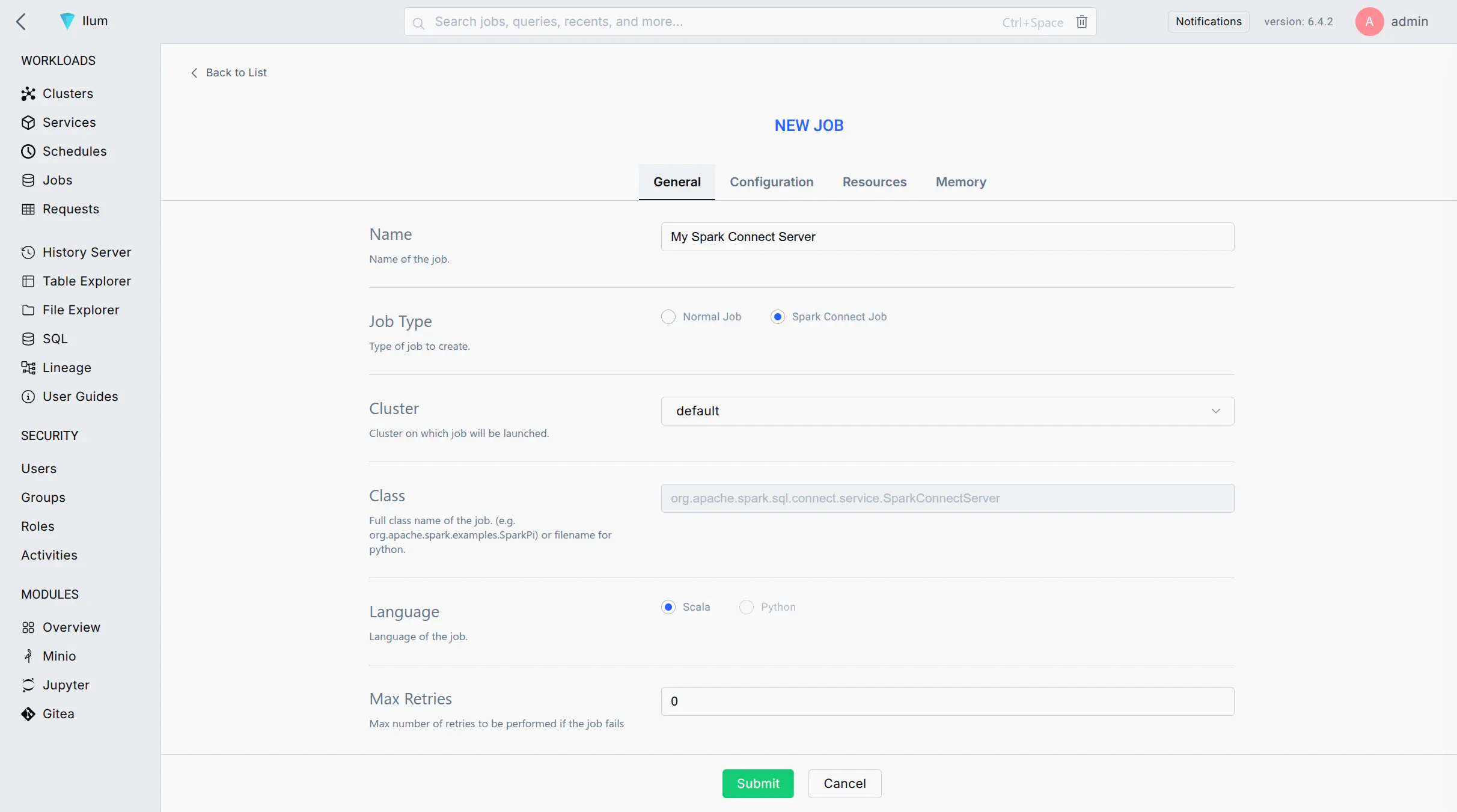
Follow these steps to launch a Spark Connect server as a job on your Ilum cluster using the web UI:
-
Start a New Spark Job: Log in to the Ilum UI and navigate to the Jobs section. Click on New Job to create a new Spark job.
-
Job Name: Enter a recognizable name for the job (e.g.,
Spark Connect Server) to identify it later in the UI. -
Main Class: Set the job's main class to:
org.apache.spark.sql.connect.service.SparkConnectServerThis is the built-in Spark class that starts the Spark Connect server process, enabling remote connectivity to Spark clusters.
-
Spark Configuration: Go to the Configuration tab/section for the job. Add the following Spark property to ensure the Spark Connect server code is available:
- Spark 4 (default)
- Spark 3
Key: spark.jars.packages
Value: org.apache.spark:spark-connect_2.13:4.0.1
Key: spark.jars.packages
Value: org.apache.spark:spark-connect_2.12:3.5.8
This configuration instructs Spark to fetch the Spark Connect library from Maven when the job starts.
-
(Optional) Label the Pod: If you plan to expose this Spark Connect server via a Kubernetes Service, add a label to the Spark driver pod:
- Key:
spark.kubernetes.driver.label.type - Value:
sparkconnect
This will tag the Spark Connect server's pod with a label
type=sparkconnectfor easy service selection. - Key:
-
Submit the Job: Click Submit. Ilum will deploy the Spark job to the cluster. After a short time, you should see the job in the running jobs list.
-
Verify the Server is Running: Wait for the job status to become "Running". You can check the job's logs for a message indicating Spark Connect has started (e.g., a log line mentioning port 15002). Once running, the Spark Connect server is listening for client connections on the default port 15002.
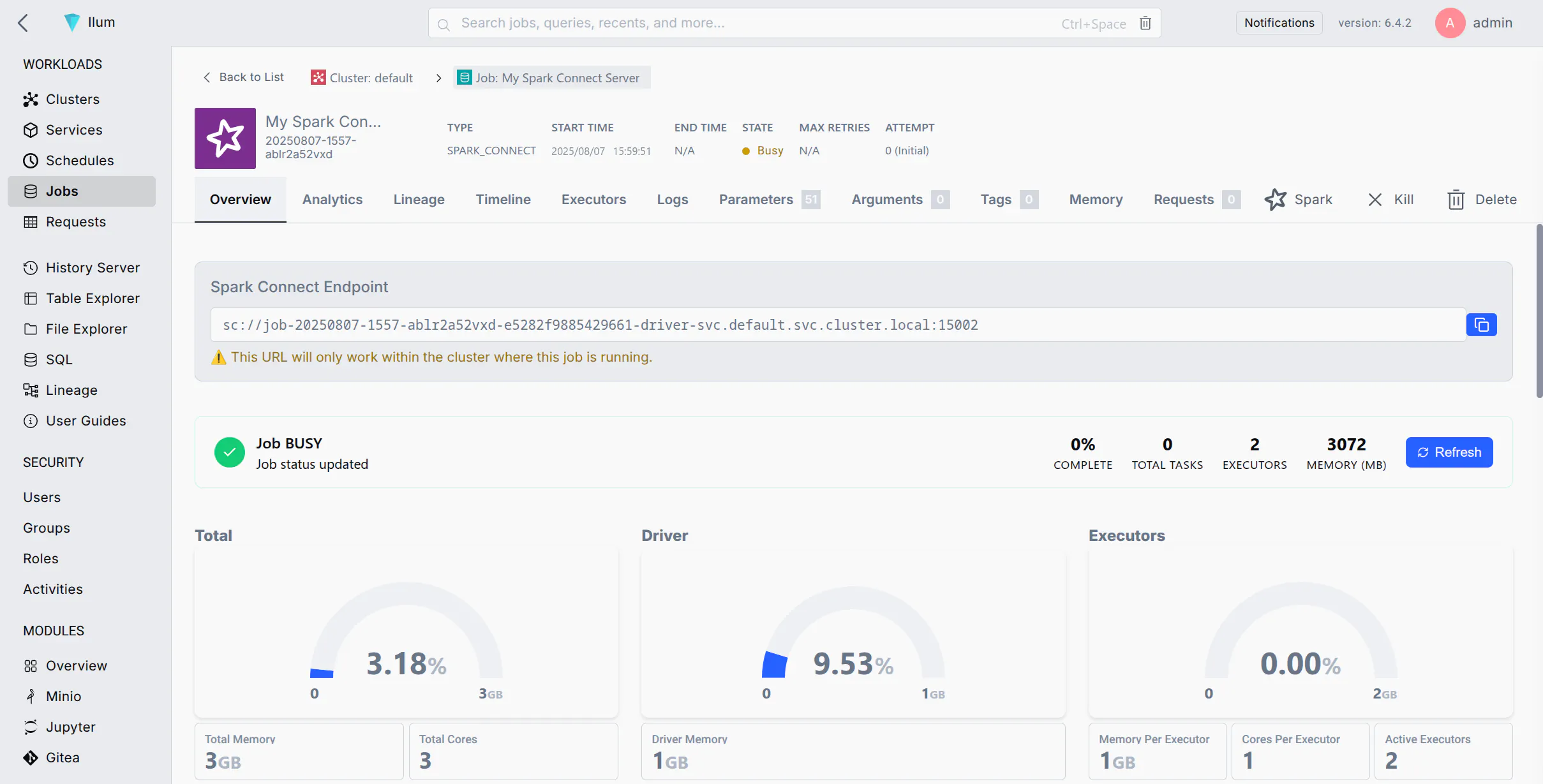
If your job fails immediately, ensure you added spark.jars.packages with the correct version.
Connecting to the Spark Connect Server
Once the Spark Connect server is running, you can connect to it from a Spark client (e.g., PySpark, Spark shell, sparklyr, etc.) using the Spark Connect URL (sc://...). Below are different connection methods depending on your network setup:
- Method 1: Connect by Pod Name (Cluster DNS)
- Method 2: Connect by Pod IP
- Method 3: Port Forwarding with kubectl
- Method 4: Exposing a Service for Spark Connect
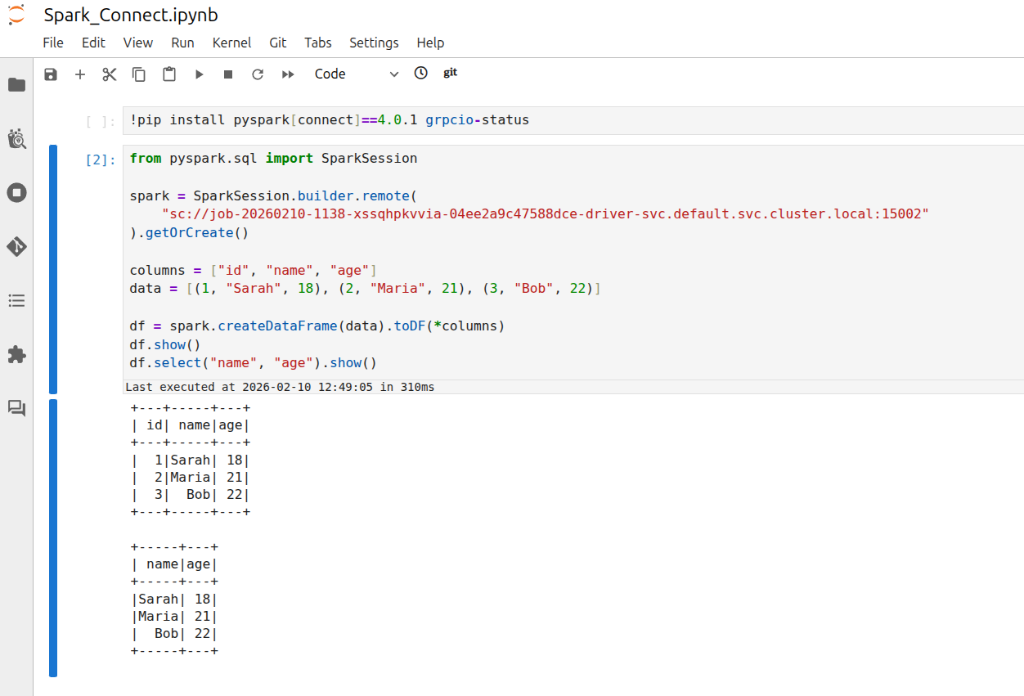
If your environment allows DNS resolution of pod names (for example, your client is within the cluster or can resolve the cluster's internal DNS), you can connect using the pod's DNS name. Kubernetes assigns each pod a DNS name of the form <pod-name>.<namespace>.pod.cluster.local (Kubernetes DNS). This DNS name resolves to the pod's IP address inside the cluster.
Steps:
- Find the Pod Name: In the Ilum UI, locate the Spark Connect job you started. Note the driver pod name (Ilum may show it in the job details or logs). It will be something like
job-xxxxxx-driver(the exact format may vary). - Construct the URL: Use the pod's fully qualified DNS name. For example, if the pod name is
job-abc123-driverin thedefaultnamespace, the address would be:sc://job-abc123-driver.default.pod.cluster.local:15002 - Connect via Spark Client: Use this URL in your SparkSession builder or Spark shell. For example, in PySpark you can do:
notebook.ipynb
from pyspark.sql import SparkSession

spark = SparkSession.builder.remote(
    "sc://job-abc123-driver.default.pod.cluster.local:15002"
).getOrCreate()
This will create a Spark session that connects remotely to the Spark Connect server at the given DNS address. Ensure that your environment's DNS can resolve .pod.cluster.local addresses (usually only true if running within the cluster or via VPN to the cluster network).
Note: This is crucial for managing your Apache Spark applications. If your client is running inside the same namespace in the cluster, you might not need the full domain. For instance, just sc://job-abc123-driver:15002 could work due to Kubernetes' DNS search path. However, using the full pod.cluster.local address with namespace is the most explicit and reliable approach.
If DNS resolution is not available, you can use the pod's IP address directly in the Spark Connect URL. This requires that your client environment can reach the pod IP (e.g., if you are on the same network or have appropriate routing to the cluster's pod network).
Steps:
- Get the Pod IP: Find the IP address of the Spark Connect pod. In Ilum UI, check the job details for an IP, or use the CLI:
kubectl get pod <pod-name> -o wideto see the pod's IP. - Construct the URL: Use the IP in place of the host. For example, if the pod IP is
10.42.1.25, the URL would be:sc://10.42.1.25:15002 - Connect via Spark Client: Use the IP-based URL in your Spark client. For example:
connect_by_ip.py
spark = SparkSession.builder.remote("sc://10.42.1.25:15002").getOrCreate()
This will attempt to connect to port 15002 on that IP.
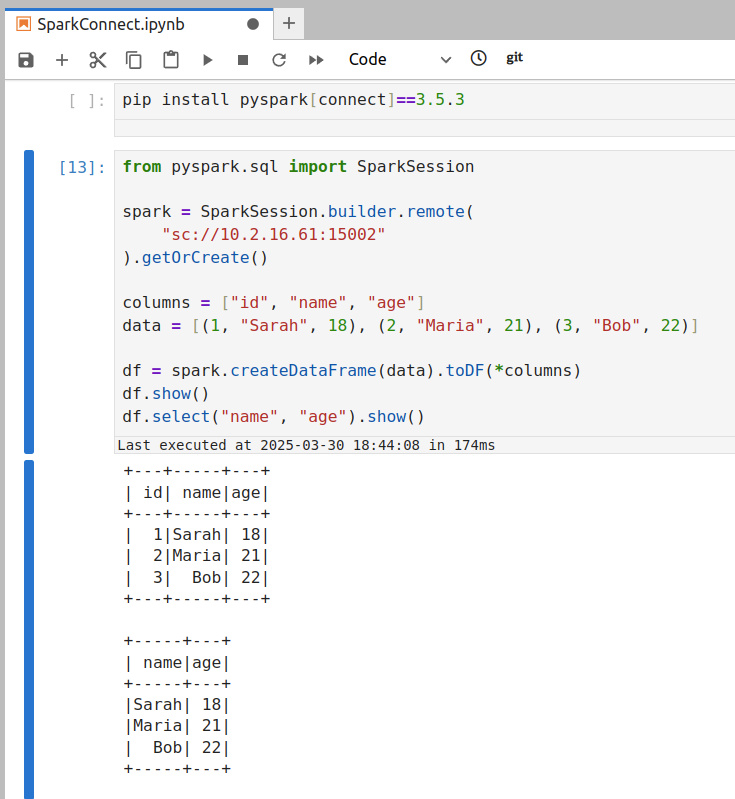
Make sure that your machine can actually reach that IP address of the Spark server.
- If your client is inside the cluster (or in the same VPC/network), the pod IP should be reachable.
- If your client is outside the cluster (e.g., your local laptop), the pod IP is likely not directly routable. In that case, this method will time out or refuse connection. You'd then need to use Method 3 or 4 instead.
If you are connecting from outside the cluster (for example, from your local development environment) and cannot reach the pod IP or DNS directly, a convenient approach is to use Kubernetes port forwarding. Port forwarding opens a tunnel from your local machine to the remote pod's port.
Steps:
- Run Port-Forward: Open a terminal on your machine that has access to the Kubernetes cluster (where
kubectlis configured). Run:ReplacePort Forwardkubectl port-forward <pod-name> 15002:15002<pod-name>with the Spark Connect pod's name (e.g.,job-abc123-driver). This command will bind your local port 15002 to the pod's port 15002. You should see output likeForwarding from 127.0.0.1:15002 -> 15002. Keep this process running while you need the connection to the Spark server.

-
Connect to Localhost: With the port-forward in place, your local machine is now listening on port 15002. In your Spark client, connect to
localhost:15002using the Spark Connect URL:local_script.pyspark = SparkSession.builder.remote("sc://localhost:15002").getOrCreate()Spark Connect uses port 15002 by default (Quickstart: Spark Connect — PySpark 3.5 documentation), so it allows remote connectivity to spark clusters.
sc://localhost:15002will reach through the tunnel into the cluster. Now your Spark session is remotely connected to the cluster Spark instance. -
Use Spark as Usual: Once connected, you can use the
sparksession as if it were local—all DataFrame operations will execute on the cluster.
This method is often the simplest for development. When you are done, you can stop the port-forwarding by pressing Ctrl+C in the terminal running the kubectl port-forward command.
For a more permanent solution or to allow multiple users/clients to connect easily, you can expose the Spark Connect server via a Kubernetes Service. A Service gives a stable network endpoint (DNS name and IP) for the Spark Connect pod, and can optionally expose it beyond the cluster (e.g., via a LoadBalancer or NodePort).
Steps to Expose via Service:
-
Ensure Pod Label: If you haven't already labeled the Spark Connect pod (as suggested in step 5 of the setup above), do so now. You can add a label on the fly with kubectl:
kubectl label pod <pod-name> type=sparkconnect(If the pod was already labeled via Spark config, this step is not needed.)
-
Create a Service: Define a Kubernetes Service YAML that targets this pod by its label.
spark-connect-service.yamlapiVersion: v1
kind: Service
metadata:
name: spark-connect-service
namespace: ilum # use the namespace where your Spark Connect pod is running
spec:
selector:
type: sparkconnect # this label should match the pod's label
ports:
- name: sparkconnect
protocol: TCP
port: 15002 # service port (clients will use this)
targetPort: 15002 # target port on the pod
nodePort: 30002 # node port (external users will use this nodeip:30002)
type: NodePort # ClusterIP is only accessible within the cluster
# For external access, you could use type: NodePort or LoadBalancer here.kubectl apply -f spark-connect-service.yamlThis Service will route traffic to any pod with
type: sparkconnectlabel on port 15002. You can verify withkubectl get svc spark-connect-service.
-
Inside Cluster or VPN: Use the service's DNS name or cluster IP. For example, within the cluster (or on a VPN that can resolve cluster DNS), the URL would be:
sc://spark-connect-service.default.svc.cluster.local:15002orsc://spark-connect-service:15002All traffic to this address will be forwarded to the Spark Connect pod. -
Outside Cluster (if exposed): If you set the Service type to NodePort or LoadBalancer, use the external address. For NodePort, that might be
sc://<node-ip>:30002. For LoadBalancer, it could besc://<load-balancer-host>:15002depending on how your cloud provider assigns it. (These are advanced scenarios; often port-forwarding is simpler for external access.)
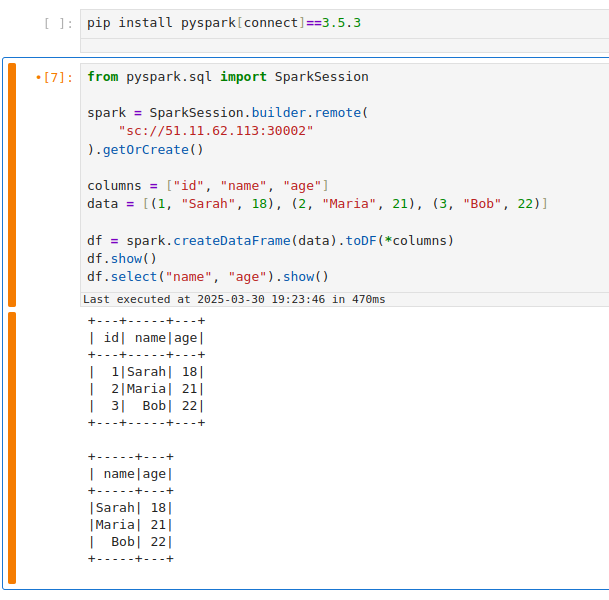
Using a Service has the benefit of a stable name – you don't need to know the exact pod name or IP after it's set up. It also allows you to change the backing pod (e.g., restart the Spark Connect job) without changing how clients connect (as long as the new pod has the same label).
If your Service selector matches multiple Spark Connect pods, client requests can be routed inconsistently. A Kubernetes Service will load-balance connections among all matching pods. This means if you accidentally run two Spark Connect jobs with the label type=sparkconnect, a client might connect to either one (potentially different sessions each time). To avoid issues, ensure only one Spark Connect pod is behind a given Service, or use unique labels (and Service names) per instance. In cases where you need to scale Spark Connect horizontally, be aware that each client session is bound to a single server; multiple servers won't share session state.
Cleanup Tasks
After you are done with your Spark Connect session(s), perform the following cleanup steps to free resources and avoid orphaned connections:
-
Stop the Spark Connect Job: In the Ilum UI, navigate to the running Spark Connect job and click Stop or Terminate. This will shut down the Spark Connect server process on the cluster. Confirm that the job's status changes to stopped/finished. (If you forget this step, the Spark Connect server will keep running and occupying cluster resources, impacting your spark application performance.)
-
Terminate Port-Forward Sessions: If you used
kubectl port-forward, go to the terminal where it's running and pressCtrl+Cto end the port-forwarding. This closes the tunnel and frees up your local port. If you ran port-forward in the background, make sure to kill that process. -
Delete Kubernetes Service (if created): If you exposed a Service for Spark Connect, remove it when it's no longer needed. You can delete it with:
kubectl delete service spark-connect-service -n defaultReplace
spark-connect-serviceand namespace as appropriate. This ensures you don't leave an open network endpoint in the cluster. (If you set up a LoadBalancer, deleting the Service will also release the external IP/port. If you used a NodePort, it frees that port on the nodes for other uses.)
By cleaning up, you ensure no stray processes or ports are left open related to your Spark Connect usage, optimizing resources on your spark cluster.
Troubleshooting Spark Connect Issues
Here are solutions to the most common errors when connecting to Spark on Kubernetes.
How to fix "Connection Refused" on port 15002?
If your client fails with ConnectionRefusedError or UNAVAILABLE:
Cause: The client cannot reach the Spark Driver pod. This is usually a networking issue, not a Spark issue.
Solution:
- Check Job Status: Is the job actually
RUNNINGin the Ilum UI? - Check Network Access:
- If you are outside the cluster (e.g., local laptop), you cannot use the Pod IP directly. You must use
kubectl port-forward(Method 3) or a NodePort/LoadBalancer Service (Method 4).
- If you are outside the cluster (e.g., local laptop), you cannot use the Pod IP directly. You must use
- Verify Port: Ensure you are connecting to
15002(Spark Connect), not4040(Spark UI). - Test Connection: Run
nc -vz localhost 15002(if using port-forward).
How to resolve "Name or service not known" (DNS Error)?
Cause: Your local machine doesn't know how to resolve Kubernetes internal DNS names like job-xyz.default.pod.cluster.local.
Solution:
- Option A: Use
kubectl port-forwardand connect tosc://localhost:15002. - Option B: Connect using the Pod IP directly (only works if you are on the same VPN/VPC).
- Option C: Configure your local
/etc/hoststo point the DNS name to 127.0.0.1 (combined with port forwarding).
How to fix "Pod not found" during port-forwarding?
Cause: Spark Driver pods are ephemeral. If you restart the job, the pod name changes (e.g., from job-abc-driver to job-xyz-driver).
Solution:
- Always check the current driver pod name in the Ilum UI or via
kubectl get pods -l spark-role=driver. - Use a Service (Method 4) to get a stable hostname that doesn't change between restarts.
Error: "Client version mismatch" or "Unsupported Protocol"
Cause: You are trying to connect a Spark 3.4 client to a Spark 3.5 server (or vice versa).
Solution: Check your client version:
pip show pyspark
It must match the Ilum cluster version (e.g., both must be 3.5.x).
Error: "ModuleNotFoundError: No module named 'grpc'"
Cause: The grpcio-status library is missing. It is a required optional dependency for Spark Connect.
Solution:
pip install grpcio-status
By following this guide, you should be able to configure a Spark Connect server on Ilum and connect to it through various methods. The Ilum UI makes it easy to deploy the Spark Connect instance, and with the above techniques, you can access it whether you are inside the Kubernetes cluster or working remotely. Happy connecting!