Using Rook-Ceph as S3 Storage for Ilum
Ilum uses object storage to manage job artifacts, data files, and internal state. By default a bundled minio instance serves this role; rustfs is available as an opt-in alternative (and is planned to become the default in 6.8.0). For production environments or clusters that already run Ceph, Rook-Ceph can replace the bundled provider entirely by exposing Ceph's RADOS Gateway (RGW) as the S3 endpoint.
Rook-Ceph is deployed and managed independently of the Ilum Helm chart. Ilum only consumes the RGW endpoint and S3 credentials — it does not manage the Rook operator, CephCluster, or object store lifecycle.
Architecture
Ilum connects to the RGW endpoint using the same kubernetes.s3.* configuration path used for the bundled providers.
When rookCeph.enabled=true the Ilum chart provides:
- Shared credentials Secret —
ilum-objectstorage-credentialsis seeded fromrookCeph.s3.{accessKey,secretKey}so ilum-core, hive-metastore, Trino, Jupyter, MLflow, Airflow, Kestra, Langfuse, and the bucket init Job all read one credential source. - Bucket init Job — waits for RGW to become reachable, then creates all required S3 buckets via
aws-cli. Pre-existing buckets are skipped idempotently and real errors are surfaced (the Job no longer masks failures). - Service alias —
ilum-objectstorageis rendered as a selector-less Service backed by an Endpoints object that mirrors the live RGW Pod IPs from therook-cephnamespace. Every consumer that targetsilum-objectstorage:9000keeps working without per-consumer rewiring. Re-runhelm upgradeafter RGW Pod restarts to refresh the mirrored IPs. - Mutual exclusion guard — rejects installs that try to enable
rook-cephalongside the bundledrustfsorminioproviders.
Prerequisites
- For a new Rook-Ceph deployment: a block device or loopback device for Ceph OSD storage
- For an existing Ceph cluster: RGW endpoint URL and S3 credentials
Option A: Deploy Rook-Ceph from Scratch
This section walks through a minimal single-node Rook-Ceph deployment suitable for development and testing. Production adjustments are noted where relevant.
Prepare Storage
Production clusters with dedicated raw block devices can skip this step.
For development or testing on a single node without spare disks, create a loopback block device:
sudo dd if=/dev/zero of=/var/lib/ceph-loop.img bs=1M count=20480
LOOP_DEV=$(sudo losetup -f --show /var/lib/ceph-loop.img)
echo "loopback device attached at $LOOP_DEV"
losetup -f returns the first free loop index, which varies per host (the test host needed loop20 because loop0–loop19 were already in use). Capture the value in $LOOP_DEV and use it everywhere loop0 appears in the rest of this guide; do not hardcode /dev/loop0.
To persist the loopback device across reboots, add the following to /etc/rc.local or a systemd unit, replacing /dev/loop20 with the device path that losetup -f --show printed on your host:
losetup /dev/loop20 /var/lib/ceph-loop.img
Install the Rook-Ceph Operator
helm repo add rook-release https://charts.rook.io/release
helm install --create-namespace --namespace rook-ceph \
  rook-ceph rook-release/rook-ceph \
  --set allowLoopDevices=true
The allowLoopDevices=true flag is required when using loopback devices. Omit it for production clusters with real block devices.
Wait for the operator to become available:
kubectl -n rook-ceph wait deploy/rook-ceph-operator --for=condition=Available --timeout=120s
Install the Ceph Cluster and Object Store
Create a values file for the Ceph cluster. The example below is configured for a single-node environment.
cephClusterSpec:
  dataDirHostPath: /var/lib/rook
  cephVersion:
    image: quay.io/ceph/ceph:v20.2.1
    allowUnsupported: true
  mon:
    count: 1
    allowMultiplePerNode: true
  mgr:
    count: 1
    allowMultiplePerNode: true
  dashboard:
    enabled: false
  storage:
    useAllNodes: true
    useAllDevices: false
    devices:
      - name: loop0       # substitute the bare device name printed by `losetup -f --show` (e.g. loop20)
  disruptionManagement:
    managePodBudgets: false

cephObjectStores:
  - name: ilum-store
    spec:
      metadataPool:
        failureDomain: osd
        replicated:
          size: 1
          requireSafeReplicaSize: false
      dataPool:
        failureDomain: osd
        replicated:
          size: 1
          requireSafeReplicaSize: false
      gateway:
        port: 80
        instances: 1
    storageClass:
      enabled: false

cephBlockPools: []
cephFileSystems: []
Install the cluster:
helm install --namespace rook-ceph rook-ceph-cluster \
  rook-release/rook-ceph-cluster -f rook-ceph-cluster-values.yaml
Wait for the Cluster
Monitor the CephCluster status until PHASE reaches Ready. This typically takes 3–10 minutes:
kubectl -n rook-ceph get cephcluster -w
Then verify that the OSD and RGW pods are running:
kubectl -n rook-ceph get pods -l app=rook-ceph-osd
kubectl -n rook-ceph get pods -l app=rook-ceph-rgw
Create an S3 User
Create a YAML with the Ceph object store user definition:
apiVersion: ceph.rook.io/v1
kind: CephObjectStoreUser
metadata:
  name: ilum-user
  namespace: rook-ceph
spec:
  store: ilum-store
  displayName: "Ilum S3 User"
After that, apply it:
kubectl apply -f cephobjectstoreuser.yaml
Wait for the user to become ready:
kubectl -n rook-ceph get cephobjectstoreuser ilum-user -w
Retrieve S3 Credentials
Once the user is ready, extract the access key and secret key from the generated Kubernetes secret:
ACCESS_KEY=$(kubectl -n rook-ceph get secret \
  rook-ceph-object-user-ilum-store-ilum-user \
  -o jsonpath='{.data.AccessKey}' | base64 -d)

SECRET_KEY=$(kubectl -n rook-ceph get secret \
  rook-ceph-object-user-ilum-store-ilum-user \
  -o jsonpath='{.data.SecretKey}' | base64 -d)

RGW_HOST=rook-ceph-rgw-ilum-store.rook-ceph.svc.cluster.local
Proceed to Install Ilum.
Option B: Connect an Existing Rook-Managed Ceph Cluster
If a Rook-managed Ceph cluster with an RGW (RADOS Gateway) is already running in the same Kubernetes cluster as Ilum, the chart can connect to it directly.
The chart-level rookCeph integration requires an in-cluster Rook-managed RGW Service. The ilum-objectstorage Service alias mirrors v1/Endpoints from the rook-ceph namespace, so every consumer that targets ilum-objectstorage:9000 (ilum-core, Trino, Nessie, Jupyter, MLflow, Airflow, Kestra, Langfuse, the helm_core readiness probe) keeps working. A non-Kubernetes RGW endpoint (standalone Ceph, an off-cluster RGW gateway, an externally hosted S3-compatible service) has no v1/Endpoints to mirror, so the alias renders with empty subsets and downstream consumers fail to reach storage. Use the Add Ceph as an additional storage backend path for those cases — it registers Ceph through the UI without replacing the chart's primary backend.
Gather Connection Details
Collect the following information from the existing Rook-managed Ceph deployment:
| Parameter | Description | Example |
|---|---|---|
| RGW host | In-cluster service DNS of the RGW (<svc>.<ns>.svc.<dom>) | rook-ceph-rgw-my-store.rook-ceph.svc.cluster.local |
| RGW port | Port the RGW Service listens on | 80 |
| Access key | S3 access key for a CephObjectStoreUser | (from the user Secret) |
| Secret key | S3 secret key for the same user | (from the user Secret) |
The credentials are stored in a Kubernetes Secret created by the CephObjectStoreUser resource. Extract them with:
# Replace <store-name> and <user-name> with your object store and user names
ACCESS_KEY=$(kubectl -n rook-ceph get secret \
  rook-ceph-object-user-<store-name>-<user-name> \
  -o jsonpath='{.data.AccessKey}' | base64 -d)

SECRET_KEY=$(kubectl -n rook-ceph get secret \
  rook-ceph-object-user-<store-name>-<user-name> \
  -o jsonpath='{.data.SecretKey}' | base64 -d)
Verify RGW Connectivity
Before installing Ilum, confirm that the RGW endpoint is reachable from inside the Kubernetes cluster:
kubectl run s3-test --rm -i --restart=Never \
  --image=curlimages/curl -- \
  curl -s -o /dev/null -w "%{http_code}" http://<RGW_HOST>:<RGW_PORT>/
A response code of 200 or 403 confirms the endpoint is reachable.
Install Ilum with Rook-Ceph
With the RGW host, port, access key, and secret key ready (from either Option A or Option B), create a values file:
# Disable the bundled object storage providers — Rook-Ceph replaces them.
# minio is the default backend in the 6.7.x line and must be opted out
# explicitly; rustfs is off by default but is disabled here for clarity.
# The rustfsExtensions / minioExtensions bootstrap Jobs are gated on their
# parent providers, so they do not need to be disabled separately.
rustfs:
  enabled: false
minio:
  enabled: false

# Enable Rook-Ceph integration (shared credentials Secret seed, bucket init Job,
# ilum-objectstorage Service alias backed by mirrored RGW Endpoints).
# ilum-core and every other S3 consumer read the shared `ilum-objectstorage-credentials`
# Secret and target the `ilum-objectstorage:9000` Service alias automatically; no
# additional `ilum-core.kubernetes.s3.*` block is required.
rookCeph:
  enabled: true
  s3:
    host: rook-ceph-rgw-ilum-store.rook-ceph.svc.cluster.local
    port: 80
    accessKey: <ACCESS_KEY>   # from CephObjectStoreUser secret
    secretKey: <SECRET_KEY>
    # Optional: switch the bucket init Job to HTTPS when the RGW Service
    # terminates TLS. `insecureSkipVerify` skips certificate validation for
    # that Job's curl/aws-cli calls only — see the HTTPS limitation note
    # below for the chart-wide picture.
    # scheme: "https"
    # insecureSkipVerify: true
    # Optional: pin the RGW Service location explicitly instead of parsing `host`.
    # Useful when `host` is a short DNS name without the namespace segment.
    # serviceName: "rook-ceph-rgw-ilum-store"
    # namespace: "rook-ceph"
rookCeph.s3.insecureSkipVerify is consumed only by the bucket init Job (curl and aws-cli). The shared ilum-objectstorage Service alias, the /external/object-storage/ UI proxy in nginx, and downstream S3 consumers (ilum-core, Trino, Jupyter, MLflow, Airflow, Kestra, Langfuse, hive-metastore) do not currently honor it. When rookCeph.s3.scheme=https, the RGW certificate must be valid for the hostname those consumers reach — either issue the certificate for the alias name (ilum-objectstorage) and the RGW Service DNS, or terminate TLS in front of the RGW and keep scheme: "http" for intra-cluster traffic. Self-signed RGW certificates with a chart-wide skip-verify toggle are not supported on this branch.
Install Ilum using the values file:
helm install ilum ilum/ilum -f ilum-rook-ceph-values.yaml
This will install Ilum and use Ceph as the main storage backend.
Buckets required by Ilum (e.g., ilum-files, ilum-data, ilum-tables) are created automatically by the chart’s bucket init Job on first deployment.
No manual bucket creation is necessary.
Add Ceph as an additional storage backend
The steps above describe the replacement path, where Rook-Ceph becomes the sole S3 backend for the Ilum chart. The complementary path is to keep the bundled rustfs (or minio) backend as the chart's primary storage and register a Ceph cluster on top as an additional storage available to Spark workloads through the UI. The Ilum chart itself is unaffected by this path; only the runtime storage catalog gains a new entry.
Since Ceph is just a normal S3-compatible object store, it can be added to an existing Ilum deployment by using the UI.
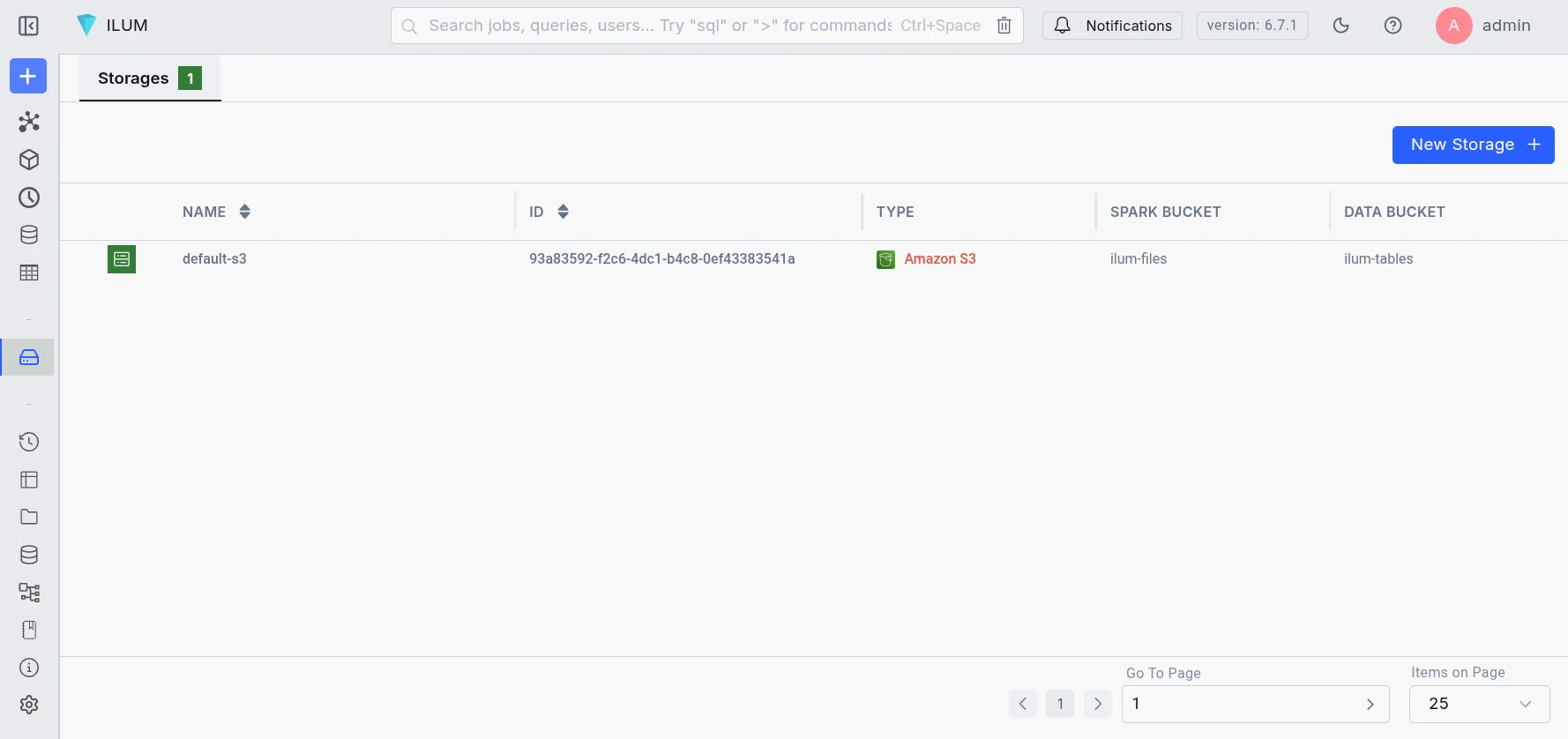 Inside Ilum, head to the Storages page and click New Storage
Next, fill in the form with values from the RGW connection details.
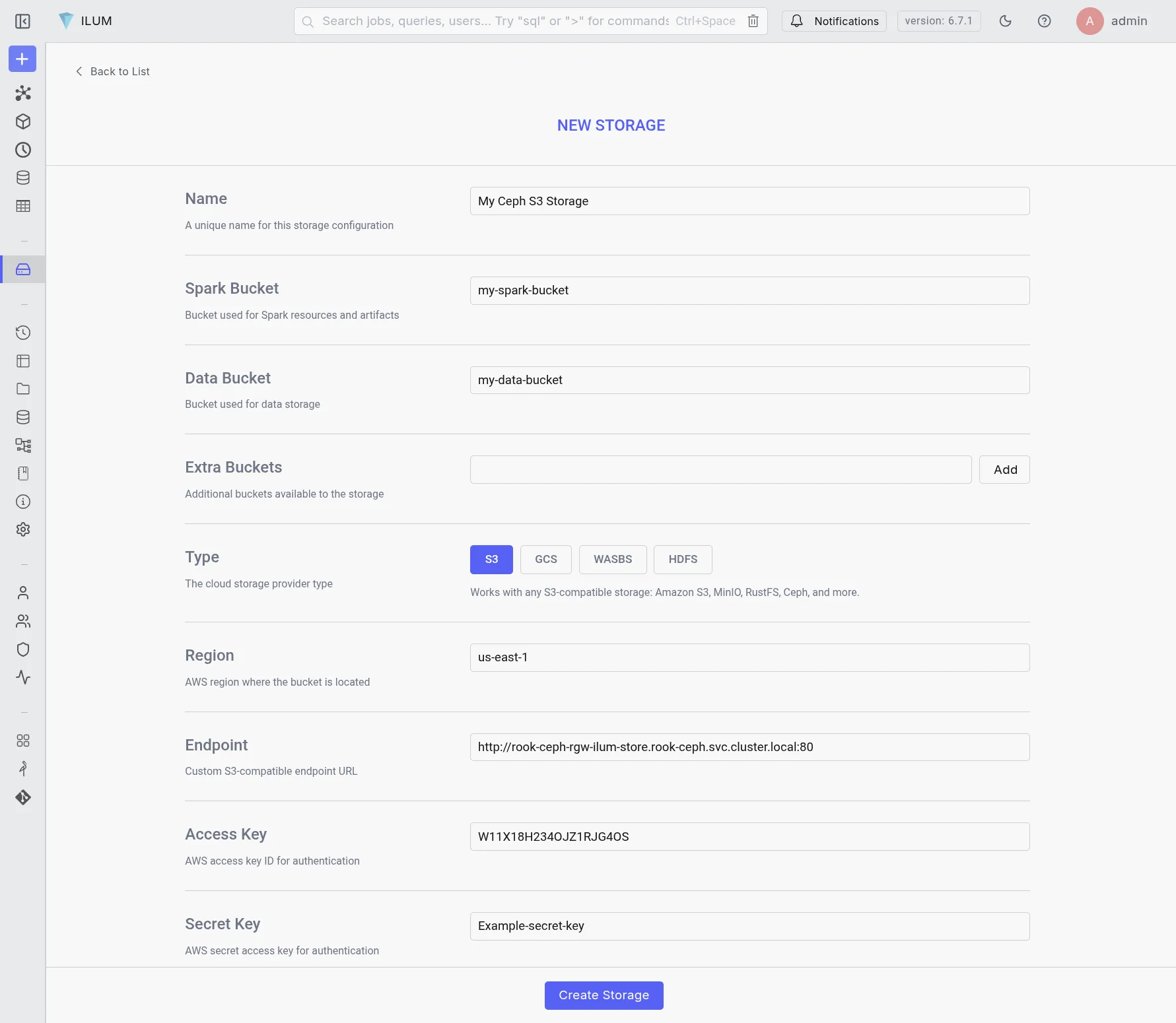 Here, supply Ceph endpoint, access key, and secret key
You will need to create the buckets in the Ceph cluster manually.
With the new storage configured, you can now use it in your Spark workloads.