
CSV to Delta Table Without Writing a Line of Code

May 6, 2026 10 min read
CSV to Delta Table Without Writing a Line of Code
Picture this: you have four years of daily weather readings, web traffic logs, e-commerce orders, or IoT sensor dumps sitting in a CSV. You want to run a GROUP BY, plot a monthly rollup, or join it to a second file. You've outgrown spreadsheets: Excel grinds to a halt past a few hundred thousand rows, Google Sheets gives up sooner, and BI tools choke on quoted multi-line strings.
You know SQL. What you don't have is a way to get the CSV into a database without calling a data engineer, writing DDL by hand, or signing up for a cloud data warehouse with a manager-approval credit card. The options are a two-day wait for a Jira ticket, or a SaaS bill that starts the moment you upload the first file.
Ilum changes that equation. Drop the file in the browser, click one button, and get a queryable Delta table in under two minutes, on a Kubernetes cluster you control, with no SQL written by hand.
Why "just open it in Excel" stops working at scale
Excel's row limit is 1,048,576. Cross it once and the file simply doesn't open. But the real problems start before you hit the ceiling:
- No SQL joins across multiple files: every cross-file analysis requires manual copy-paste or a VLOOKUP that grinds the workbook to a crawl.
- No version history for data: overwrite the file and the previous state is gone.
- No concurrent access: two people editing the same exported CSV at the same time means someone's work disappears.
Once your CSV becomes large enough to qualify as a legitimate excel alternative for large csv, the spreadsheet ceases to be a solution and becomes the problem itself. The right answer is a queryable table in a SQL engine, with Delta Lake handling versioning, Spark handling the scan, and a browser UI handling everything else.
The Ilum path — what actually happens under the hood
Here is the full data flow, end to end:
CSV in MinIO → File Explorer → DataEngineering modal (schema inference) → generated Spark SQL → Kyuubi executes on Spark → Delta table in Hive Metastore → queryable in SQL editor + Superset
Ilum bundles MinIO as an S3-compatible object store, so "drop the file in the browser" means the MinIO File Explorer, with no AWS account or IAM role needed. The file stays inside your cluster from the moment you upload it.
The DataEngineering modal runs a client-side schema sampler on a preview of the file, proposes column names and Spark types, then emits a CREATE TABLE … USING DELTA statement that runs against the Kyuubi SQL engine. Spark writes the data as columnar Delta files (Parquet under the hood), which means a 500k-row export loads in seconds and subsequent queries run from the file's native columnar format without re-reading the original CSV.
Prerequisites: what you need before starting
Option A: already have Ilum running
If you already have a running cluster, open the Ilum UI at http://<your-node-ip>:31777 (NodePort), or run ilum access open to let the CLI set up a port-forward and launch the browser at http://localhost:9777. See the Spark on Kubernetes guide for a full cluster install walkthrough.
Option B: spin it up with the CLI (5 min)
The fastest path is the Ilum CLI, a single binary that installs the platform, manages the Helm release, and opens the UI for you. MinIO is included by default, so no extra flags are needed for this tutorial.
Install the CLI with the one-line installer (Linux/macOS):
curl -fsSL https://get.ilum.cloud/cli | bash
If you prefer a package manager, pipx install ilum (recommended), uv tool install ilum, or pip install ilum all work. Confirm it landed:
ilum --version
Now run the quickstart. One command runs a preflight check for helm, kubectl, and docker, detects a running cluster or spins up a local minikube if none is found, then installs Ilum with sensible defaults:
ilum quickstart
The CLI streams its four steps as it goes: prerequisites, cluster detection, Helm install, and a readiness wait. When it finishes, open the UI directly from the CLI, which sets up the port-forward and launches your browser:
ilum access open
That lands you on http://localhost:9777. Want to confirm everything came up first? Run ilum status for pod readiness and the list of enabled modules, or ilum doctor for a full health check.
Option C: install with Helm directly (5 min)
Prefer to drive Helm yourself, or already have it wired into a GitOps pipeline? Skip the CLI and install the chart straight from the Ilum Helm repository. MinIO is bundled in the chart, so no extra flags are needed for this tutorial:
helm repo add ilum https://charts.ilum.cloud
helm repo update
helm install ilum ilum/ilum
kubectl get pods -w
Wait until all pods report Running, then port-forward the UI and open it in your browser:
kubectl port-forward svc/ilum-ui 9777:9777
Open http://localhost:9777 and log in. This is the same chart the CLI installs under the hood, so the resulting cluster is identical to Option B.
Step 1: Upload the CSV to MinIO via the File Explorer
Navigate to File Explorer
Open http://localhost:9777, click Data in the left sidebar, then select File Explorer. You'll see a list of MinIO buckets already created by Ilum. We use ilum-data in this tutorial, but any bucket works.
Upload the file
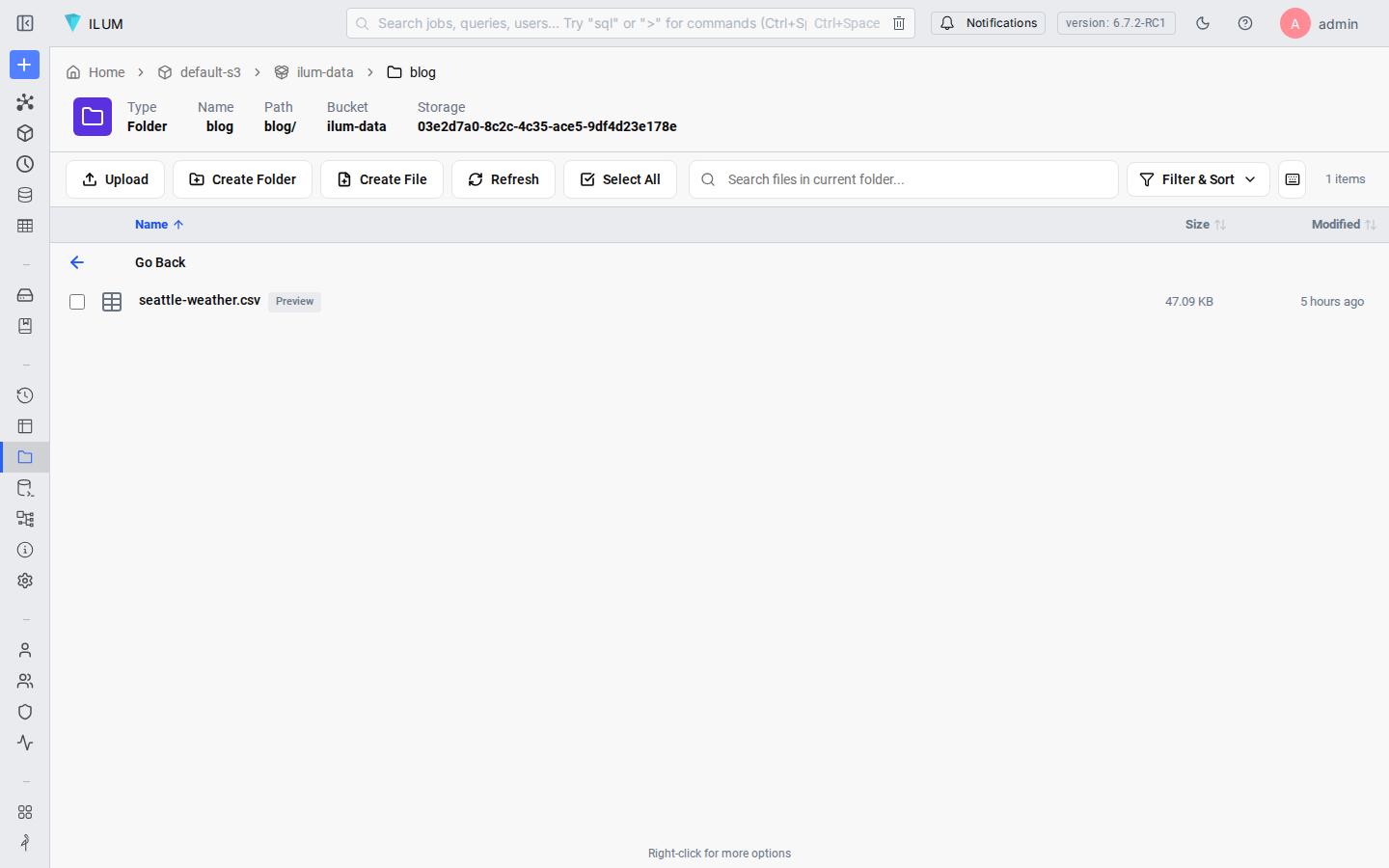
Click the bucket name to open it, then drag-and-drop your CSV onto the file list, or use the Upload button in the top-right corner. For this tutorial, we use seattle-weather.csv from the vega/vega-datasets repository: 1,461 rows of daily Seattle weather observations (2012–2015) across six columns.
Once the upload completes, the file appears in the file list with its size and last-modified timestamp. The breadcrumb shows ilum-data / blog / seattle-weather.csv.
Step 2: Open the DataEngineering modal
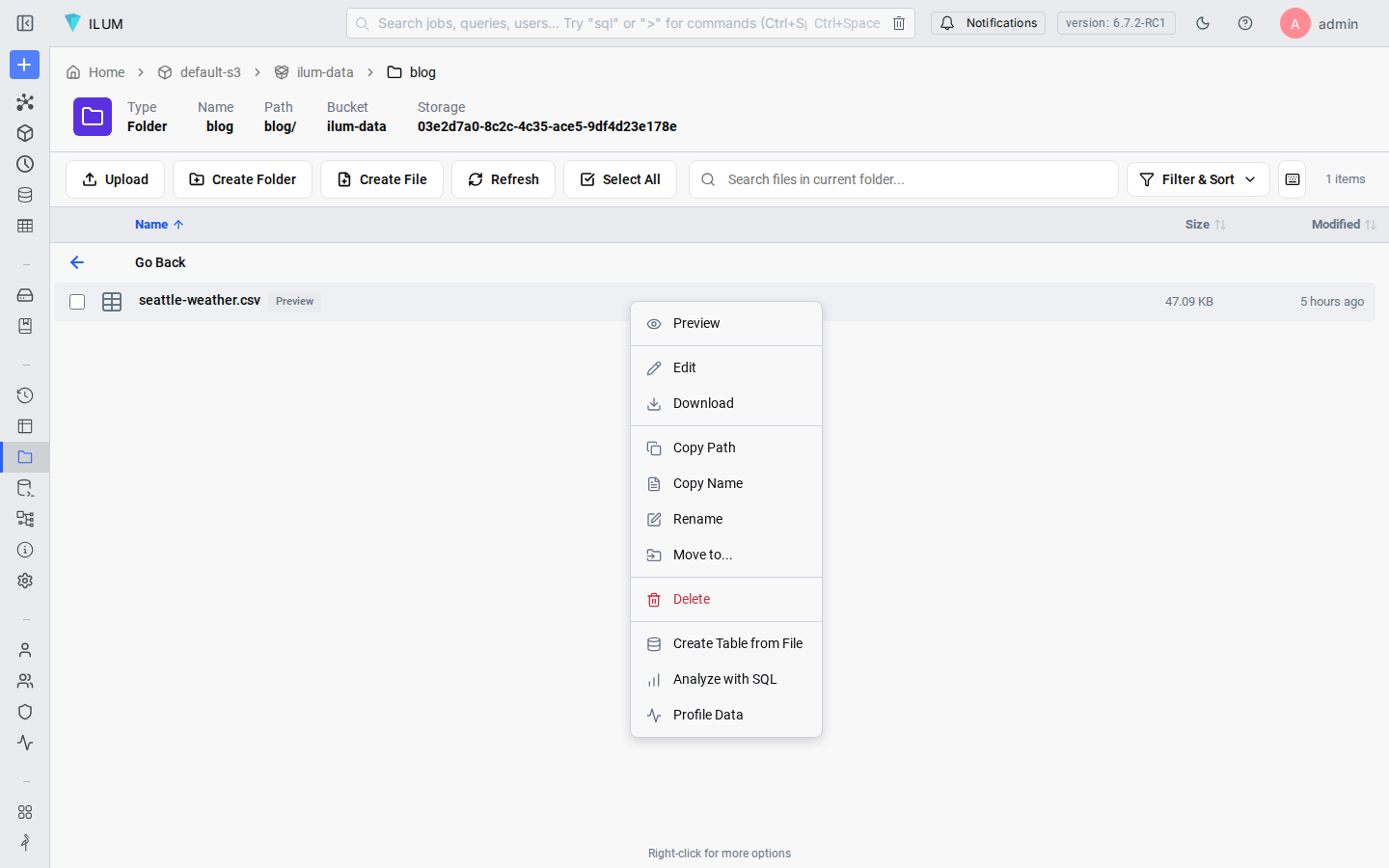
Right-click the CSV file in the File Explorer. A context menu appears with several options. Select Create Table from File.
The DataEngineering modal opens and immediately reads a preview of the file. The Overview tab shows the detected format (CSV), the file name, and an estimated row count based on the sampled lines.
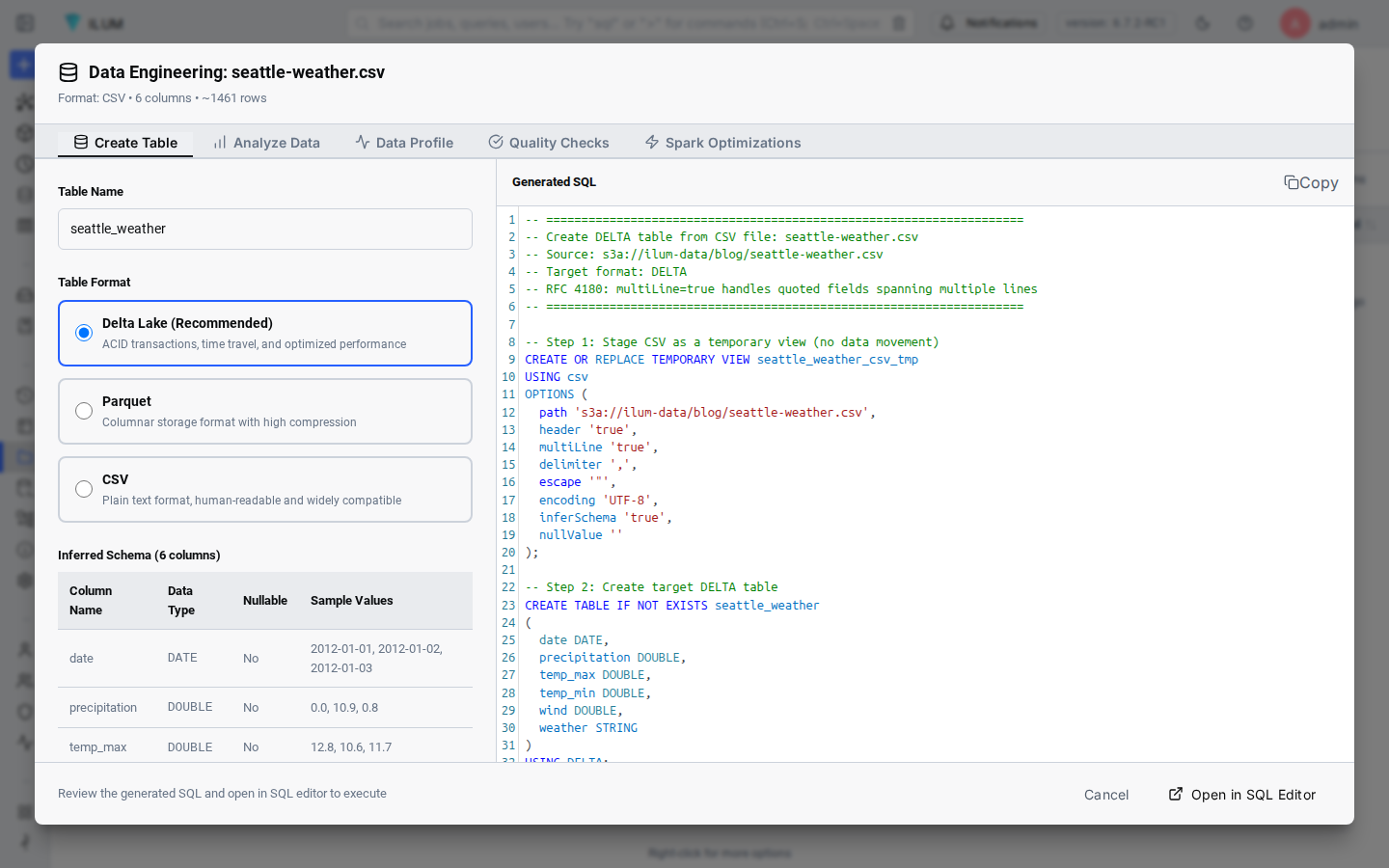
Ilum reads the first rows of the file in the browser to infer the schema. Nothing leaves your cluster until you click Run.
Step 3: Review the inferred schema
Switch to the Schema tab in the left pane of the modal. You'll see each column from the CSV header listed with its inferred Spark type.
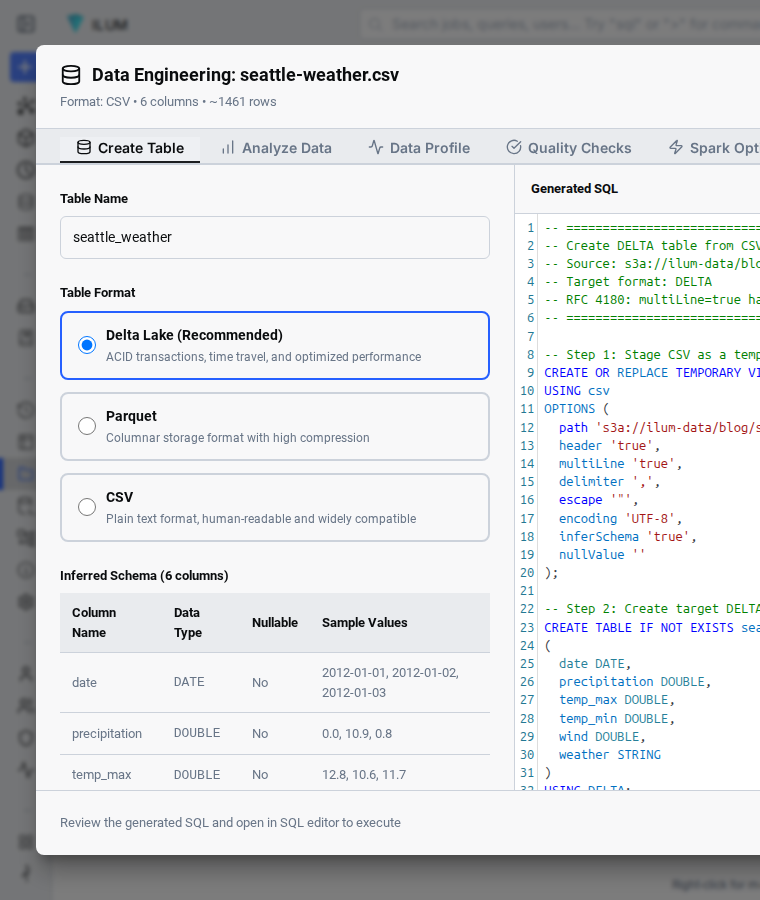
For seattle-weather.csv, the schema sampler correctly inferred:
| Column | Inferred Spark type | Sample values |
|---|---|---|
date |
DATE |
2012-01-01, 2012-01-02 |
precipitation |
DOUBLE |
0.0, 10.9 |
temp_max |
DOUBLE |
12.8, 10.6 |
temp_min |
DOUBLE |
5.0, 2.8 |
wind |
DOUBLE |
4.7, 4.5 |
weather |
STRING |
drizzle, rain, sun, snow, fog |
The column names come straight from the CSV header row. The Spark types are inferred from a sample of the file. Ilum walks down the column, picks the narrowest type that matches every observed value, and falls back to STRING for ambiguous cases. You can override any inferred type before the table is written by editing the generated SQL in the next step.
Step 4: Review the generated SQL (and edit if needed)
The right pane of the modal shows the full Spark SQL that Ilum will execute. You don't need to write a single line, but you can edit everything before running.
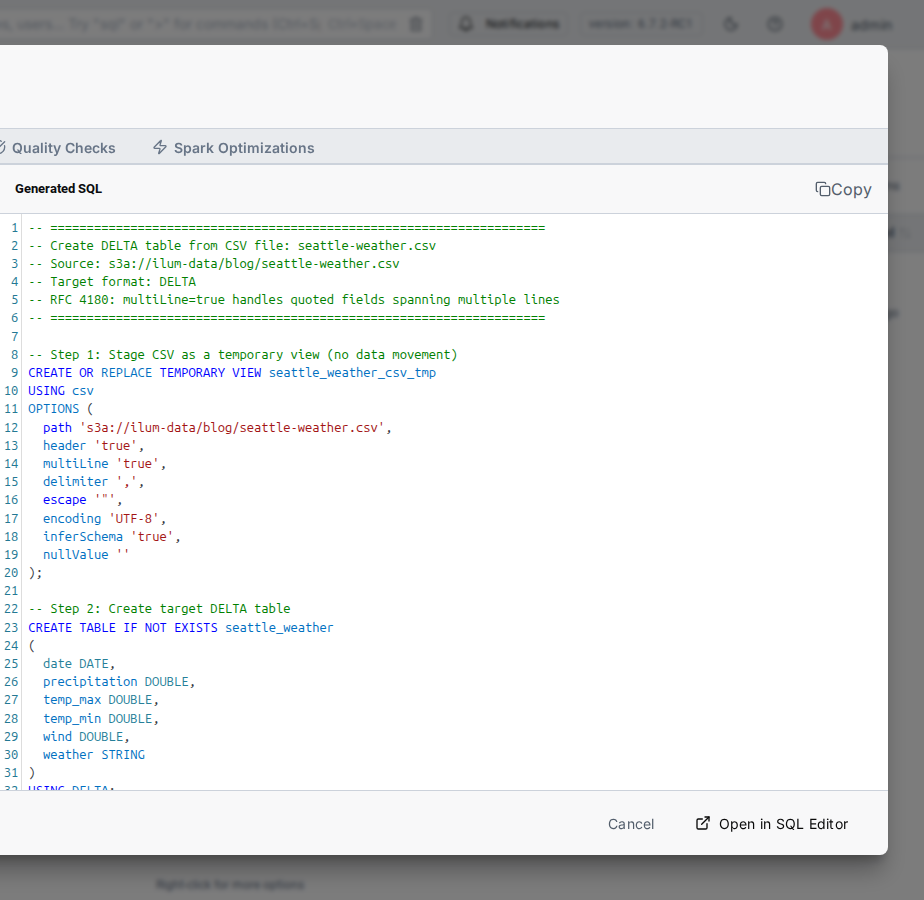
The auto-generated draft is a starting point, and you almost always want to refine it before running. Click Open in SQL Editor to drop the SQL into the full workbench, then replace it with the canonical Spark idiom for CSV-to-Delta ingestion:
-- Create Delta table from seattle-weather.csv
DROP TABLE IF EXISTS seattle_weather;

CREATE OR REPLACE TEMPORARY VIEW seattle_stage
USING csv
OPTIONS (
  path 's3a://ilum-data/blog/seattle-weather.csv',
  header 'true',
  inferSchema 'true'
);

CREATE TABLE seattle_weather USING delta AS
SELECT * FROM seattle_stage;

DROP VIEW IF EXISTS seattle_stage;

SELECT * FROM seattle_weather ORDER BY date LIMIT 10;
You can edit this directly in the modal: change the table name, drop columns you don't need, or click Open in SQL Editor to copy the SQL into the full editor and run it from there with syntax highlighting and result inspection.
The pattern (temporary CSV view registered with OPTIONS, then CREATE TABLE … USING delta AS SELECT) is how Spark's CSV reader integrates with the Delta Lake write path. The view declares how to parse the CSV; the CTAS materializes the result as columnar Delta files in the warehouse and registers the table in the Hive Metastore.
Step 5: Run the SQL and verify the table
Paste or copy the generated SQL into the Ilum SQL editor (left sidebar → SQL). The database selector in the top bar should be set to default.
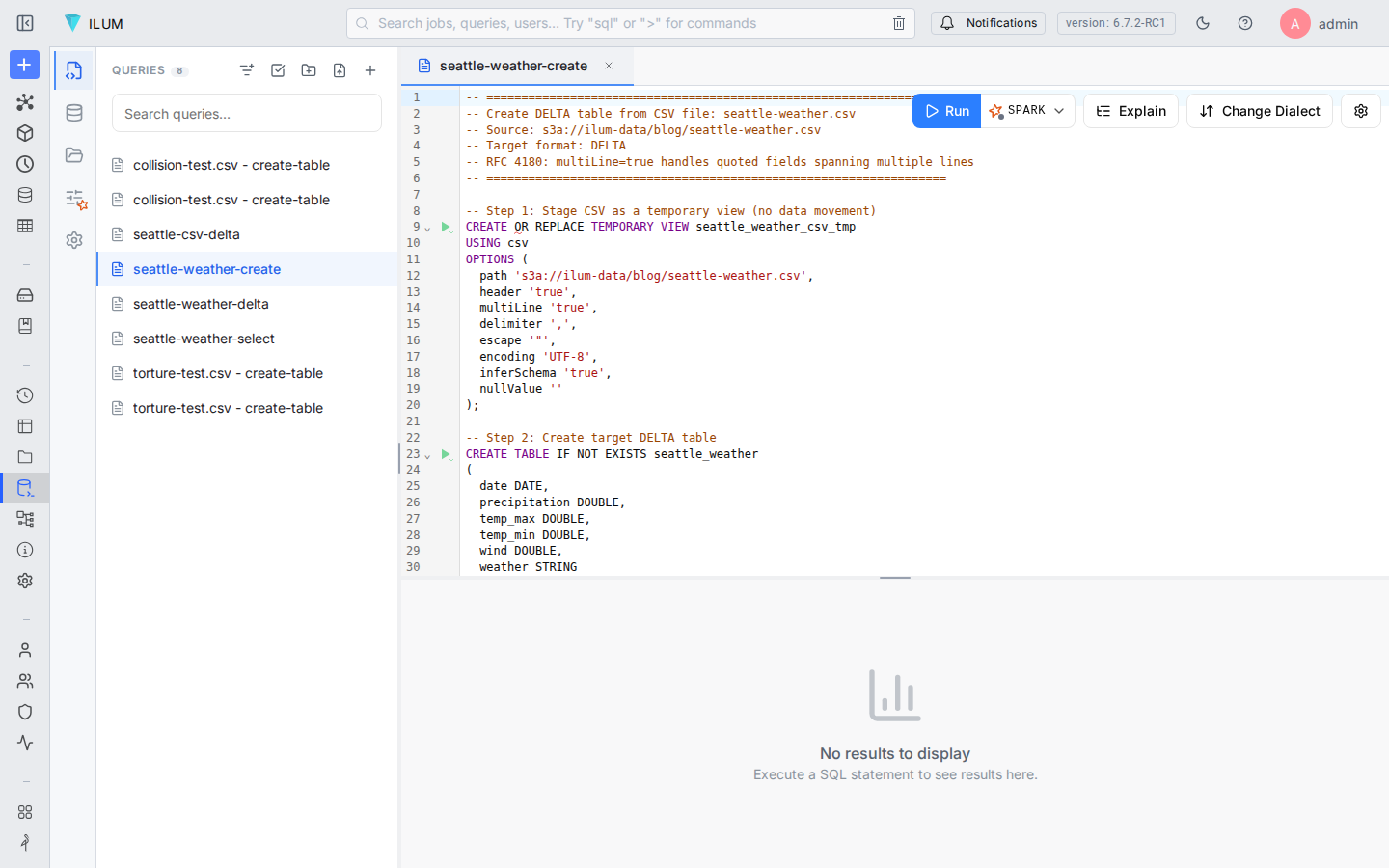
Click Run. The Kyuubi SQL engine dispatches the statements to Spark. The temporary view registers in milliseconds; the CREATE TABLE … AS SELECT reads the CSV from MinIO via the s3a:// connector and writes Delta (Parquet) files back under s3a://ilum-data/seattle_weather/.
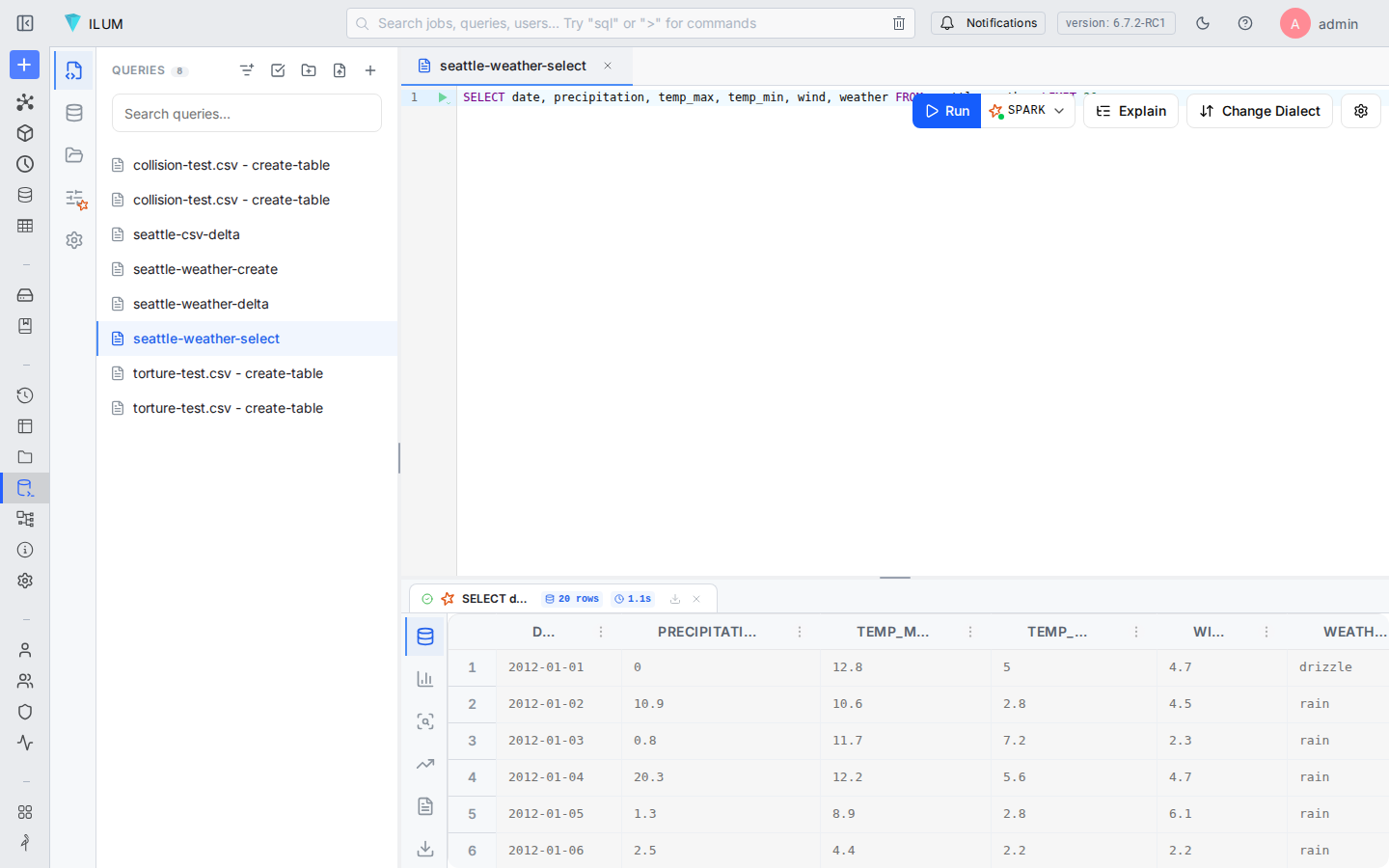
The trailing SELECT * FROM seattle_weather ORDER BY date LIMIT 10 returns the first ten daily observations (2012-01-01 drizzle, 2012-01-02 rain, and so on), confirming the dates parsed as DATE rather than strings, the precipitation and temperature columns came back as numeric, and the weather column carries its categorical labels. The whole operation took about a second on a single-node k3d cluster after the Spark engine warmed up.
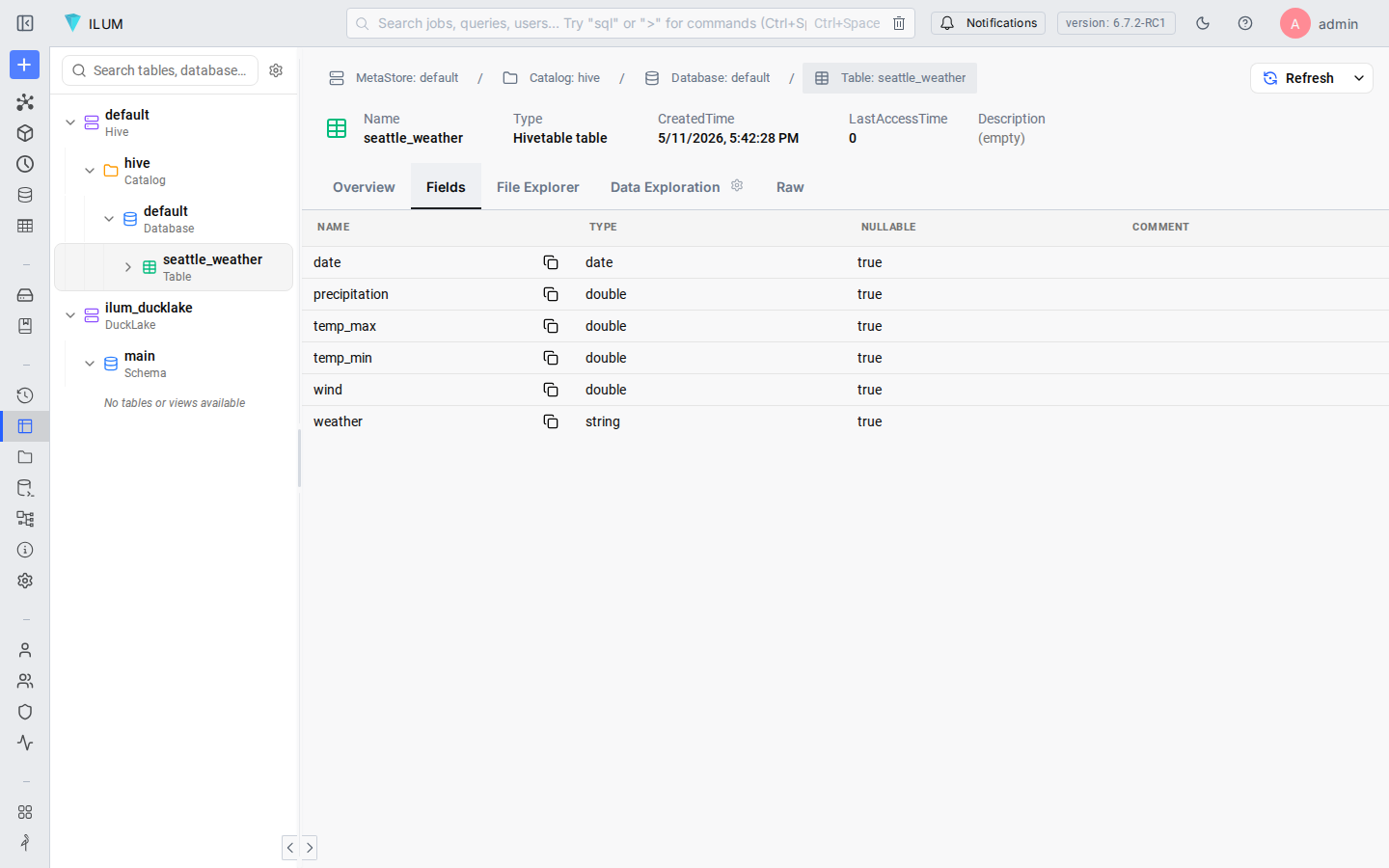
Switch to the Table Explorer (sidebar) to inspect the table schema. Expand the default database under the hive catalog and click seattle_weather. You'll see the six columns with their types and nullable flags exactly as inferred.
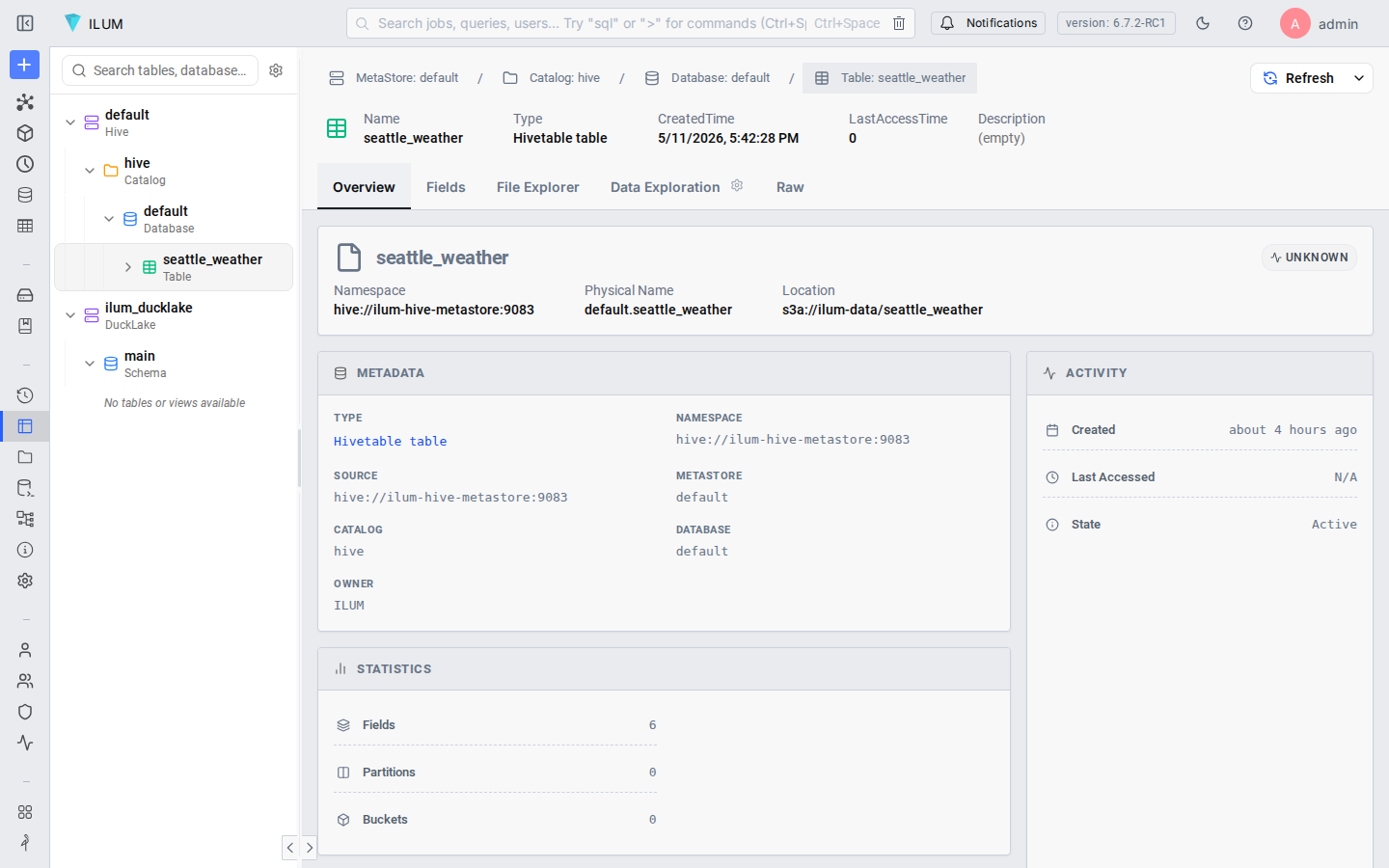
The sample data preview confirms that dates parsed correctly (2012-01-01, not "2012-01-01"), the temperature columns show as floating-point numbers, and the categorical weather column displays its five distinct values.
Step 6: Query and visualize the table in Superset
The seattle_weather table is immediately available in Superset because Ilum's Kyuubi SQL engine exposes the Hive Metastore to Superset via JDBC. No additional connection setup is needed, since it was configured when you installed Ilum.
Open Superset (sidebar → Superset, or http://localhost:8089), navigate to Data → Datasets → + Dataset, and you'll see seattle_weather listed under the Kyuubi connection. Add the dataset, open Charts → + Chart, choose a bar chart, and run the following query in the chart builder:
SELECT weather, COUNT(*) AS days
FROM seattle_weather
GROUP BY weather
ORDER BY days DESC
Or explore the temperature trend over time:
SELECT
  date_trunc('month', date) AS month,
  ROUND(AVG((temp_max + temp_min) / 2), 1) AS avg_temp_c
FROM seattle_weather
GROUP BY 1
ORDER BY 1
Four years of Seattle weather observations, queryable in a bar chart, and you haven't written a single CREATE TABLE statement or configured a single connection string.
What about larger files or scheduled imports?
This section covers three natural next questions once your first table is created.
Larger files. The same browser flow works for multi-GB CSVs, since Spark distributes the read across cluster workers. For files over roughly 5 GB, consider switching the output format to Parquet in the modal's format selector to reduce write overhead on first load. The generated SQL changes from USING DELTA to USING PARQUET automatically.
Scheduled imports. If your CSV arrives daily from an SFTP server or an API, an Airflow DAG can land it in MinIO and trigger the CREATE TABLE step automatically. The SQL generated in this tutorial is exactly what the DAG would execute. Read automate ingestion with Airflow to see how Ilum, Airflow, and dbt work together in a production pipeline.
Other formats. Ilum supports JSON, Parquet, XML, and Avro in the same DataEngineering modal flow. The generated SQL adapts to each format: JSON uses a two-step staging approach for nested documents, XML requires a rowTag option, and Parquet/Avro skip schema inference entirely since the type information is embedded in the file. For a broader look at the Delta Lake format and when to choose Delta versus Parquet versus Iceberg, see the data lakehouse overview.
For the RFC 4180 curious: the standard defines CSV as comma-separated with CRLF line endings and double-quote escaping. Spark's CSV reader follows the spec when given a header 'true' and inferSchema 'true' OPTIONS block (exactly what Ilum's modal generates above), so well-formed exports parse on the first try. For exports that drift from the spec (embedded commas without quoting, mixed encodings, ragged rows), drop into the SQL editor and add the OPTIONS Spark needs (multiLine, escape, encoding, quote) before re-running.
Try It in Five Minutes
Two commands take you from nothing to a running lakehouse. The first installs the Ilum CLI; the second installs the platform on a local cluster (creating a minikube for you if none is running) and waits until it is ready:
curl -fsSL https://get.ilum.cloud/cli | bash
ilum quickstart
Then open the UI straight from the CLI, which handles the port-forward and your browser:
ilum access open
From there, follow Step 1 above: Data → File Explorer, drop in a CSV, right-click, Create Table from File.
Ilum is free and open-source. MinIO, the SQL engine, and Superset are all bundled, so there are no separate installs. Visit https://ilum.cloud to read the docs or book a demo if you want a guided walkthrough on your own cluster.
FAQ
Can I edit the inferred schema or generated SQL before creating the table?
Yes. The DataEngineering modal shows the proposed column types in the left pane and the full Spark SQL in the right pane. Both are editable before you click Run: adjust a column type, rename the table, change the format from Delta to Parquet, or click Open in SQL Editor to drop the SQL into the full SQL workbench and modify it there.
Do I need to write any SQL or code to create a Delta table from a CSV?
No. Ilum infers the schema from the first rows of the file and generates the CREATE TABLE … USING DELTA statement for you. You can review and edit the SQL in the modal before running it, but writing SQL from scratch is optional.
What is the maximum CSV file size Ilum can handle?
There is no hard limit in Ilum itself. The practical limit is your cluster's available memory and storage. For files up to a few hundred MB, the schema inference runs in the browser. For multi-GB files, Spark distributes the read across cluster workers. Users have reported successful imports of files in the 10–50 GB range on modest minikube clusters.
Can I query the resulting Delta table from tools other than Ilum's SQL editor?
Yes. The table is registered in the Hive Metastore that Ilum manages. Any tool that connects to the bundled Kyuubi SQL engine via JDBC/ODBC, including Superset, DBeaver, Tableau, and Power BI, can query it immediately after creation.
Is this different from Databricks' "Create table from file" feature?
The outcome is similar: both detect schema and create a table. The key differences are: (a) Ilum runs on your own Kubernetes cluster, so your data never leaves your infrastructure; (b) Ilum generates and shows you the full Spark SQL it will execute, so you can audit and edit it; (c) the bundle is fully open-source, with no subscription, no per-DBU pricing, and no proprietary runtime.